There is a problem when editing images in Header Template part in theme templates in the site editor. We are aware of the issue and hope to fix it soon. There is a simple workaround.
If you have set an image in the header template. It will appear as expected when visitors view the site.
But if you edit the template again, typically via the Edit Site button on the Admin toolbar, you will see the image is missing in the editor.
Screenshot of the Site Editor showing a missing image icon
By selecting the Cover Block in the editor you can replace the image; the correct one will be already chosen in the media library. This will fix the issue in the editor until you edit again; the image will again show as missing.
Workaround
Ignore the issue in the editor. If you need to work on the image you can replace it while you do, but you can leave it as missing and it will not affect the public view of your site.
There can be a problem with changing privacy levels on a site with a lot of media (photos, video, audio etc.).
We are planning a change to Glow Blogs to prevent this. In the meantime we have some advice around changing site privacy.
The problem only affects sites with a lot of media.
When you make a privacy change all of the media files are moved. When there is a lot of media this can take some time. If you delete media from the Media Library while this change is taking place the process can become stuck and will need intervention from our developers.
You can avoid this problem by waiting until the media is all moved. You can view progress in the Dashboard setting page where you change privacy. A banner appears explaining that you cannot change privacy until the media has been moved.
Media is currently being moved to/from the public area, so Blog Visibility cannot be changed at the moment.
Revisit the page later or refresh your browser periodically, and wait until the notice disappears before you edit media.
If you are planning to remove media and change the privacy of the site, delete the media first. This will avoid problems and speed up the media move.
It also helps to change the privacy setting as infrequently as possible.
If you are changing privacy to hide a post or page while you do some editing there are simpler and less risky ways to do this:
Set the status for the page or post to Draft. You can work on the page or post and preview it while it is a draft.
Set the status to Pending Review.
Password protect the page.
You can change the status of multiple posts or pages in the Dashboard (Post on the Posts screen, Pages on the Pages screen). Just select them and use the Bulk actions dropdown choose Edit and click Apply.
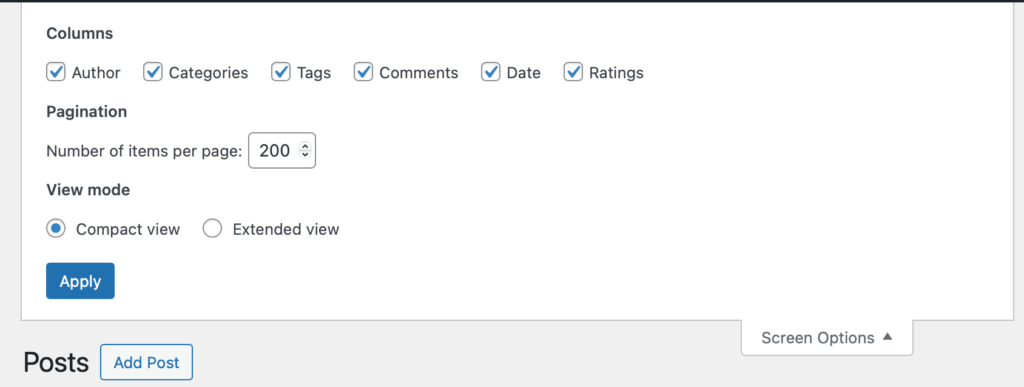
Tip: When working with multiple posts and pages you can change the number of items on the screen in the screen options at the top of the page.
Expand that section and change Number of items per page: to 200 (The maximum)
And press Apply. You can now edit 200 posts or pages at once.
Even after applying the fix about there may be a problem with any YouTube Videos in the Safari browser. There is currently not a fix for this. But there is a workaround.
Create and embed your content or edit the content. Make sure all the Display Options are ticked.
View a page with the content on it.
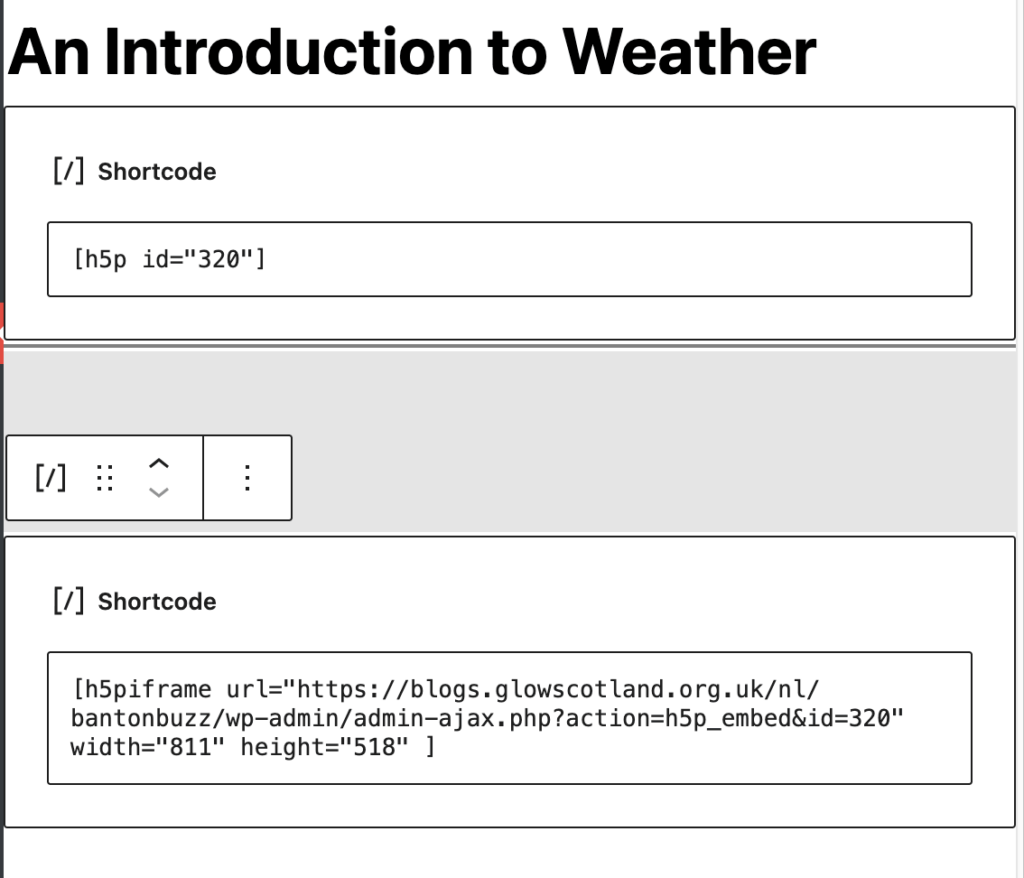
Click Embed and copy the code. This embed code will work when added to a post. You can replace the original code.
This will fix problems with any YouTube videos in Safari. It may be worth doing if you are providing H5P video content to learners using macs or iPads.
This screenshot show the original embed code and the one copied from the content. Do not use both in the same post.
If you are seeing this problem and have trouble fixing it, please get in touch, fill in the form.