Tag Archives: workaround

Header Images in Editor Issue⤴

from @ Glow Blog Help

There is a problem when editing images in Header Template part in theme templates in the site editor. We are aware of the issue and hope to fix it soon. There is a simple workaround.

If you have set an image in the header template. It will appear as expected when visitors view the site.

But if you edit the template again, typically via the Edit Site button on the Admin toolbar, you will see the image is missing in the editor.

By selecting the Cover Block in the editor you can replace the image; the correct one will be already chosen in the media library. This will fix the issue in the editor until you edit again; the image will again show as missing.

Workaround

Ignore the issue in the editor. If you need to work on the image you can replace it while you do, but you can leave it as missing and it will not affect the public view of your site.

Fixed: PDF problem⤴

from @ news – Glow Blog Help

This issue has been fixed with a release on Monday 13 October. PDFs now upload as expected.

An issue with pdf uploaded to Glow Blogs has recently developed. Our developers are looking at the issue to create a fix.

The issue is that pdfs uploaded to Glow Blogs are ‘truncated’ to one page.

We hope this is fixed soon. There are a few workarounds you can use in the meantime.

Workaround 1 Media Settings

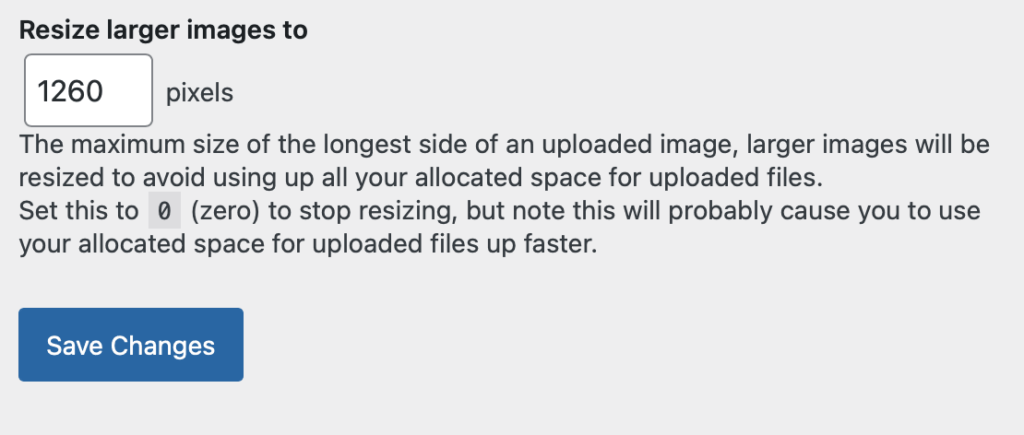
In your dashboard Settings -> Media 

set the Resize larger images to setting to 0 and save.

This has the disadvantage that it will allow you to upload very large images to you blog without resizing. This will take up space on your blog very quickly. We recommend that you change the setting, then reset it to 1260 after uploading PDFs.

Pdf uploaded after changing settings using the file block.


It also works with the dFlip plugin:

 Workaround 2 Google docs

If you have access to google docs you can upload a pdf there and share it;

Set General access to ‘Anyone with the link’ and copy the link.

Paste that link into the editor. It will embed the pdf in the post:

You can also just use the url in a link.

 Workaround 3 Onedrive

You can also host pdfs on Onedrive, these files do not embed, so you can only link to them. 

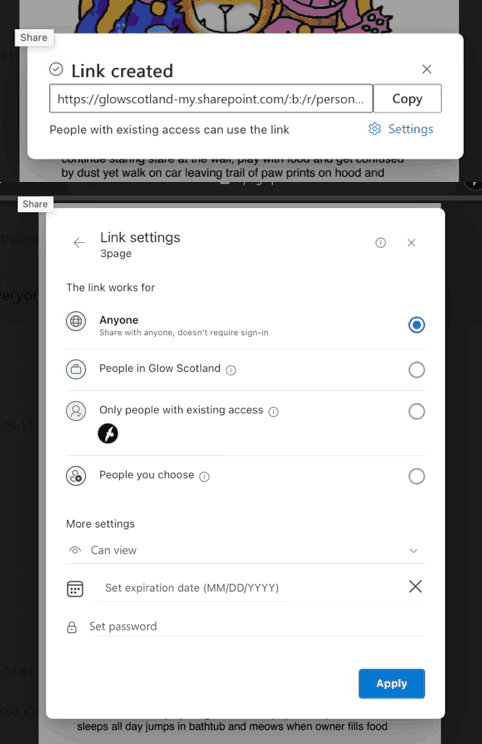
Open the PDF in Onedrive, Click the Share icon in the toolbar. Then the setting icon and set the share to with Anyone. Them Apply.

You can use the link in a post or page.

Neither of these external approaches will work with pdfs for use with the dFlip plugin.

The File block will not accept urls. You need to use a link or a button.