Tag Archives: WordPress

Cloning WordPress sites for development⤴

from @ Sharing and learning

I do just enough theme and plugin development on WordPress to need an alternative to using a live WordPress site for development and testing, but at the same time I want to be testing on site as similar to the live site as possible. So I set up clones of WordPress sites either on my local machine or a server for development and testing. (Normally I have clones on the localhost server of couple of machines I use for development and another clone on a web accessible testing or staging server for other people to look at.) I don’t do this very often, but each time I do it I spend as much time trying to remember what it is I need to do as it actually takes to do it. So here, as much as an aide-memoire for myself as anything, else I’ve gathered it all in one place. What I do is largely based on the Moving WordPress information in the codex, but there are a couple of things that doesn’t cover and a couple of things I find it easier to do differently.

Assuming that the pre-requisites for WordPress are in place (i.e. MySQL, webserver, PHP), there are three stages to creating a clone. A. copy the WordPress files to the development site; B. clone the database; C. fix the links between WordPress and the database for the new site. A and B are basically creating backup copies of your site, but you will want to make sure that whatever routine backups you use are up to date and ready to restore in case something goes wrong. Also, this assumes that you are notwant to clone just one site on a WordPress Multisite installation.

Copying the WordPress files

Simply copy all the files from the folder you have WordPress installed in, and all the sub-folders to where you want the new site to be. This will mean that all the themes, plugins and uploaded media will be the same on both sites. Depending on whether the development site is on the same server as the main site I do this either with file manager or by making a compressed archive and ftp. Make sure the web server can read the files on the dev site (and write to the relevant folders if that is how you upload media, plugins and themes).

Cloning the database

First I create a new, blank database on for the new site, either from the command line or using something like MySQL Database Wizard which my hosting provider has on CPanel. I create a new user with full access to that data base–the username and password for this user will be needed to configure WordPress with access to this database. If you have complete control of over the database name and user name then use the same name username and password as is in the wp-config.php file of the site you are cloning. Otherwise you can change these later.

Second, I use PHP MyAdmin to export the data base from the original site and import it to the one on which you are making a clone.

phpMyAdmin Export screen

Fix all the bits that break

All that remains is to reconnect the PHP files to the database and fix a few other things that break. This is where it get fiddly. Also, from now on be really careful about which site you are working on: they look the same and you really don’t want to set up your public site as a development server. Make all these changes on the new development site.

In wp-config.html (it’s in the top of the WordPress folder hierarchy) find the following lines and change the values to be those for your new development server and database.

define( 'WP_CONTENT_URL', 'http://example.org/blog' );
define( 'WP_CONTENT_DIR', 'path/to/wp-content' );

define('DB_NAME', 'databaseName');

/** MySQL database username */
define('DB_USER', 'databaseUserName');

/** MySQL database password */
define('DB_PASSWORD', 'password');

You might also need to change the value for DB_HOST

Then you need to change the options that WordPress stores in the database. Normally you do this through the WordPress admin interface, but this is not yet available on your new site. There are various ways you can do this, I change the url directly in the data base with PHPMyAdmin, either by direct editing as described in the codex page or from the command line as described here.

mysql -u root -p

USE databaseName
SELECT * FROM wp_options WHERE option_name = 'home';
UPDATE wp_options SET option_value="http://example.org/blog" WHERE option_name = "home";
SELECT * FROM wp_options WHERE option_name = 'siteurl';
UPDATE wp_options SET option_value="http://example.org/blog" WHERE option_name = "siteurl";

You should now have access to the new cloned site, though some things will still be misbehaving.

You will probably have the old site’s URL in various posts and GUIDs. I use the better search replace plugin to fix these.

iesiesIf you do any fancy redirects with .htaccess, make sure that these are written in such a way that works for the new URL.

If you are using Jetpack you will need to use it in safe mode if the development server is connected to the web or development mode if running on localhost. (This is a bit of a pain if you want to test Jetpack settings.)

On a development site you’ll probably want to add this to wp-config.php:

define('WP_DEBUG', true);

If you are running a development or testing server on a web accessible site you probably want to restrict who has access to it. I use the My private site plugin so that only site admins have access.

Keeping in sync

While it’s not entirely necessary that a development or testing site be kept completely in sync with the main one, it is worth keeping them close so that you don’t get unexpected issues on the main site. You can manually update the plugins and themes, and use the wordpress export / import plugins to transfer new content from the live site to the clone. Every now and again you might want to re-clone the site afresh. Something I find useful for development and testing of new plugins and themes is to have the plugin or theme directory that I am developing in set up as a git repository linked to github and keep files in sync with git push and git pull.

Anything else?

I think that is it. If I have forgotten anything or if you have tips on making any of this easier please leave a comment.

The post Cloning WordPress sites for development appeared first on Sharing and learning.

Multi Blog Search⤴

from @ John's World Wide Wall Display

Veering off into territories where I am out of my depth a bit of fun in the last days of the holiday.

I’ve been playing with the new WordPress REST API using ideas from API Nirvana – Functional Details, then I remembered CogDog’s WordPress search javascript bookmarklet.

Multi WP Blog search allows you to search across a few blogs.

I doubt if this is actually a practical way to do things but it hints of ways of joining different blogs, small parts loosely joined?

    Echo into Eternity⤴

    from @ John's World Wide Wall Display

    echo

    It’s also example of doing something that only I would want to do and yet having that thing echo into eternity without any additional effort.

    from: API Nirvana – The Content – Bionic Teaching

    Tom Woodward writing about his love of APIs, one of a series of posts. I love the idea of playing with things that do something that only I would want to do.

    If you have a slightly geeky interest in technology & edu tech Bionic Teaching is a great blog to read.

    I’ve a long term casual interest in playing with APIs, and love trying out some of the stuff Tom blogs about. In a timely fashion wordPress 4.7 came out today, including:

    WordPress 4.7 comes with REST API endpoints for posts, comments, terms, users, meta, and settings.

    from: WordPress 4.7 “Vaughan”.

    This is the same API that Tom blogged about (I guess he was using a plugin). The opening up of WordPress sites via an API that an amateur like myself can use it welcome. Over the past few years several sites with interesting APIs move to make them harder to access with out a deeper knowledge than I have (twitter, instagram…).

    I had a quick play with the WordPress api making a page that lists recent posts on 3 of my blogs, including this one. 1

    wp-json-render

    I guess this sort of thing is a minority interest, but I find it enjoyable and although I am never going to be a programmer, helpful in getting a better understanding of how technology can work.

    Featured image on this post, one of my own turned up in a search for echo. test1-echo.tif | Using Image Bending in Audacity – CogDogBlo… | John Johnston | Flickr


    1. I added the Better REST API Featured Images WordPress Plugin to et the images following a hint on Tom’s post. ↩

      iOS Workflows for WordPress 1⤴

      from @ John's World Wide Wall Display

      IMG_4322.jpeg

      Posting to WordPresss is pretty simple on the go. Recent versions of WordPress have a fairly good performance on Mobile Safari. the WordPress app performs a little better the body field is less ‘jumpy’ and uploading photos a little simpler.

      There are a few other blogging apps but I’ve not stuck with any.

      I tend to write posts in drafts as there is even less chrome and more space to type. It also has some clever shortcuts, helps with markdown and can do cleaver stuff with text and scripts.

      A while back I noticed that the new version of Workflow had actions for posting to WordPress. I made some quick tests sand it seemed to do the trick.

      Today I started thinking about it again. Workflow allows you to make posts, pages and media. When I tried uploading media I was disappointed that uploading an image returns the url to the attachment webpage rather than the attachment itself.

      I’ve tried to extract the url form the page but the best I have is to extract all of the urls on the page and present this as a list to choose from. This is copied to the clipboard.

      image upload

      So I have an workflow that is an action extension. This allow me to pick a photo then run the workflow. It is presented as a document picker in other apps, for example pixelmator. When this workflow runs it resizes the image and uploads it to my blog. It then grabs the attachment page and pulls a list of links out of that. I can pick a link to copy to the clipboard.

      Making a post

      The next workflow I have is one for making a post. This runs from drafts.
      It first set a variable to the draft. Then it shows the photo library. When a phot is picked it uploads the photo to the blog. As in the first script it downloads the attachment page, extracts the urls and let’s me pick one. This time the one picked is put in another variable.

      The workflow then get the first variable, and posts it to the blog as a draft. It asks for a title and used the url to the uploaded image as the posts featured image.

      It also asks for tags when it runs.

      The featured image for this post is a couple of screenshots taken on my phone. They were stitched together with workflow and the result edited a bit in snapseed.

      Tinkering with WordPress Features⤴

      from @ John's World Wide Wall Display

      Image by  anika ready to sew  public domain

      Since I changed themes here I’ve been using featured images a lot more on posts. 1

      There are a couple of things that bother me about WordPress featured images, the fact they do not show up in an RSS feed and that any attribution needs to go in the body of the post.

      This morning I read Transforming Photo Attribution from Credit to Stories on Alan’s blog, which mentioned these problems while discussion a much more important one.

      I though I’d see if it was easy enough to find a fix and headed to google.

      First I found a few plugins but also some DIY advice. I decided that these looks simple enough for me.

      Featured Images in RSS

      How to Show Featured Image in WordPress RSS Feed shows how to do just that. You need to edit the functions.php file in your blogs theme 2.

      All I needed to do was copy the code suggested from that site and add it to the bottom of my functions.php file which I already had in my child theme. The post shows how to edit this file via the WordPress dashboard. I do this with my ftp application.

      A quick look at my feed in Forefox (Safari dos not show RSS any more :-( )
      http://johnjohnston.info/blog/feed/ or http://feeds.feedburner.com/johnjohnston
      Looks good.

      Captions for featured images

      Again there are plugins for this, but I found:
      How to add caption to the featured images in WordPress which had done the trick.

      This uses the built in caption from the media library. To do this I needed to copy the content-single.php file from the theme to my child themes folder. I then edited that one.

      My theme’s code was slightly different to the example but it was easy enough to figure out where the code for the featured image/thumbnail was and add:

      <?php if ( $caption = get_post( get_post_thumbnail_id() )->post_excerpt ) : ?>
          <p class="featuredcaption"><?php echo $caption; ?></p>
      <?php endif; ?>

      After it. I also added a bit of css to the child themes styles.css file to align the text right. I’ll think about how to make that better looking….

      What I particularly like is that this approach uses the built in WordPress caption for the image. When I started thinking about it I was thinking about adding a custom field and complexity. I keep finding that WordPress is already half way to do what I want, if only I knew where to look. Until I do google will keep me right.

      1. I choose the theme because it supports indyweb features I wanted to test. I’ve still not got my head round many of them. ↩
      2.  This just works if you can edit your theme, so you would need a self hosted blog. I use a child theme here which should avoid changes being overwritten if the them is updated.Child Themes « WordPress Codex covers the details ↩

      Fighting Linkrot⤴

      from @ John's World Wide Wall Display

      I quite often read above my understanding age, which is why Hapgood is in my RSS feeds. The other day I read: Connected Copies where I read this:

      the future of the web involves moving away from the idea of centralized, authoritative locations and into something I call “connected copies”.

      This lead me to AMBER where it says:

      The Berkman Center for Internet & Society wants to keep linked content accessible.

      Whether links fail because of DDoS attacks, censorship, or just plain old link rot, reliably accessing linked content is a problem for Internet users everywhere.

      Having blogged for a while I am very aware of this problem, links I’ve made have fallen away. My bookmarks are full of holes.

      Just the other day I linked to a couple of posts here that were made this month. They have already gone.1

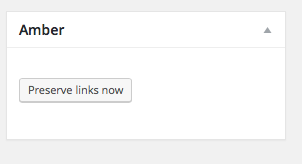
      Preserve Links Now. The plugin added this to my post editor.

      Preserve Links Now. The plugin added this to my post editor.

      I’ve installed the Amber WordPress Plugin here and set it to use the Internet Archive to ‘save links’ when I make them. I could have chosen to save them here, but I wonder if that could get messy?

      The other thing that crosses my mind is what if people want to rub out something they have published. When a post is taken down deliberately, should I be archiving it?  The posts I mentioned above were deleted by the author (I presume). Should I then make public copies available?  That is what would have happened if I’d had the amber plugin working at the time.

      I don’t know the answer to these questions or how the plugin works, but I’ll keep it running here for a while and look out for broken links.

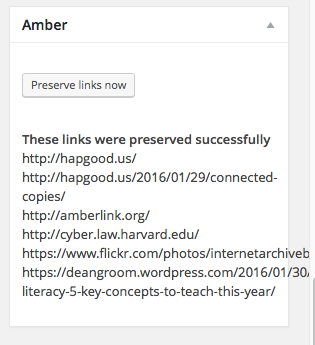
      After hitting the button

      After hitting the button I get a list of links preserved. Presumably on the Internet Archive.


      Featured image Flickr photo Public Domain: Image from page 28 of “The effect of black rot on turnips, a series of photomicrographs, accompanied by an explanatory text” (1903) | Flickr – Photo Sharing!

      1. These links were to posts Dean Groom made about Microsoft acquiring Minecraft EDU. Strangely they have persisted in my RSS reader. I’d recommend a more recent one that is still there: Media Literacy: 5 key concepts to teach this year | Playable ↩

      WordPress.com.app⤴

      from @ John's World Wide Wall Display

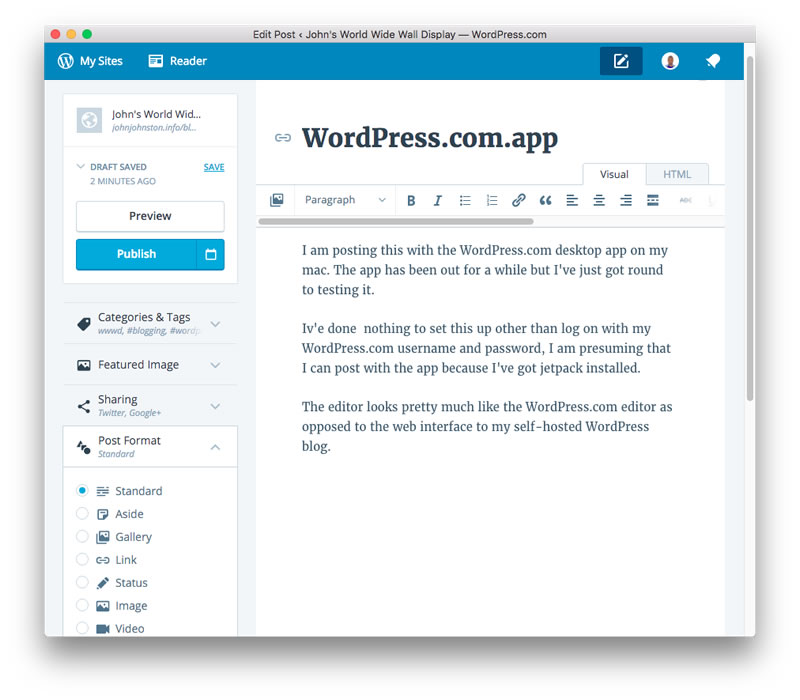
      I am posting this with the WordPress.com desktop app on my mac. The app has been out for a while but I’ve just got round to testing it.

      I’ve done  nothing to set this up other than log on with my WordPress.com username and password, I am presuming that I can post with the app because I’ve got jetpack installed.

      The editor looks pretty much like the WordPress.com editor as opposed to the web interface to my self-hosted WordPress blog.

      WordPress

      The application feels a bit like a site specfic browser.

      On my site I am having problems uploading images so will be switching to the browsers to finish this post off.

      Screen Shot 2016-01-25 at 20.52.55

      It does not give me access to things added to my editor by plugins. For example the post to medium plugin or the indie-web post kinds plugin.

      I guess the writing ‘experience’ is a bit smoother than the browser. I am surprised that there is now distraction free mode for writing.

      Hitting preview opened Safari but pointed to the post without &preview=true the first time I clicked Preview. The next time was fine.

      There are a huge number of Revisions saved. I don’t know if this is a good thing.

      An interesting editor but I think I’ll stick to writing posts locally with TextMate for now. This gives me local/dropbox backups and lots of shortcuts.

      It is worth noting that this app will currently not work with Glow Blogs. I suspect that the WordPress.com connection would worry the security folk at Scot Gov.

      From what I’ve read this app is part of major changes happening with WordPress and the Rest API hence the featured image!

      Featured image credit: wordpress revolution | Flickr – Photo Sharing! CC BY NC by Tom Woodward.

      2015 in Titles⤴

      from @ John's World Wide Wall Display

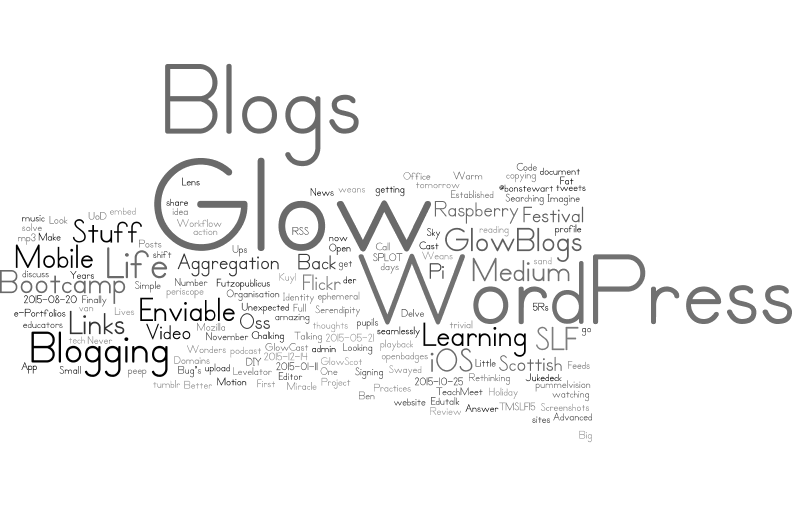
      blog-title-2015

      In past years I often written reviews of the years blogging, this year I am a little lazier this is a wordle for the titles of the 90 posts I made here this year.
      A list after the jump:

      WordPress 4.4 embed other WordPress Posts⤴

      from @ John's World Wide Wall Display

      #Autumn #autumnleaves

      I’ve not really checked out the new features of WordPress 4.4 in any depth but this new feature looks interesting. Just pasting a url to another WordPress blog post into the editor creates an embedded ‘card’ with some details.

      I could imagine this would make a nice way of linking to pupil or class blog posts in a school blog. Hopefully we will not wait too long before Glow Blogs get to WordPress version 4.4.

      I’d have like it even more if the embed above had picked up the featured image for the post. Update, I think there is something unexpected going on with this post, either from the styles here or on the embedded post. looking at the source, there does seem to be an image in there! More investigation tomorrow.