I have learned a lot of digital skills since becoming a MIEExpert in 2016, however I had not had the opportunity to explore Microsoft Teams fully with a class. When we found out that pupils would be learning from home I refreshed my memory of Teams by using the courses on the Microsoft Educator Community. I then took some time to explore using Teams and thought about how I could make it suit the needs of my pupils in a way that was organised and manageable for me.
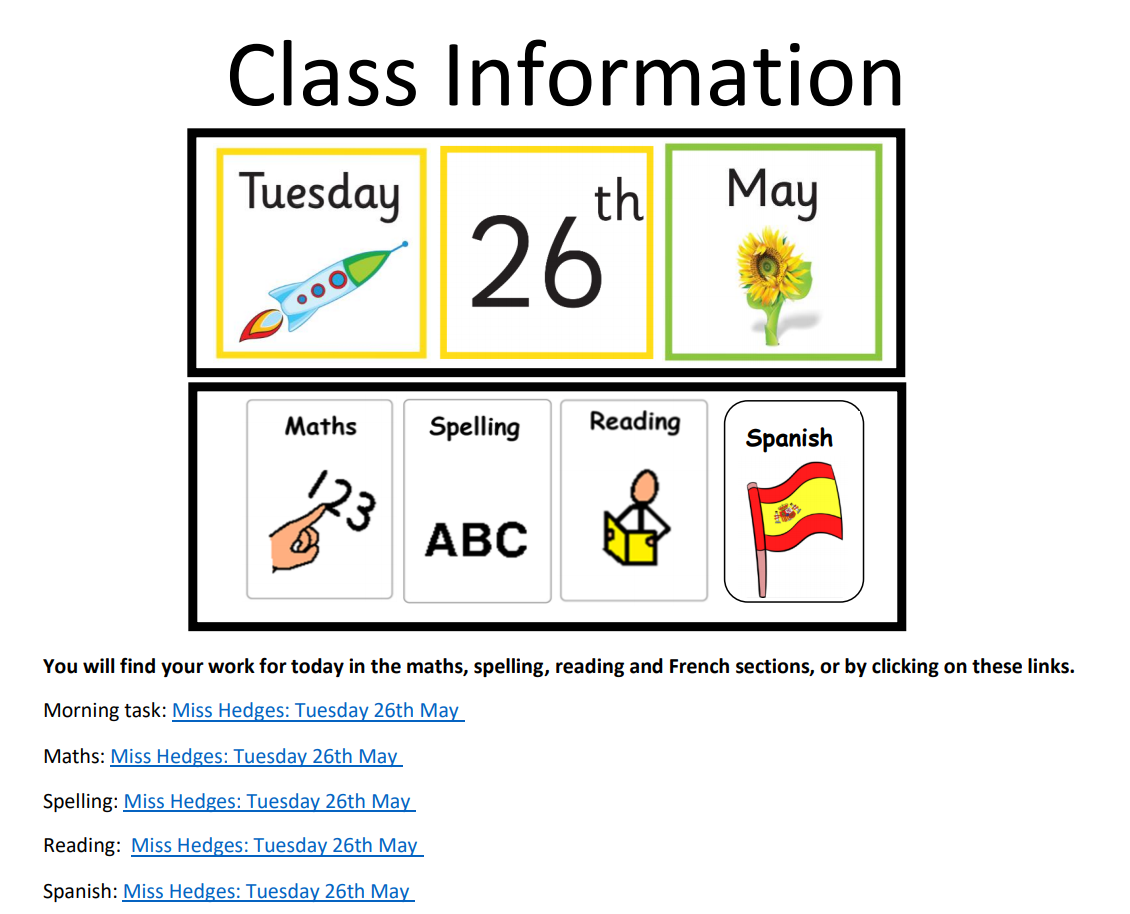
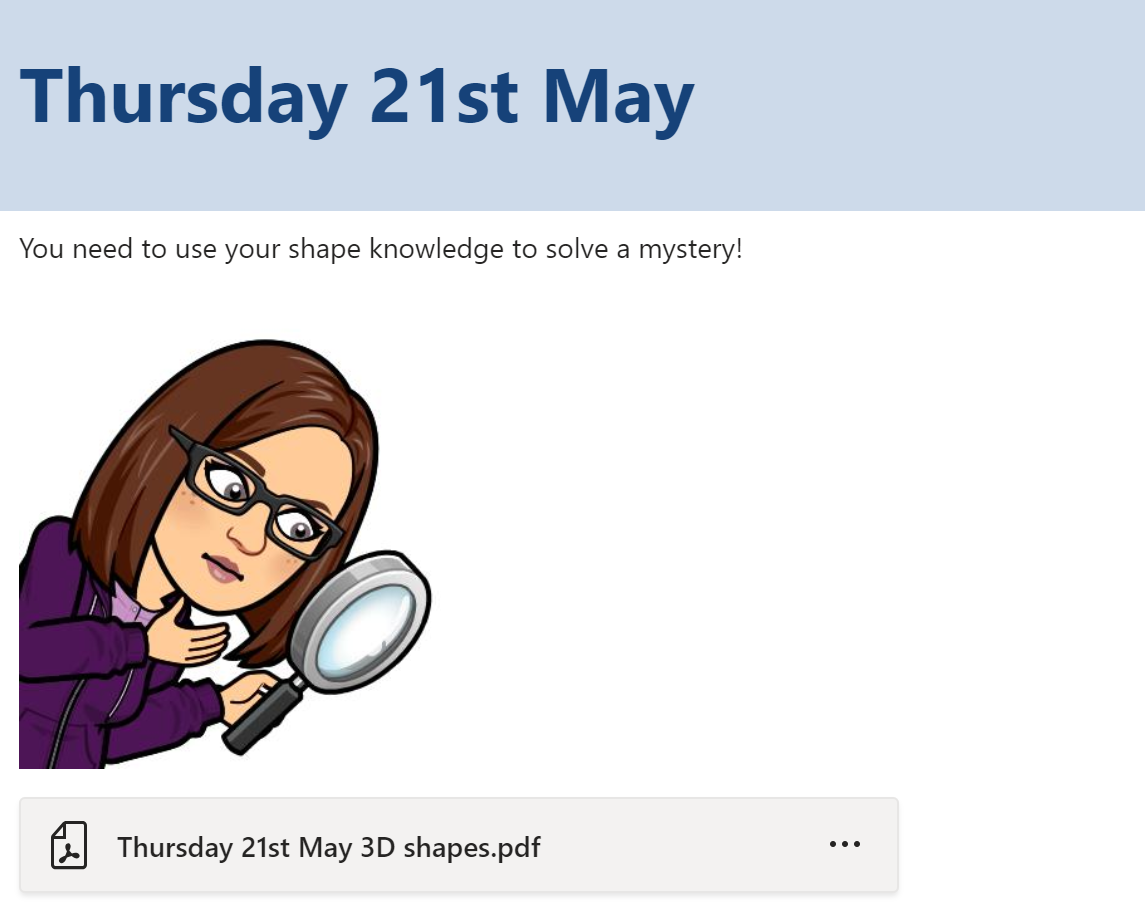
Example Of A Class Information Post
Daily Information
I have taken an asynchronous approach to teaching and learning since many families have limited access to devices. Every day I post a class information document in the General channel; this includes the date and a visual timetable, using the same visuals that we have in the classroom. In the class information document I post links to the relevant curricular area channels that the children need to access for their learning for the day.
Use of Channels
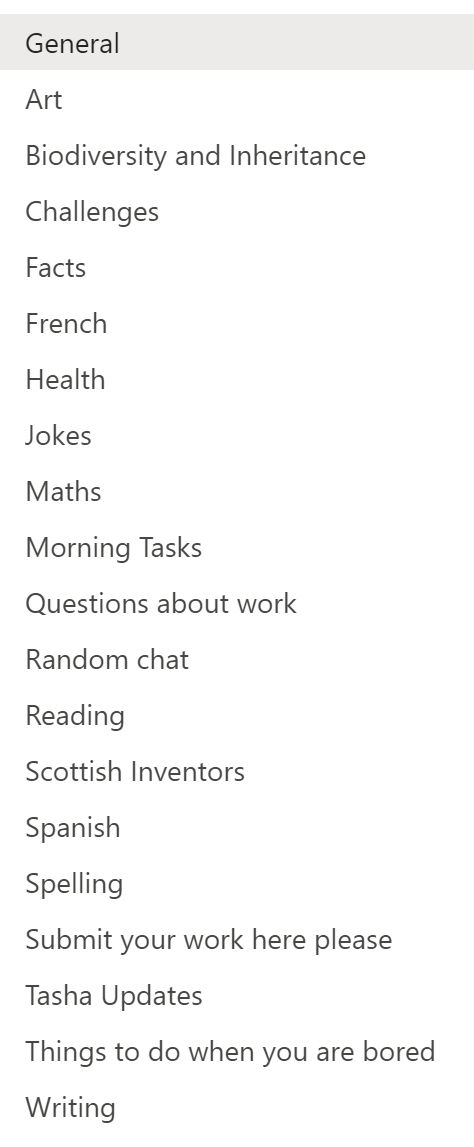
Class Channels
I have found that having a separate channel for each curricular area has helped to keep classwork well organised, benefiting both myself and the pupils. When I post daily work I make an announcement in the relevant curricular area channel with the date and attach the relevant documents. This means that pupils can easily look back in the channel if they have missed any work on a certain day.
Initially pupils were having difficulty with accessing PowerPoints so I have switched to uploading PDFs. This has helped the class to easily access the work on the different devices that they use.
Example Work Announcment
Pupil Permissions
The pupils do not have permission to comment or post in the curricular area channels as I felt like their comments would result in the work I was posting getting lost. I still wanted them to have somewhere to socialise with each other and so set up “things to do when you are bored” and “random chat” channels. The pupils can all post and comment on these channels and it has given then a way to share fun ideas with their peers. The pupils can also post in the “questions about work” channel if they need some support. I have found that having this channel ensures that I do not miss any questions from pupils.
Submitting Work
When in school my class use Seesaw to share their learning with their parents/carers. As the pupils and families are familiar with this I decided to carry on using this while schools are closed. Pupils have a home learning code which allows them to post their work directly to me. I can then mark their work and store it in their online journals for each curricular area. Some pupils have opted to post their work to me on Teams and do so using the “submit your work here please” channel. I then transfer their work to Seesaw. Due to the class being used to using Seesaw I have not explored using the assignments feature on Teams, however this is something I would like to use in the future.
Class Calls
Every Wednesday we have a class call on Teams. During this time pupils have time to chat to one another and then we do a class quiz using either Kahoot or Quizziz. When using Kahoot I share my screen in the Teams call so that pupils can see the questions and answer them on their device. If we use Quizziz I share my screen so that the pupils can see the live leader board during the game. The class have really enjoyed these calls as it gives them time to hear the voices of their peers and take part in an activity in a similar way to what we would do in school. It has been lovely to hear their voices and laughter during the calls. I feel like this has helped to maintain positive relationships with the class and helps the pupils to connect with one another during this difficult time.
I have found that organising my class Team in the ways described in this post have helped to keep the Team accessible and organised for everyone accessing it. After a few initial technical issues in the first week the online classroom has been running smoothly and successfully. If you would like to see examples of the work the class have been producing I have been uploading some of their work on Twitter.
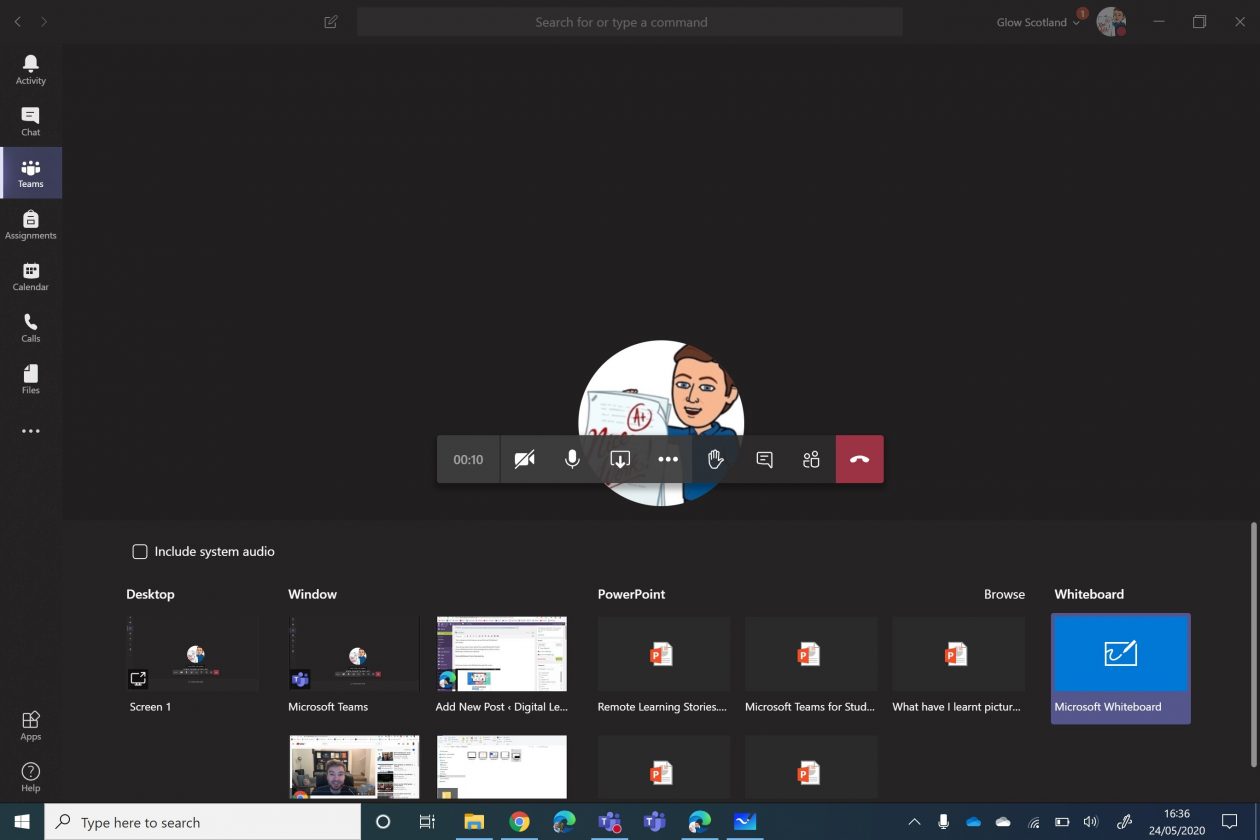
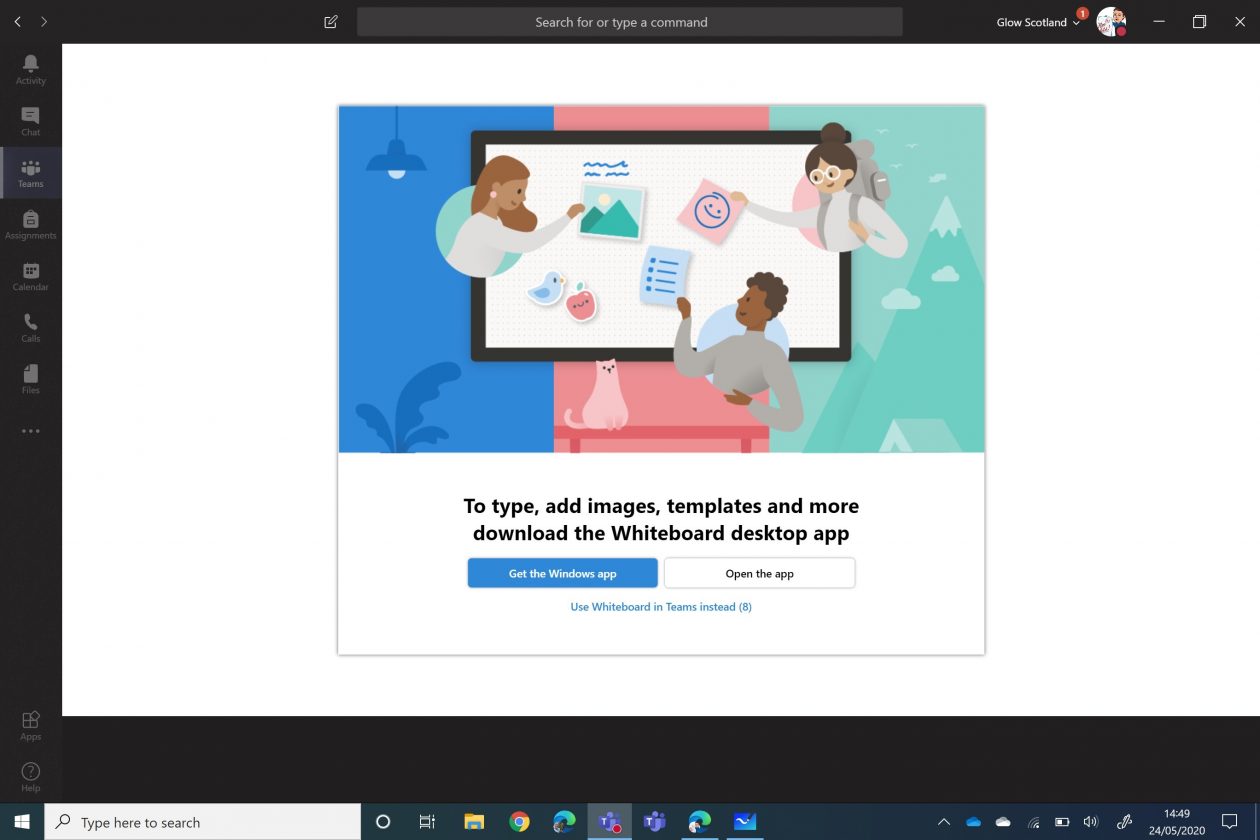
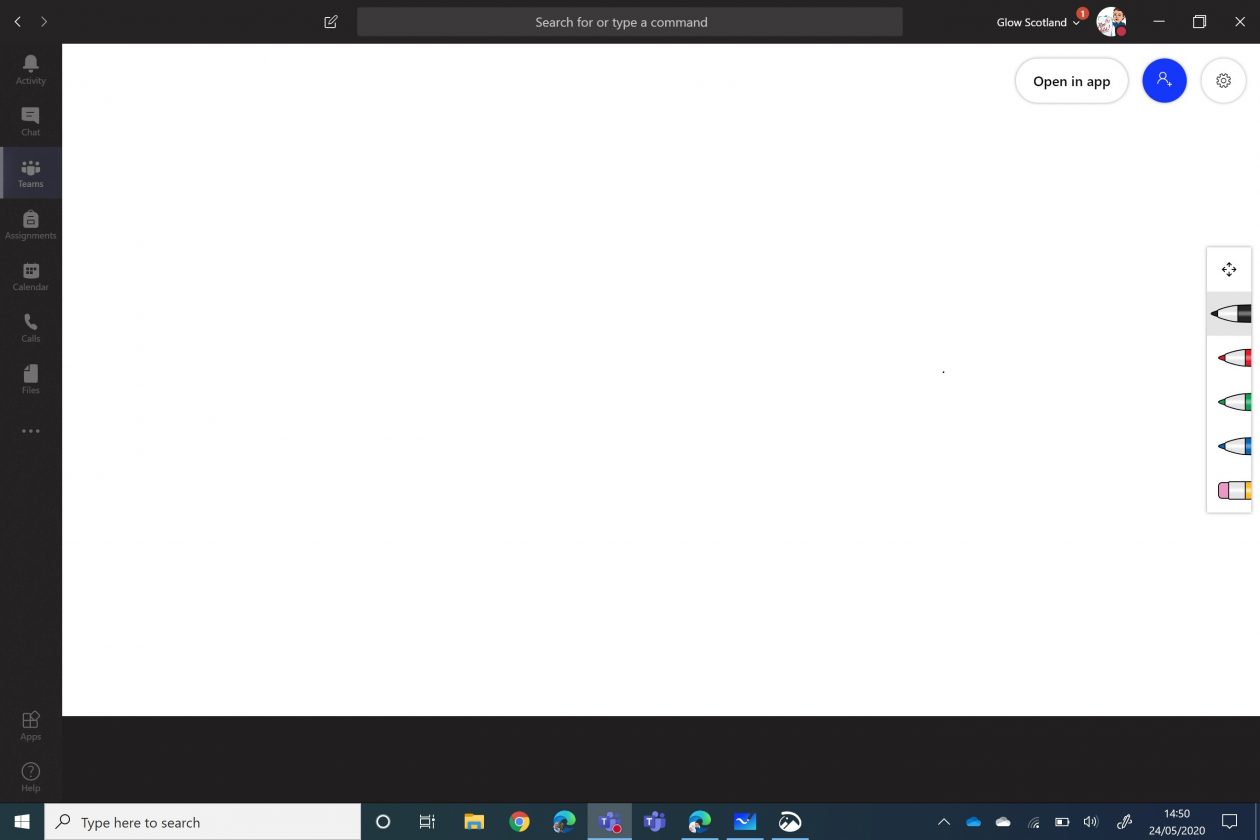
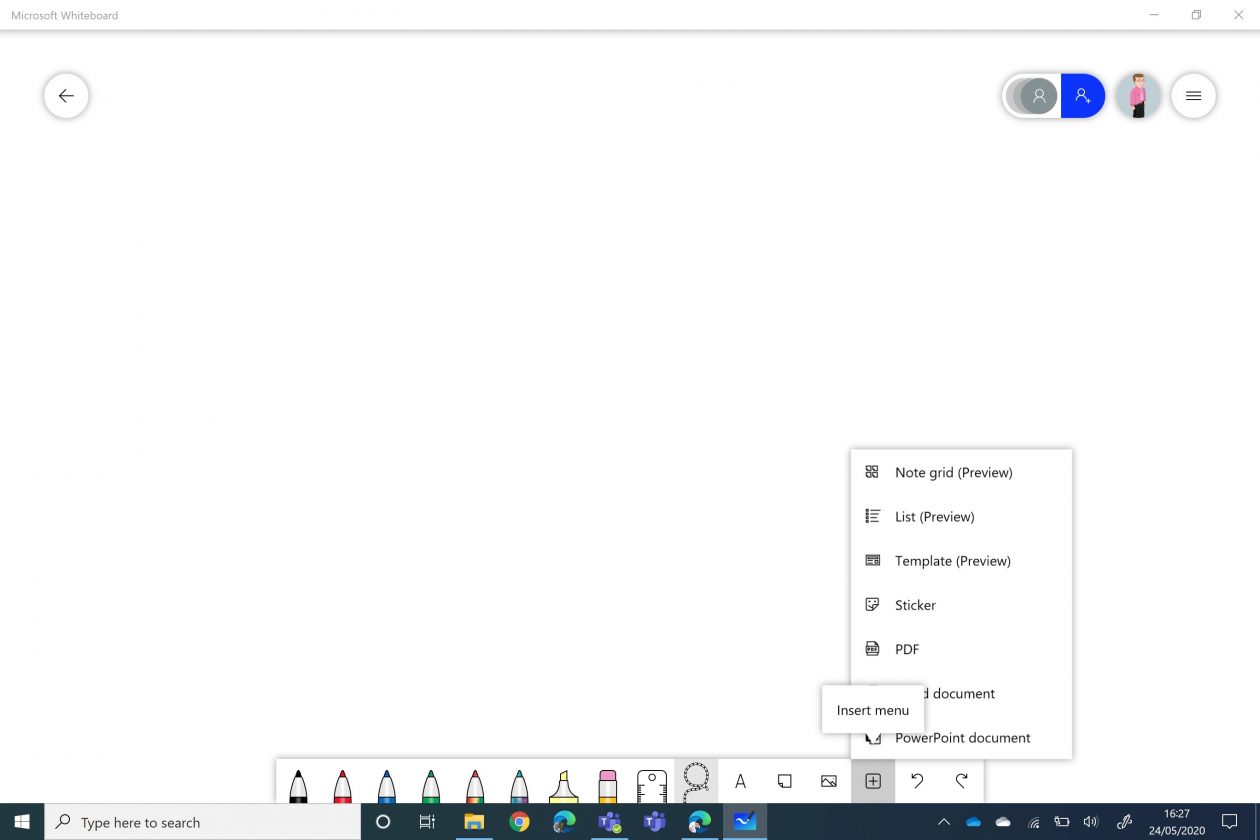
Clicking the open in app option produces more options. Lots of pen choices in the menu at the bottom, highlighter, ruler, insert images, and an insert menu for lots of file options.
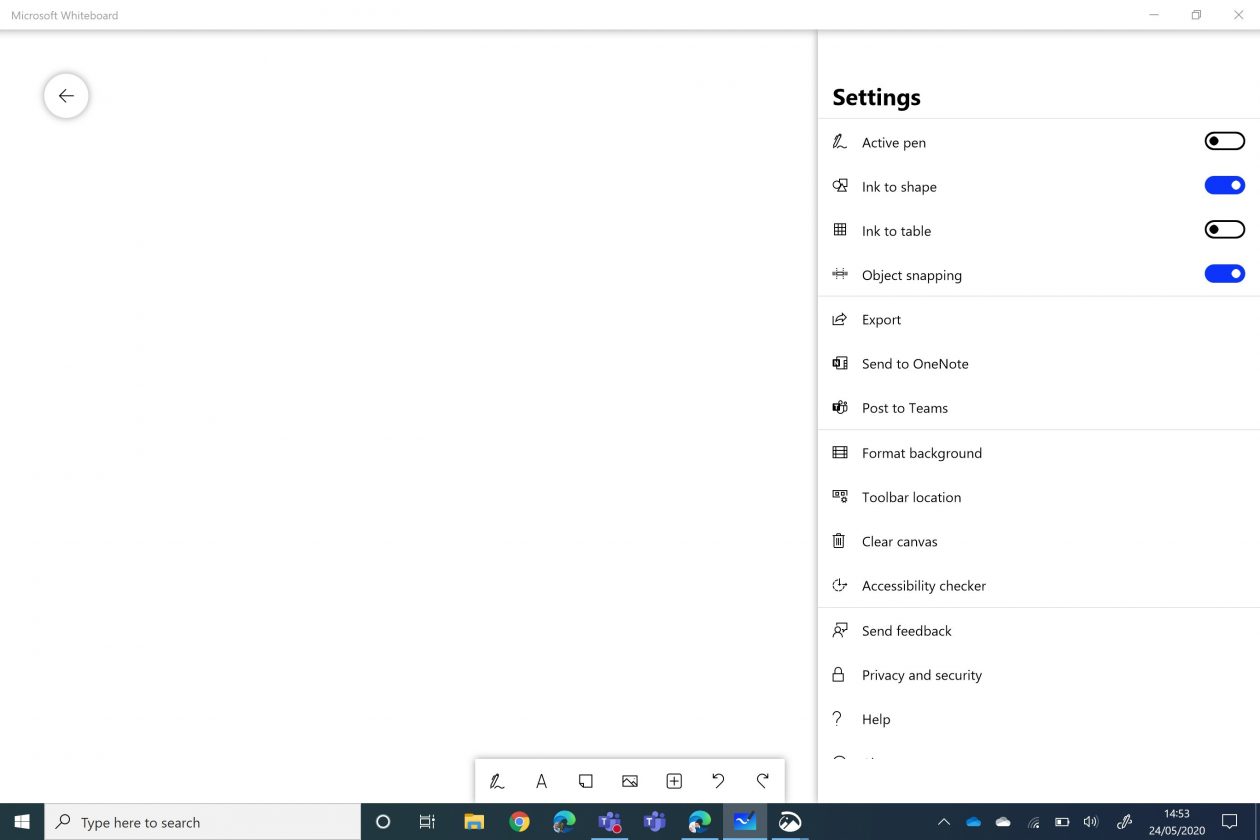
At the top of the screen is also the settings menu with a range of options including post to Teams (a link) and send the link to OneNote.
Microsoft have this video showing all the available features in the Whiteboard app.
Post to Teams
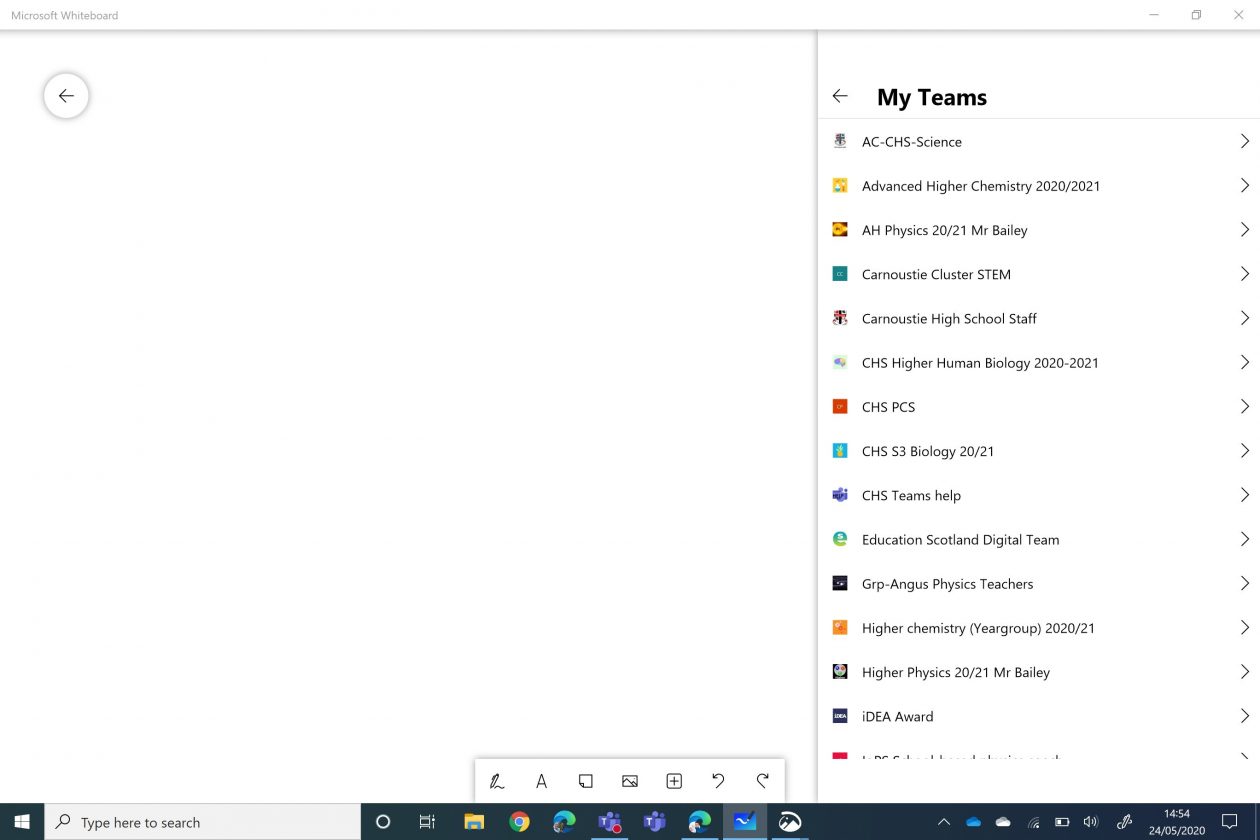
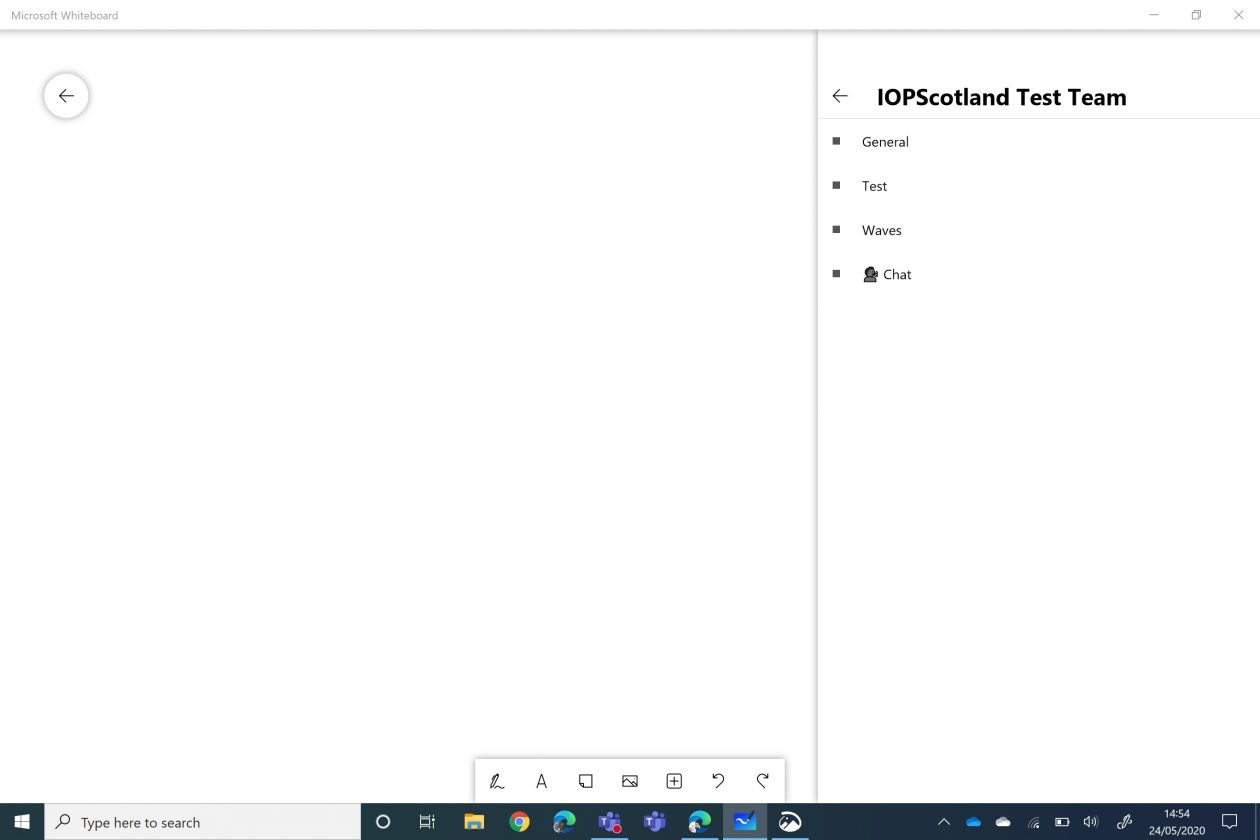
For within the Whiteboard app you can open up the whiteboard and choose share in Teams, pick a team and a channel of where you want the link shared.
Here is what the post looks like.
Share a Whiteboard from Whiteboard app
New whiteboards can be created within the Whiteboard app, they can be renamed and then we can invite students to share the whiteboard app. When students are invited there is an option to allow them to edit or view. So using this approach provides an option to have a read only Whiteboard.
At the moment there is no straightforward option to change a Whiteboard from collaborative to read only, this is being worked on by the Microsoft Team.
Within Glow the setup does not seem to allow the addition of invites by O365 groups or by Team details.
Using more than one device
If as a teacher you join the Team meeting with another device then you can use that one to access the Whiteboard and add resources, inking, etc. For example join the Team meeting on a PC then use your iPAD to add inking.
Using OneNote
An alternative option to using Whiteboard is to use the OneNote within Teams as a whiteboard.
You could use the the collaborative section within a Team OneNote as a whiteboard for collaboration or could use a page within the content library within a Team OneNote for a read only option.
Using inking in other Office 365 apps (PowerPoint, Word)
An additional option for a read only display would be to use PowerPoint and inking or Word and inking.
Being a Microsoft Innovative Educator Expert (MIEE) has allowed me to develop my digital skills over the past five years. However before this current crisis I had only used Microsoft Teams with a few classes. One of the first things I did was review some of courses on Teams and Forms on the Microsoft Educator Community to reacquaint myself with some features and to learn new ones.
My philosophy is that good learning and teaching is good learning and teaching whatever the context and it is about using the digital tools to support our pedagogy choices.
Firstly it is important to have clarity, I mean this both in terms of what you want the students to learn and how and also the clarity of the instructions that you are providing to your students.
Some of my tips for clarity are:
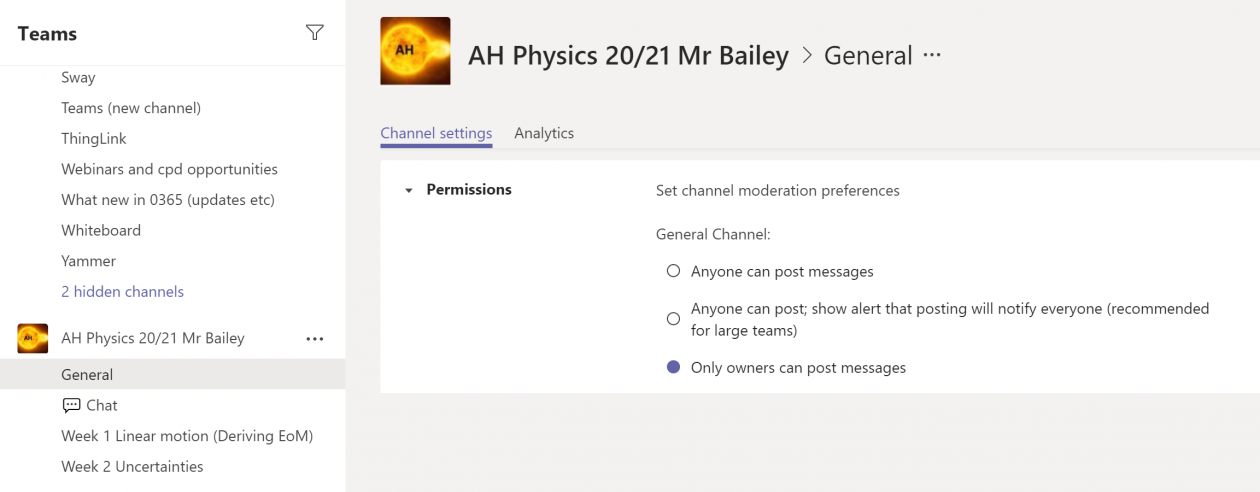
Use more than one channel in your Team. Posts about assignments are made in the general channel. It can be a good idea to make the general channel so that only owners (teachers) can make posts and have other channels for questions/chat. This means instructions can be clearly seen. The latest post is always at the bottom of a team. If the instructions move up the page you can move them back to the bottom with a short reply to the original post (you can even delete the reply if you want afterwards).
Use announcement within Teams, make the tasks explicitly clear and logical for your students. Try to minimise the number of documents that you want students to access for one task. Add hyperlinks within your Teams announcements to the resources that you want students to use whether documents or videos rather than instruction pupils to go to the files section and open file X.
Avoid making a post to remind about the work that just says complete the work stated in the earlier post. Instead either move the first post down by replying to it or copy the instructions from the first post and then make amendments for the new post. Sometimes it can be hard to scroll up the team channel to find where work is.
Consider making channels for different weeks of work or topics to help improve the clarity and to put all the questions asked in the same place.
Make the learning intentions and success criteria of tasks clear and place these within the wider context to help them scaffold learning to prior knowledge.
Be aware of the files that you attach for any student task. What size are they? What format are they? For example a PDF file is difficult to edit and cannot be edited directly in Teams. Make sure documents attached to assignments are the x version of the Microsoft files, docx, xlsx, pptx etc. rather than doc, xls, ppt.
Be aware that a number of learners are using phones as their main device. Simplifying instructions can help how many clicks they need to follow to read instructions and complete work.
Within the Teams assignments I also include all the hyperlinks to the file documents in the same way that I do for the announcement posts in the channel. These links can be copied from place to place.
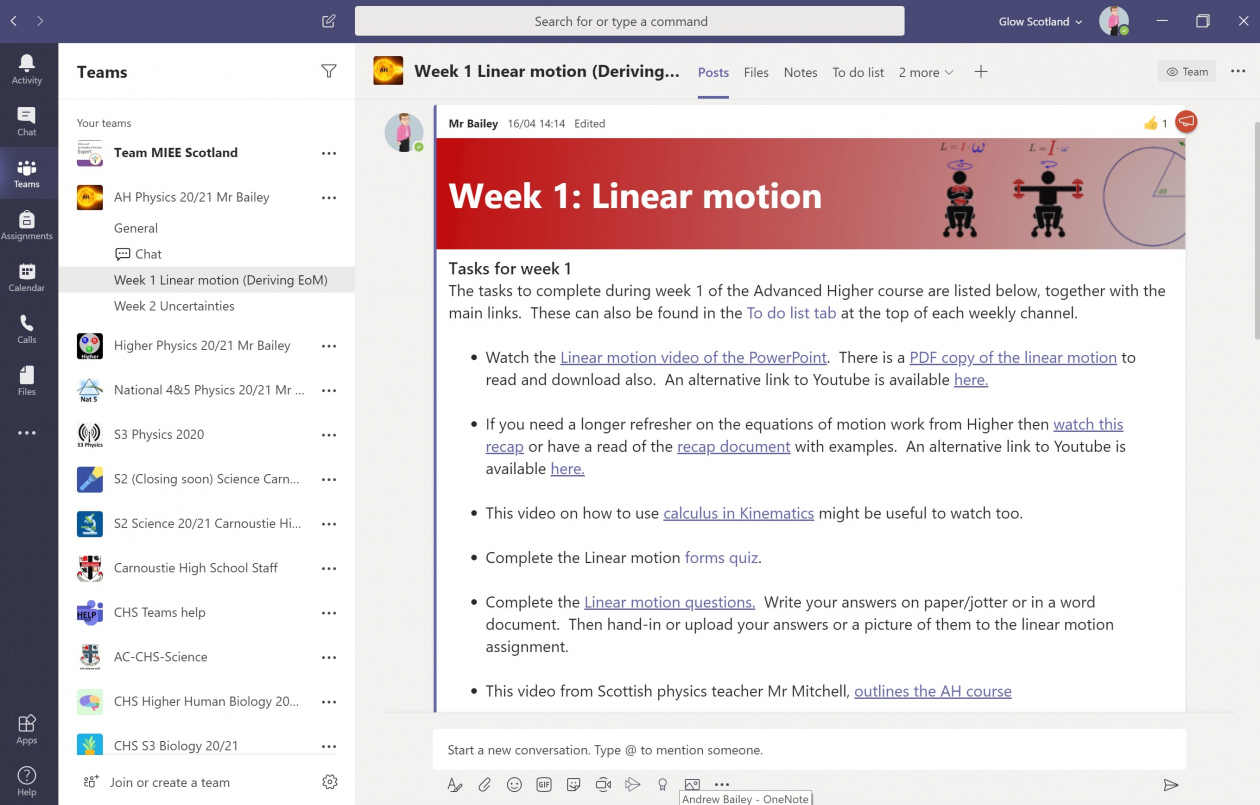
Here is an example of one of my Team announcement post with a custom background, hyperlinks to videos and documents and in this case 4 assignment tasks.
My approach to planning learning has been to plan student work on a mostly asynchronous basis.
Retrieval practice quiz using Forms and sometimes a quiz on prior learning.
Introduction video (created using PowerPoint recorder) and shared via unlisted YouTube.
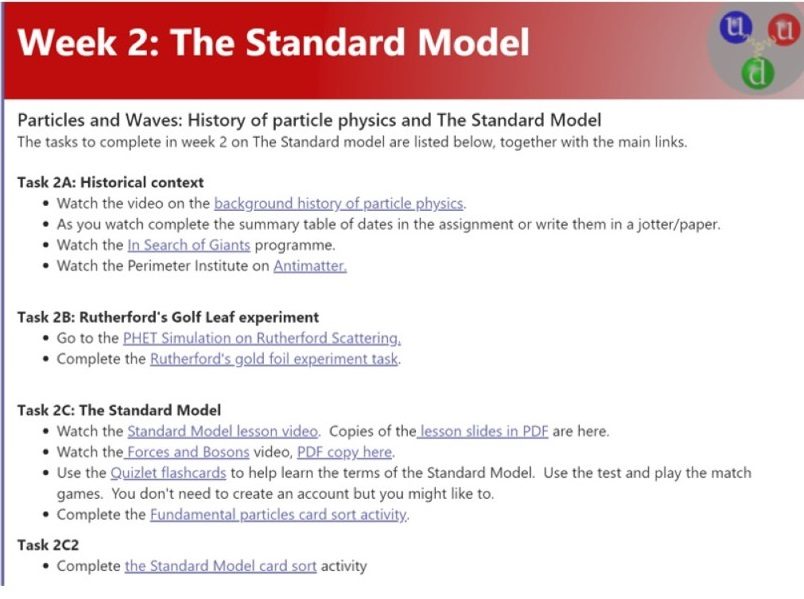
Activity task (Quizlet, Quizizz, Animations/Simulations such as PHET, and at home experiments)
Diagnostic assessment (Microsoft Form)
Consolidation task (Forms, card sorts in Excel, Padlet etc.)
Synchronous activities include:
Responses to questions posted on the Teams channel.
Weekly catch-up Team meetings with students, answering questions, providing advice and support, modelling tricky problems modelling on paper or using the Whiteboard app or OneNote.
Live quizzes on platforms such as Kahoot, Quizlet, Quizizz.
About me
I am a physics and science teacher working in Angus on the beautiful and sunny east coast of Scotland.
In addition to being a teacher, I am a consultant physics teacher coach with the Institute of Physics Scotland and as part of that role have been running webinar training sessions for physics teaching using Microsoft tools. Details of support being provided for physics teachers by the IOPS can be found in the Scottish Physics teacher group on Talk Physics including shared Microsoft Forms quizzes, videos, introduction videos, simulations and activities.
I have a interest in professional learning, pedagogy, evidence informed teaching and have contributed to Pedagoo and ResearchEd Scotland events.
Some of the amazing Microsoft Innovative Educator Experts from across Scotland will be sharing their learning success stories in this blog.
This blog is designed for all teachers to see HOW Microsoft technologies are being used in classrooms across Scotland.
Its about the learning and the way these teachers are using technology with their students.
We will have regular updates that we hope will give you some ideas for how you can use tools like Teams, OneNote, Sway, Forms etc in your classrooms.
Also have a look at the bloggers twitter feeds as well as #TeamMIEScotland and #TeamMIEEScotland on twitter for help, support, tips and tricks.
If you would like to develop your skills in the use of any of these tools you can sign up for free CPD on the Microsoft Educator Center https://education.microsoft.com/en-us
We hope you find this blog helpful and please reach out to any of the bloggers
The Institute of Physics are running a number of online learning sessions and offer a range of support for physics teacher.
The Scottish curriculum support resources can be found on Talk Physics in the Teaching Physics in Scotland Group. This includes a spreadsheet of shared resources including videos, questions, quizzes and simulations useful for remote learning and available for both Google and Microsoft platforms.
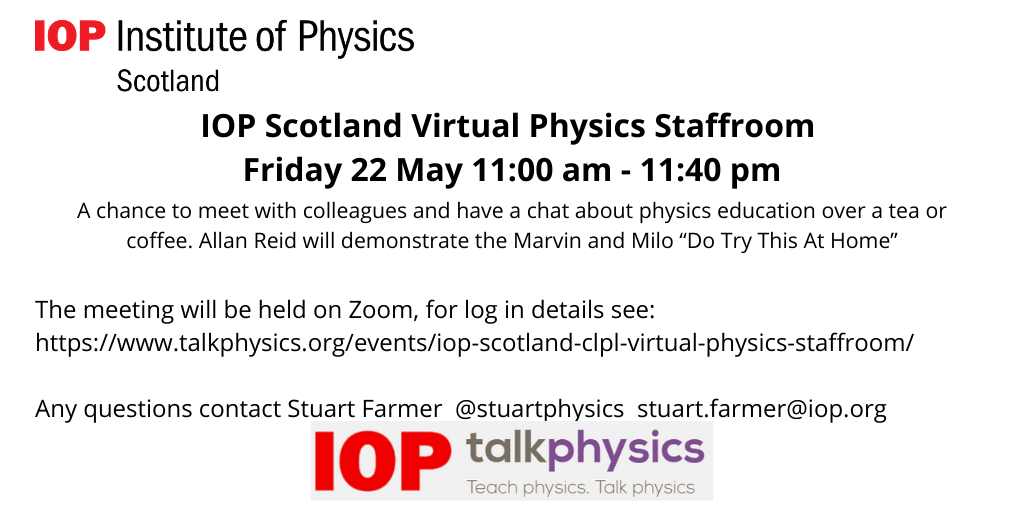
There are weekly virtual physics staffroom meetings the next one is tomorrow, Friday 22nd May with one arranged for the following week Friday 29th May.
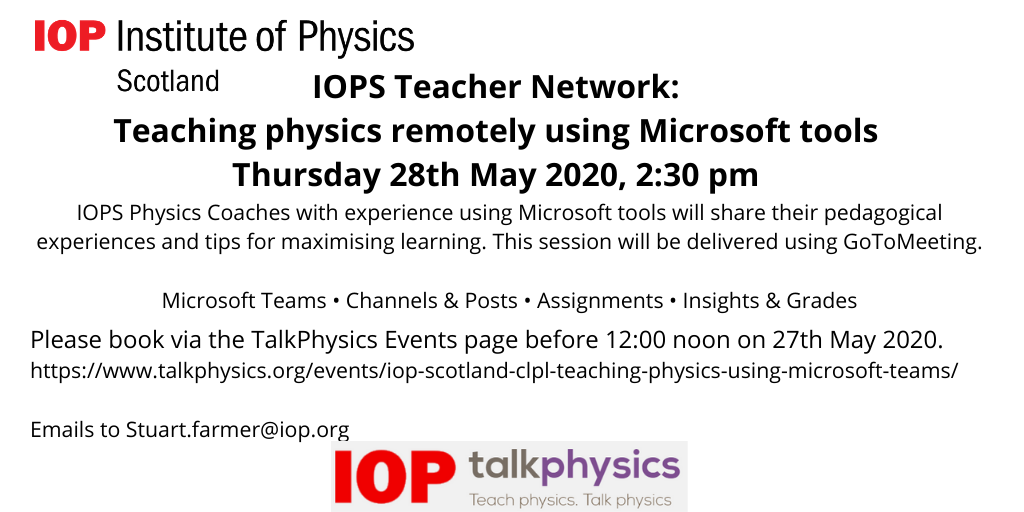
Finally for the next week we are having our second meeting on using Microsoft tools for teaching physics remotely. This event will focus on the Microsoft Teams platform, with emphasis on:
• Channels & Posts
• Assignments
• Insights & Grades
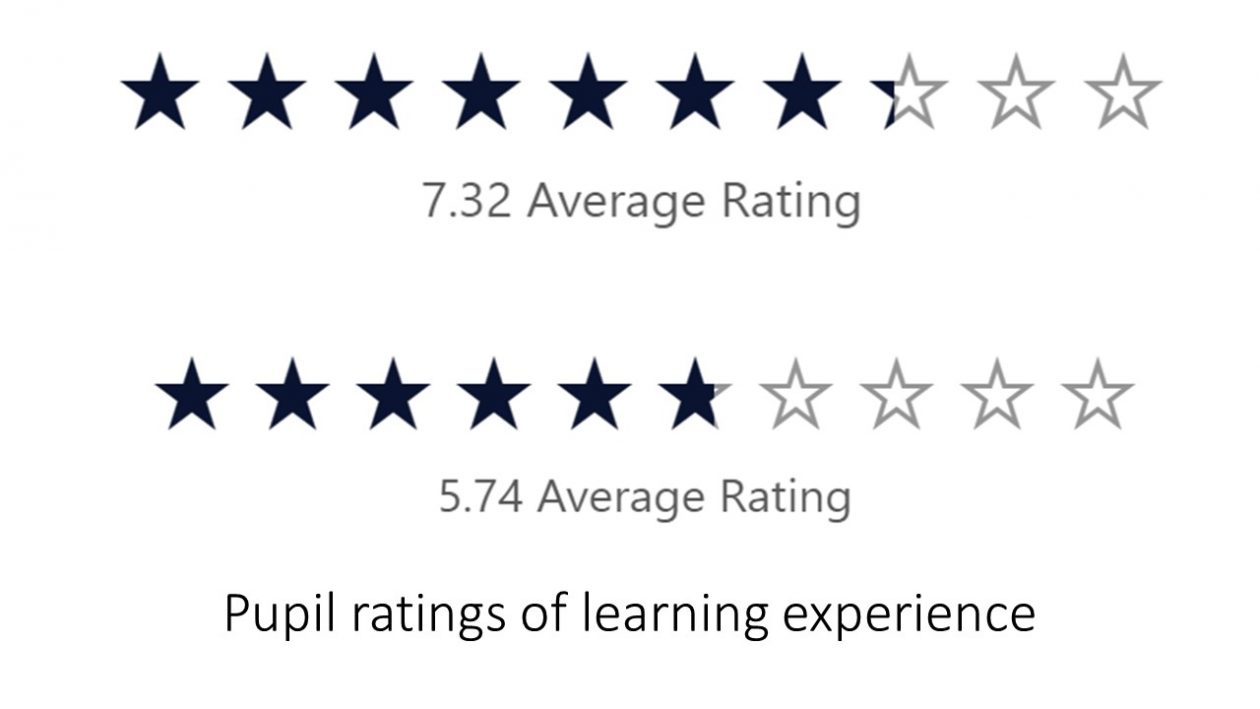
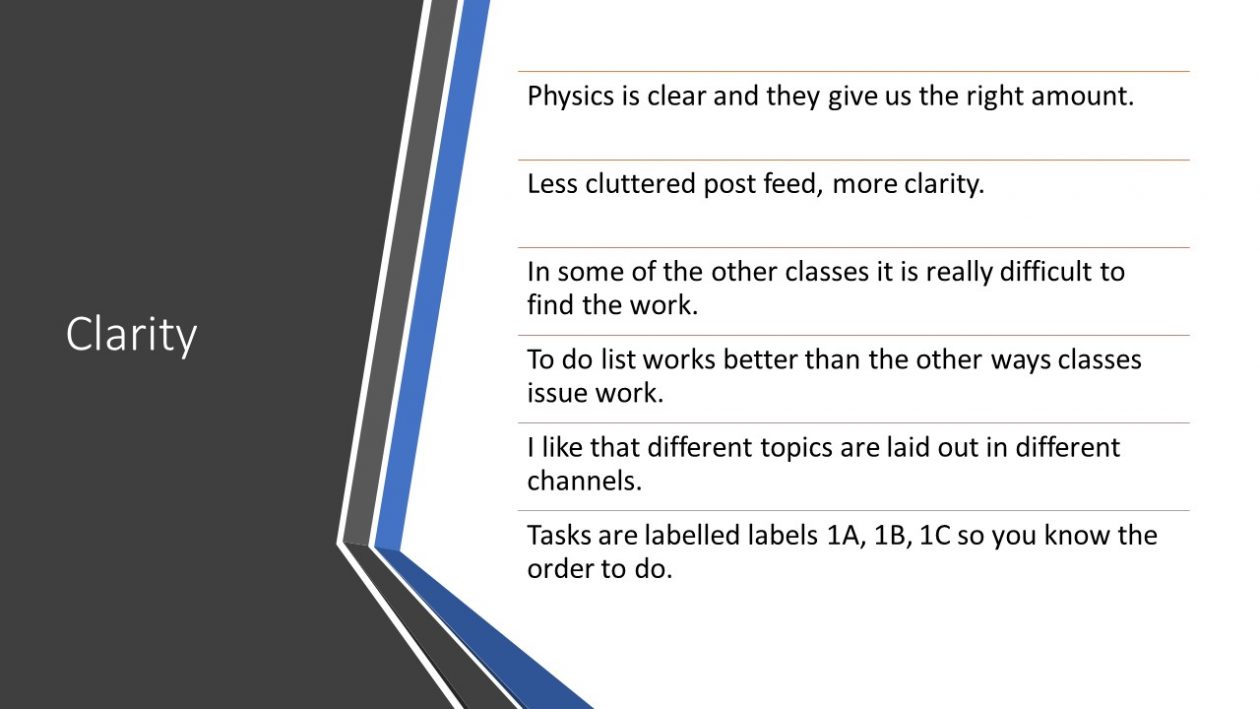
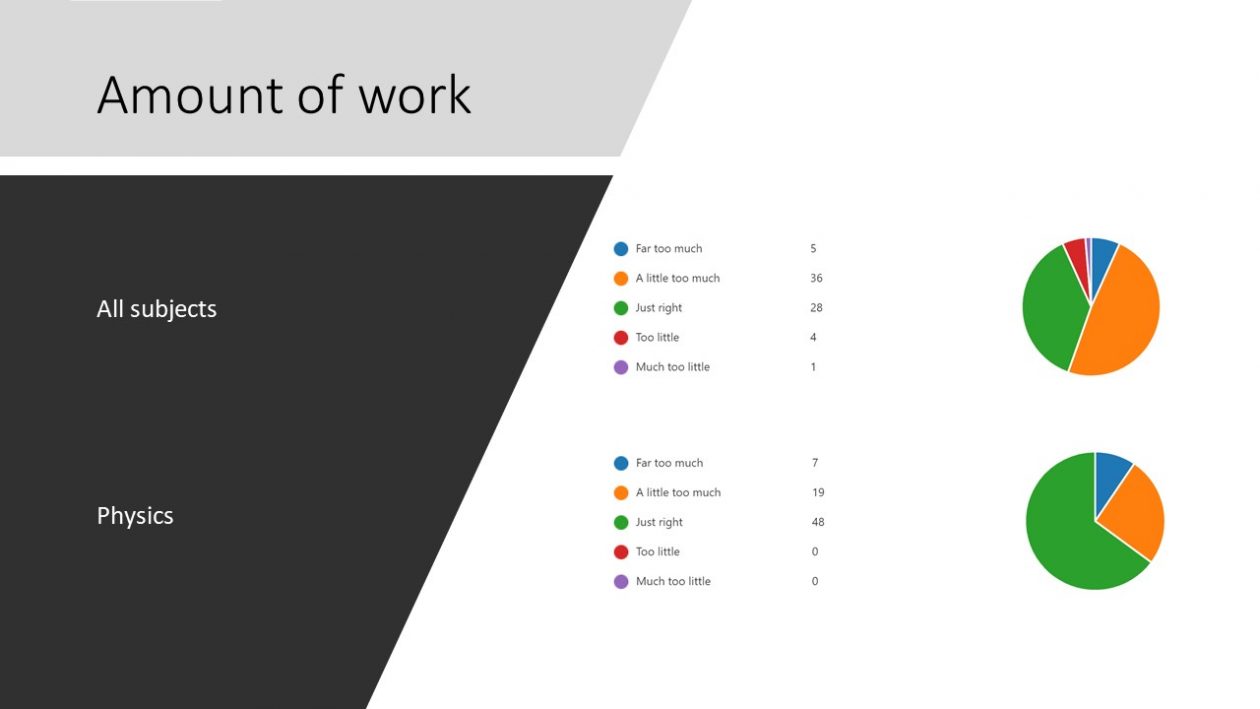
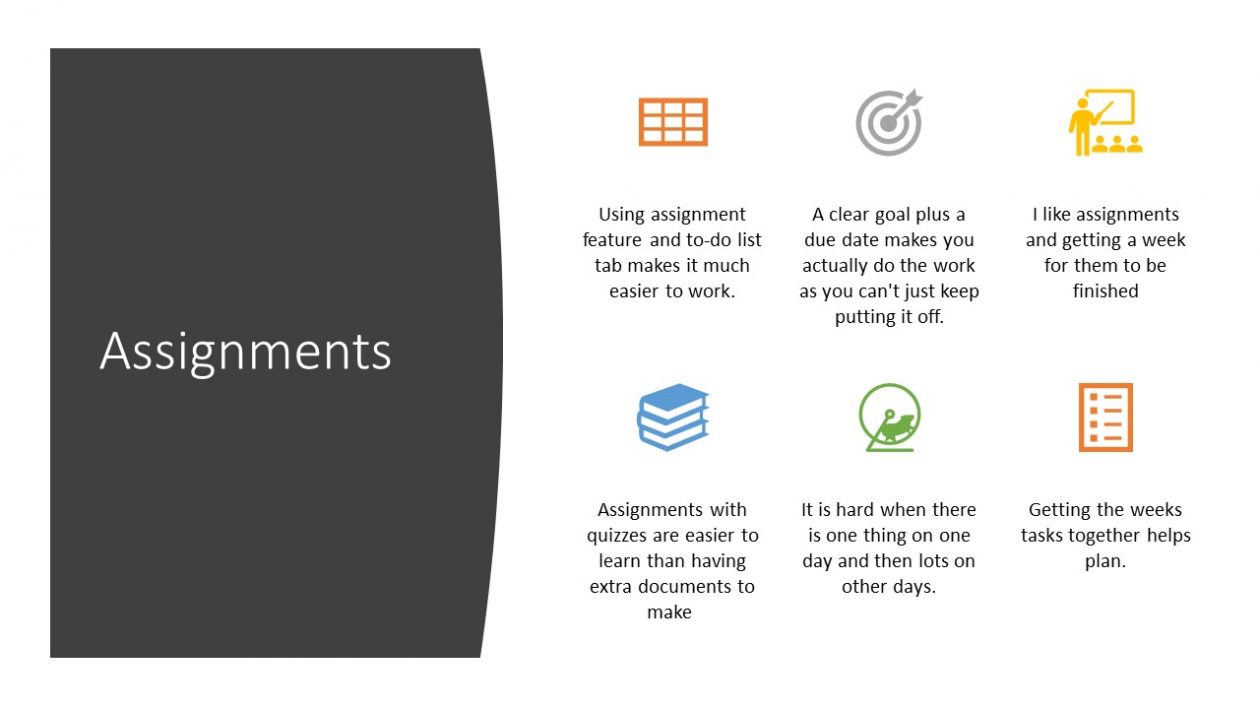
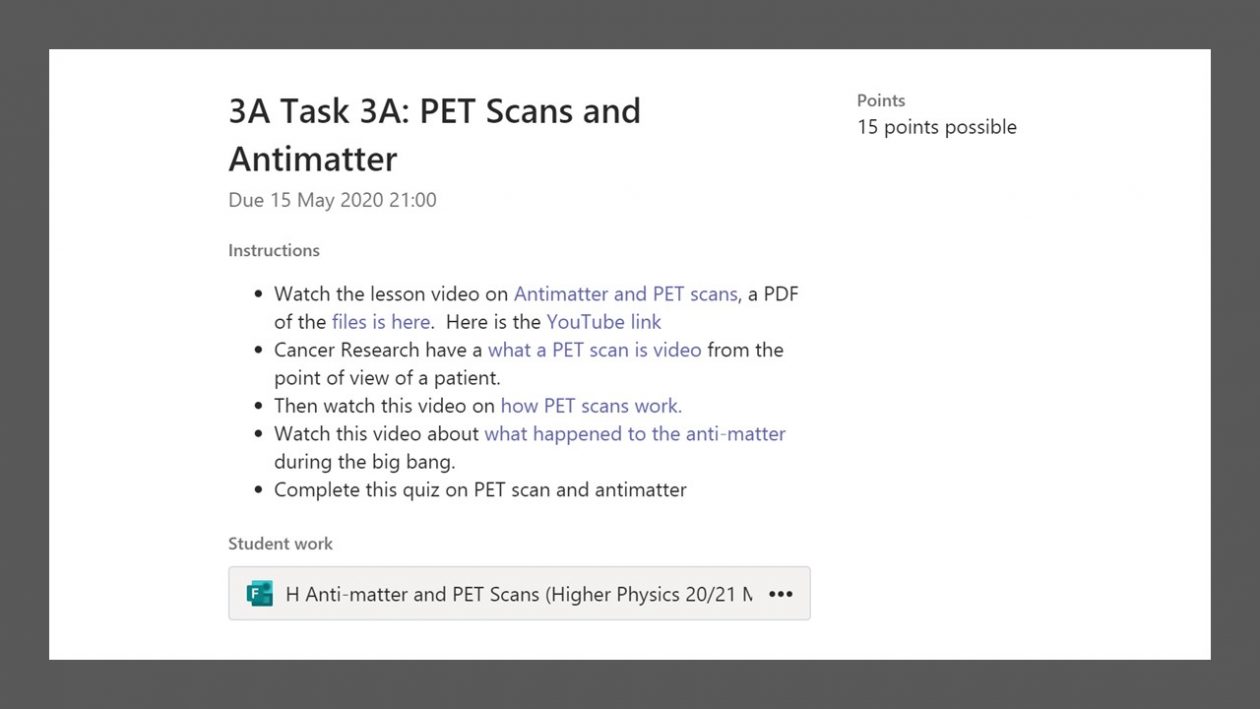
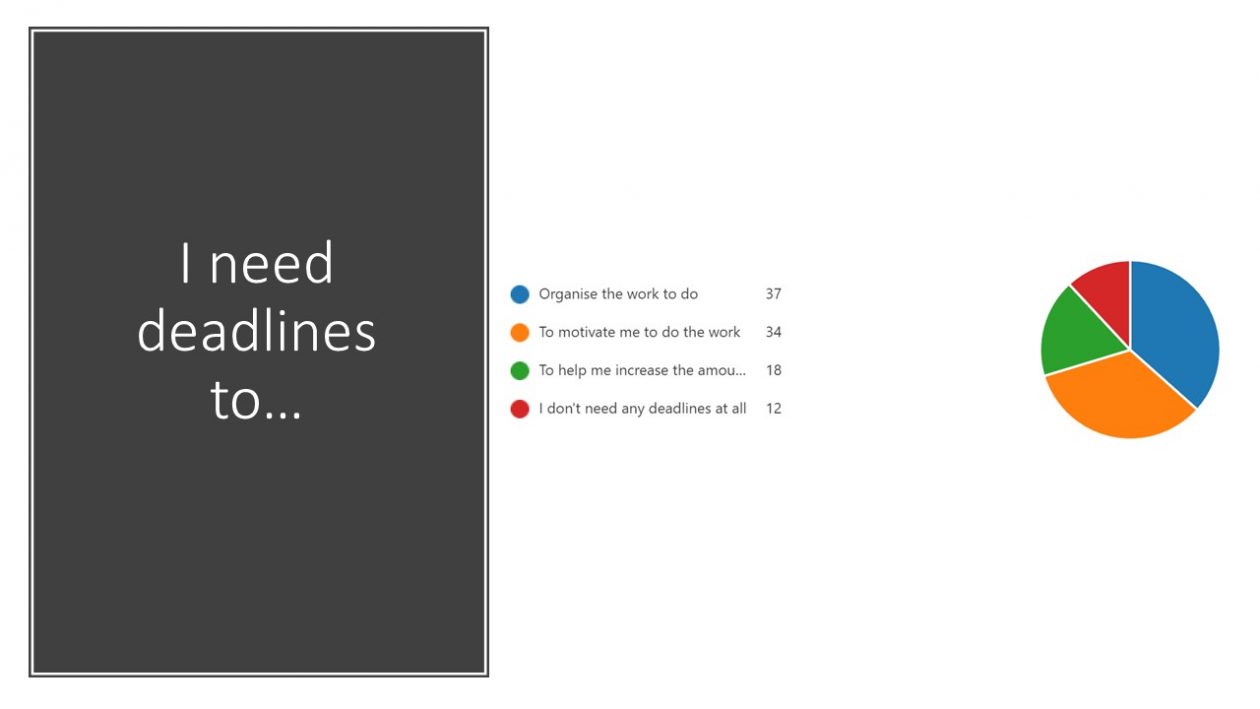
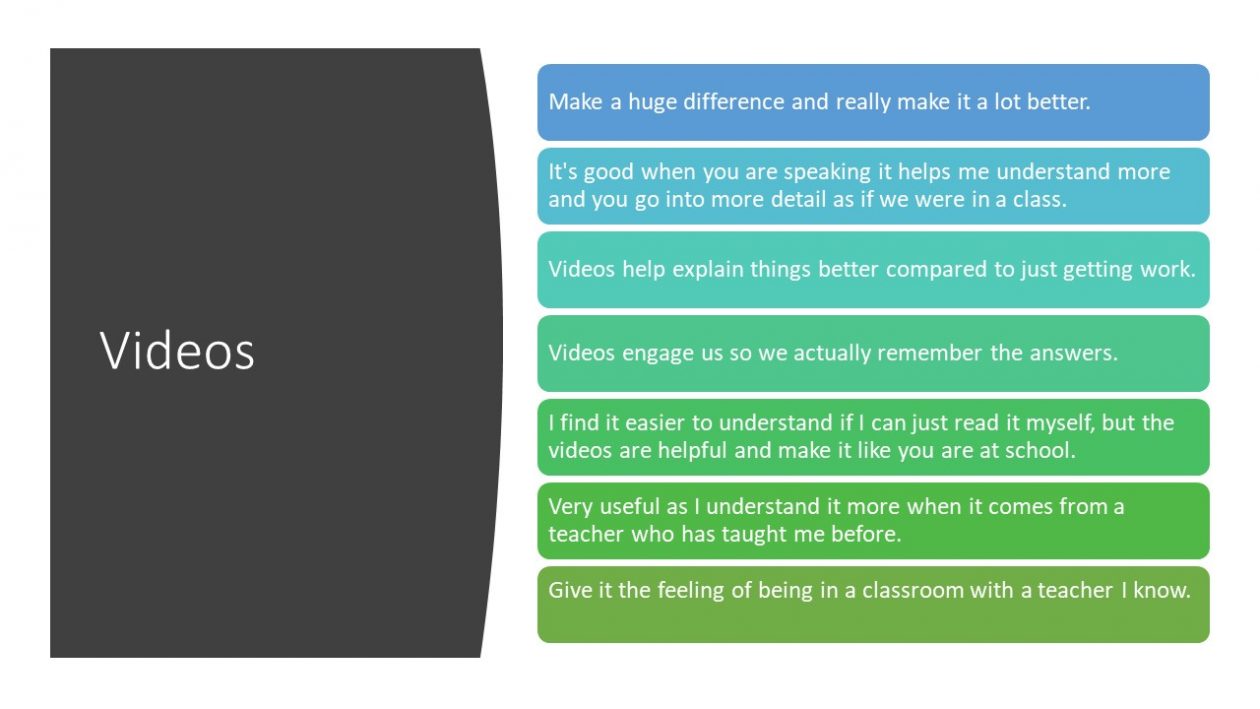
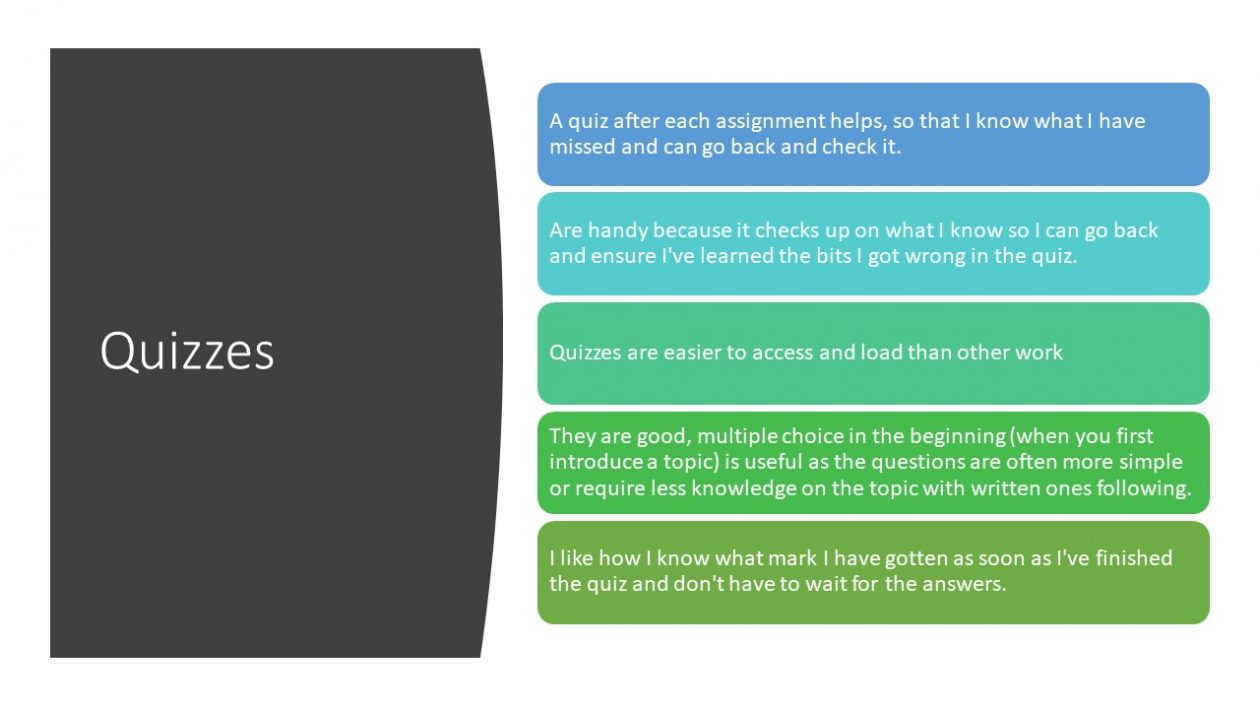
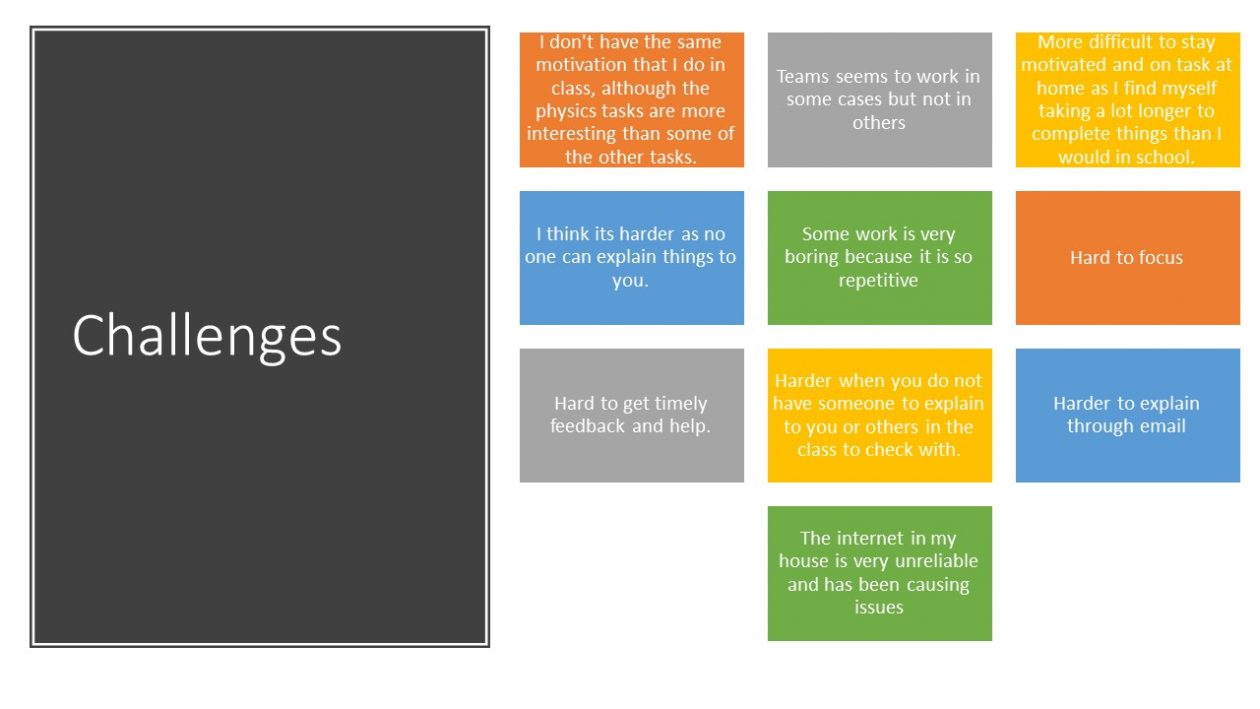
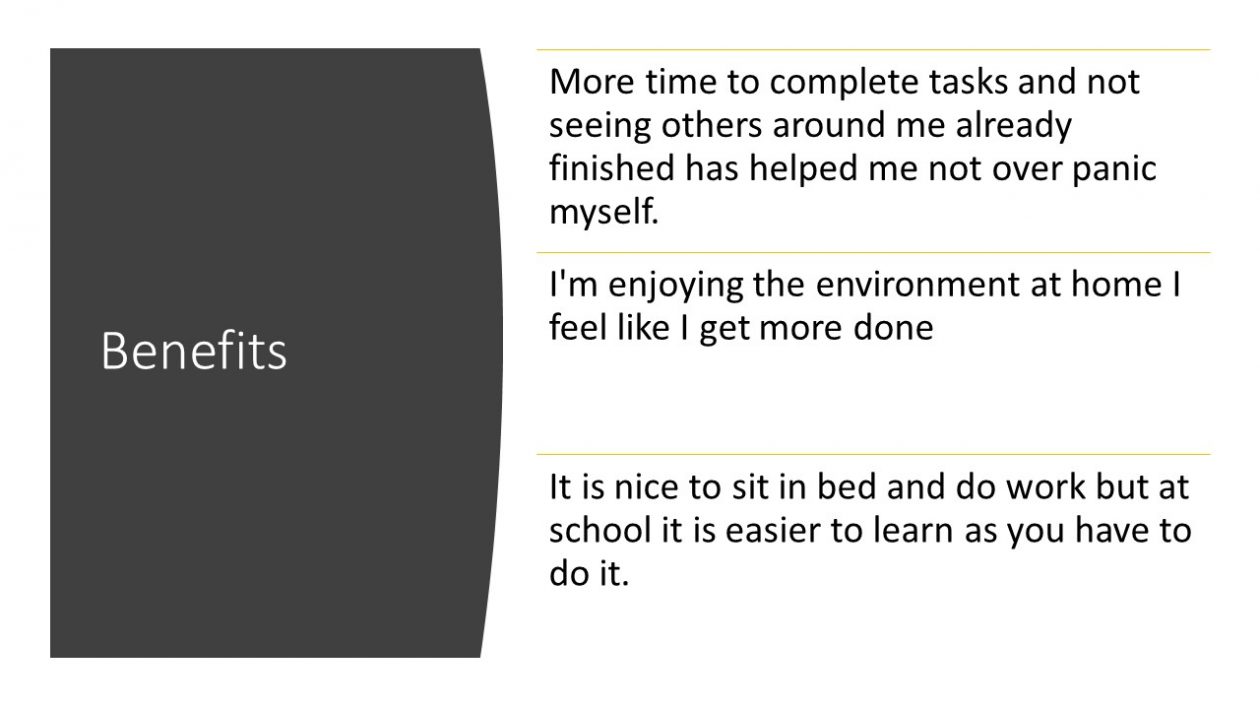
I shared a Forms survey with my pupils to ask them how things were going, 76 pupils responded with feedback and comments. Here are some images from a presentation I am making for teachers about what they said. The layout of my Team and the structure is discussed in the post about My Microsoft Team
The top rating is for physics and the bottom one for all other subjects.
If you are looking to arrange Teams Meetings it is important that you use the correct settings.
Within Glow Scotland pupil video during a Teams meeting is switched off at all times. Teacher video can be switched on. Both teacher and pupil are able to use audio and both are able to share and present their screen depending upon the settings.
It is not currently possible to record Teams meetings as within Glow this functionality is not switched on. You may see mention of Microsoft Stream in videos shared on the internet. This feature is also switched off in Glow.
There are several ways of arranging a meeting, using the meet now feature, scheduling in Teams, scheduling via Outlook.
Stewart Brown of Athelstaneford Primary School shows these here.
In general it is not recommended to use the Meet now feature with students. This is because there are fewer controls in this option in terms of who is a presenter and who is an attendee. There could also be potential issues with the meeting remaining open or pupils re-joining a meeting after you the teacher leave it.
I would therefore recommend you schedule any meeting. In either scenario you need to make pupils attendees rather than presenters. Otherwise you can find pupils can remove other pupils and mute other pupils too.
Here is a video that looks at stopping that.
Teams meetings they can be within a particular Team or channel or can be scheduled directly from Outlook.
If you schedule in a channel then pupils will be able to chat during the meeting and could posts gifs etc unless the channel setup prevents member (Pupil) chat or posting of gifs/memes etc.
If you schedule via Outlook as shown in this next meeting then since the chat in Teams is not enabled for pupils there is no possibility for pupil chat in this situation. This may well be good for larger meeting like assemblies but might be less useful in teaching situations.
This is a video from Mrs Barr showing how you would join this meeting.
When ending the meeting as a teacher you should click the three dots and click end call rather than use the hang up (red phone) button. This ends the meeting for all participants.
We are using Microsoft Teams as a school for our distance learning. Being in Scotland we have access to Teams through Glow Scotland a Scottish wide Microsoft tenancy I believe it is the 2nd largest tenancy in the world.
Teams Settings
Within Teams there are some setting for your Team that you might want to turn on or off. GIFS, memes etc. Although I have GIFS and memes turned on in my senior channels as they are good fun. Here is a video about using stickers and memes from Microsoft.
Particularly the rights to delete and edit messages.
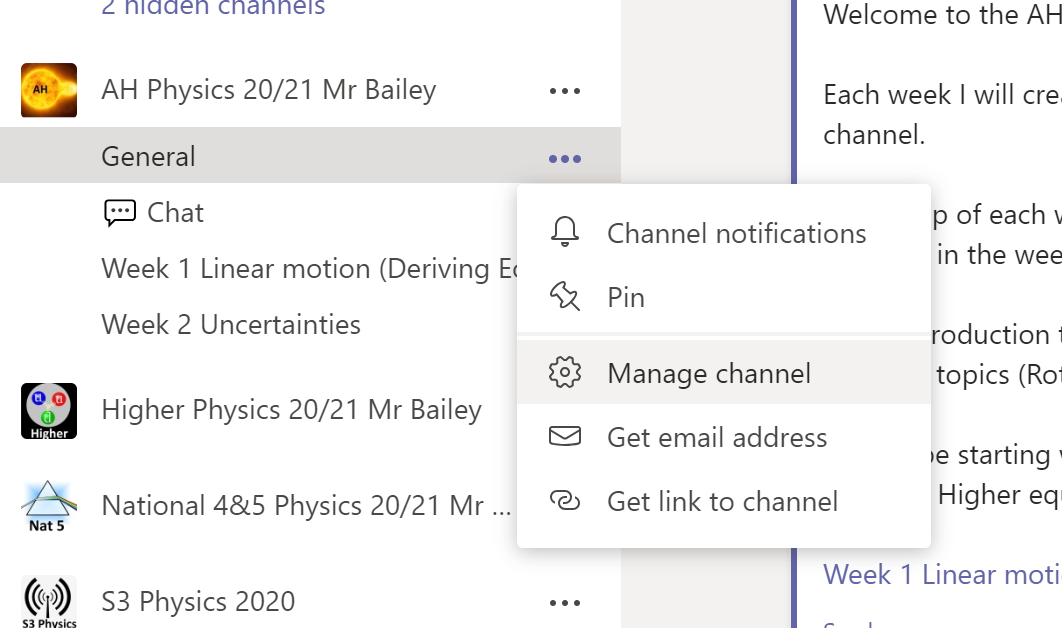
I have set up my Teams with a general channel that can only be posted to by the Owner/teacher. This is set in the manage channel setting click on the three dots to the right of it.
In the general channel I make announcements rather than posts and have some custom backgrounds for each Team. Here is a Microsoft video on announcements and messages.
Each channel also has a tab that links to the Class Materials document library in SharePoint for those on Android devices that cannot currently access the files on the Android app.
Insights
I have also added the Insights app to the Team. Here is a video from Microsoft showing how the data from Insights can be used.
Creating a Team from an existing team as a template
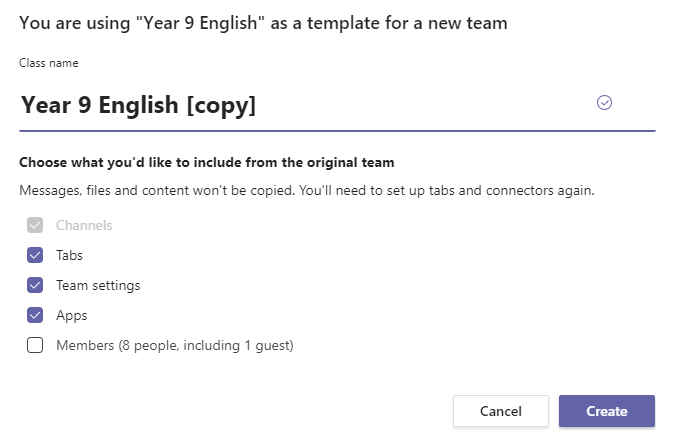
You can create a Team from a template. This copies the channel structure, teams settings, apps and tabs – content, such as files, is not copied across to the new Team.
This can be selected in the creation process.
Announcements and custom backgrounds
I like to use announcements for my posts and have created custom backgrounds for them that I uploaded to the post. These were created in PowerPoint where I shaded a rectangle and added some background images appropriate to the topic being learnt.
snup
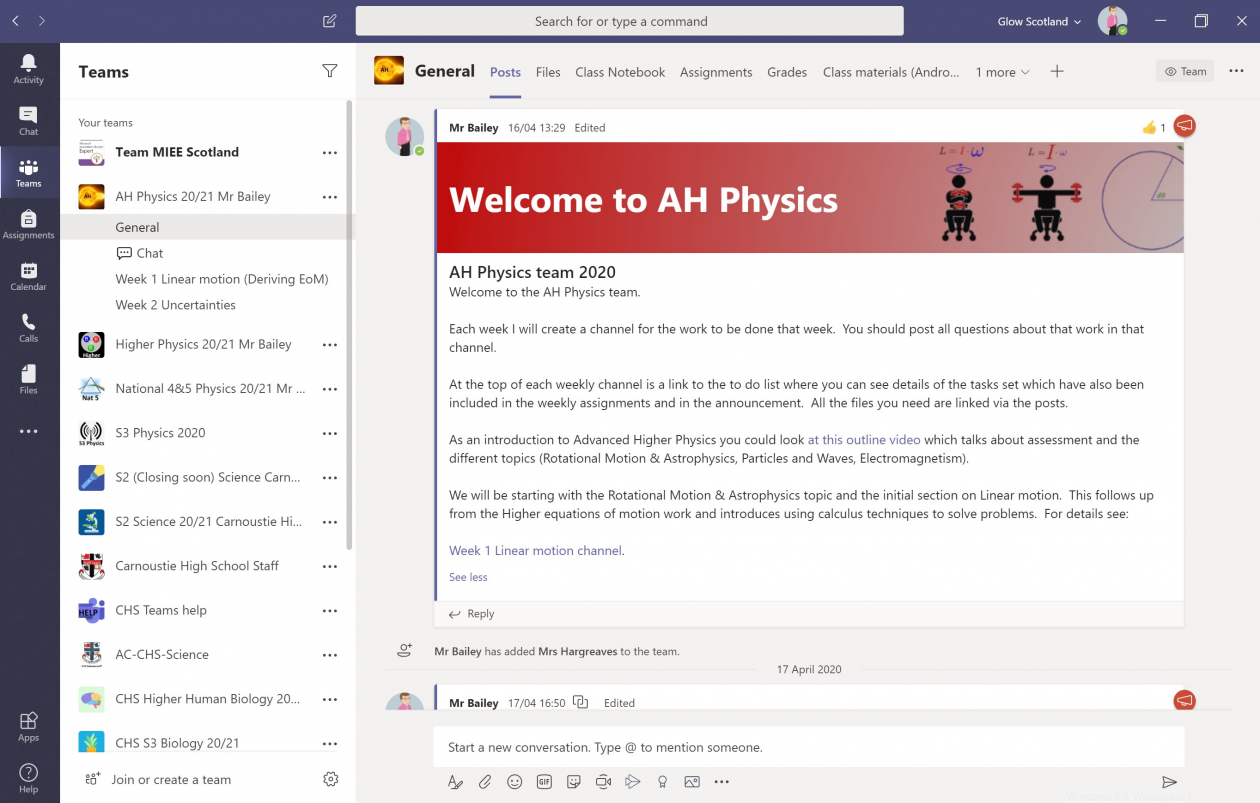
The Team has a chat channel where students are allowed to informally chat and post anything they like as long as it is appropriate.
Add channels by clicking on the three dots to the right of the Team name.
The chat channel is to encourage some socialisation and the more informal conversations that happen in class. You might notice I have used an Emoji in the channel name this is a fun way to get visual engagement. It is recommended that you name the channel with normal characters first for Team stability in underlying SharePoint then you can edit the channel name to the right of the channel. Remember you can’t rename the general channel. On Windows devices pressing windows key and . together get you the emoji keyboard. Teams channels are ordered alphabetically and by unicode number for emoji.
Whilst on the subject of keyboard shortcuts, make sure you know windows-shift-S for snipping things using the Snip and Sketch tool which is how I collected the images in this blog .
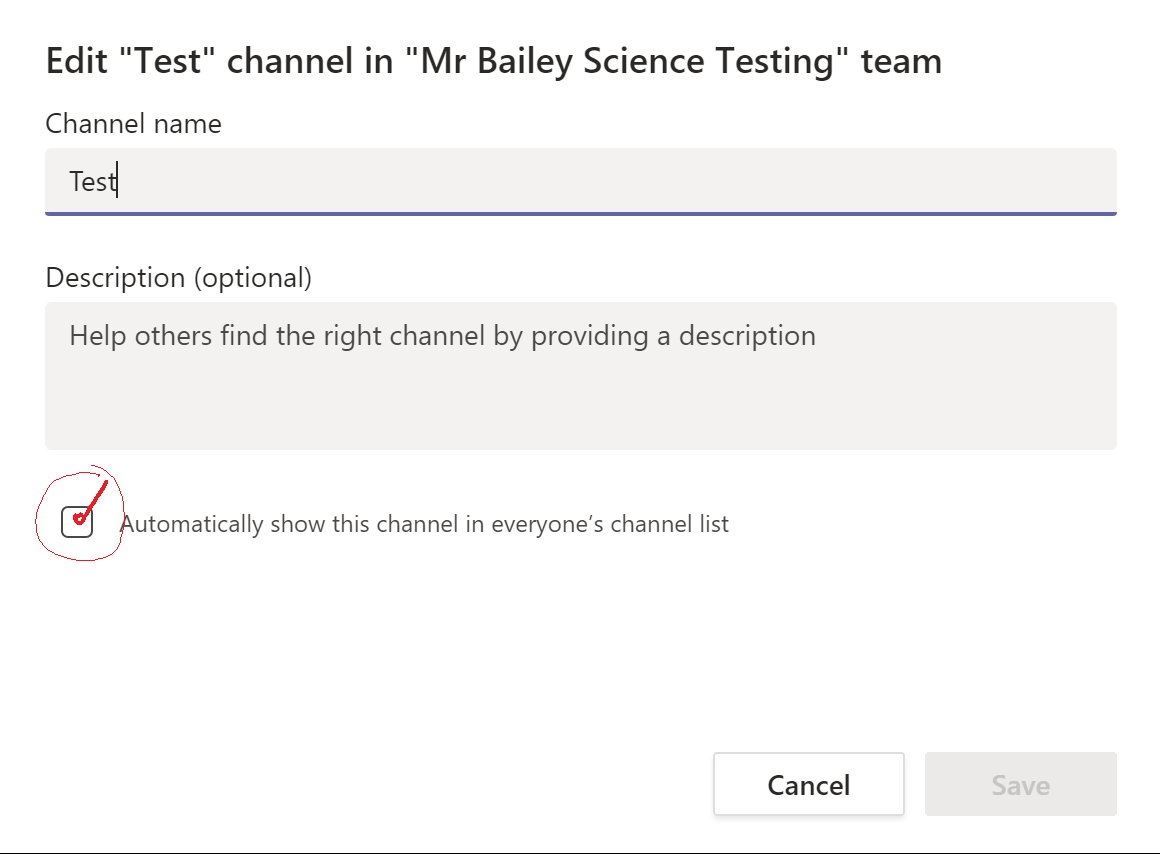
Each week I create a new channel. I start off creating this new Weekly channel as it hidden from the members, but unhide it when I want it to go live. Remember to do this otherwise pupils can’t see it. You unhide the menu in the edit this channel menu and click the box.
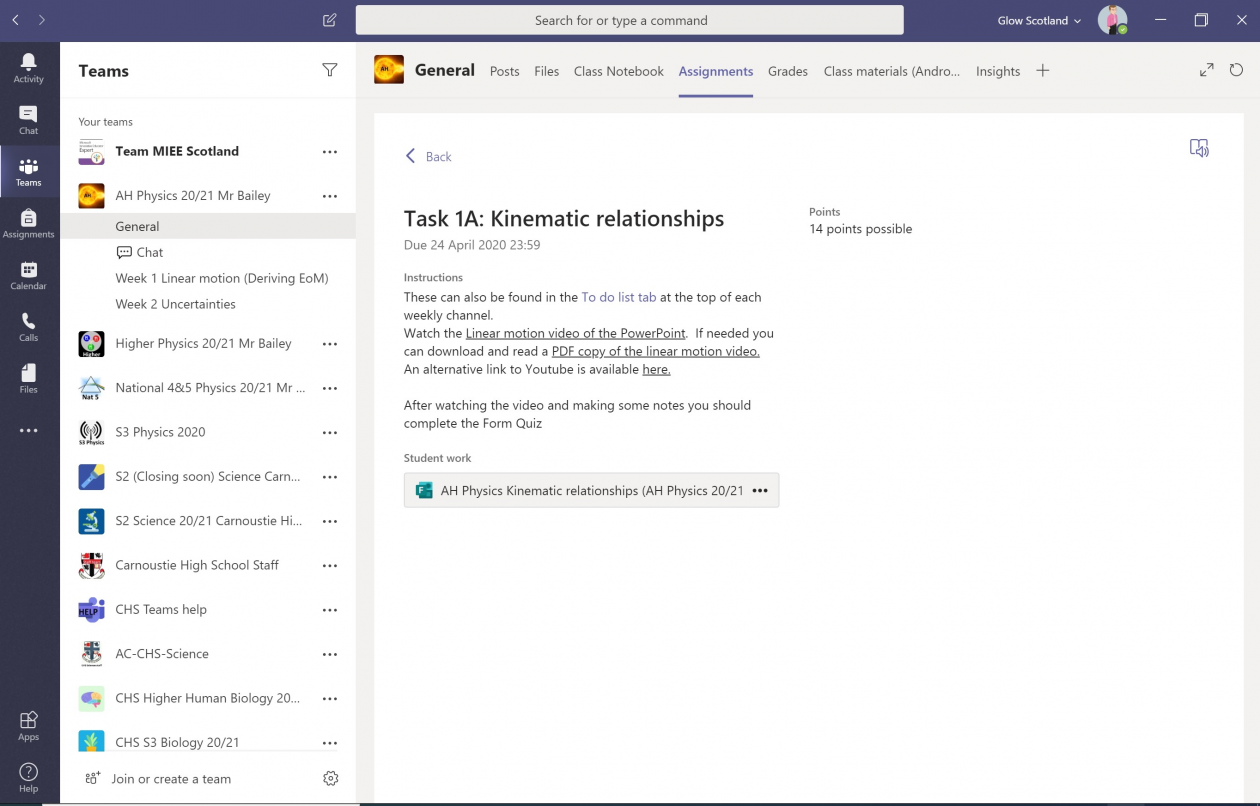
Within the weekly channel I start with an announcement with the work that is set for that week. This information can be copied directly the Team assignments set for that work often about 4 per week.
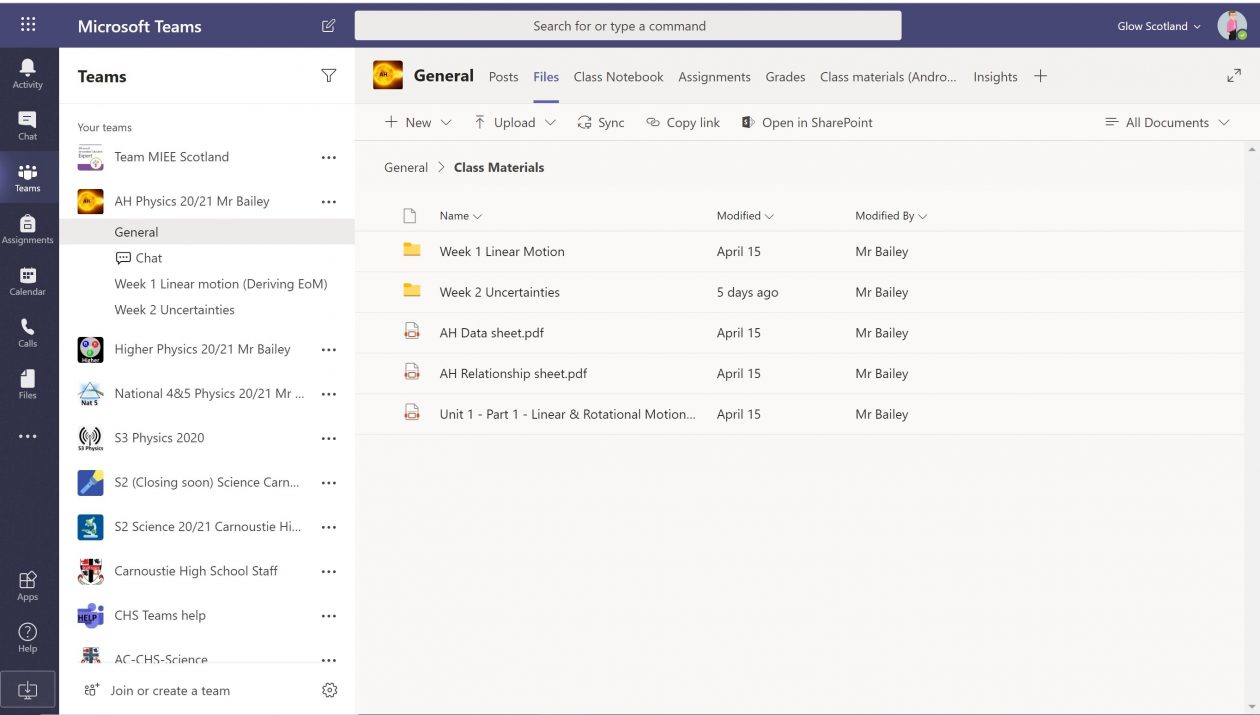
The announcement includes hyperlinks to all of the resources that are loaded into the Class Materials folder in folder created for Week 1 linear motion (in this case).
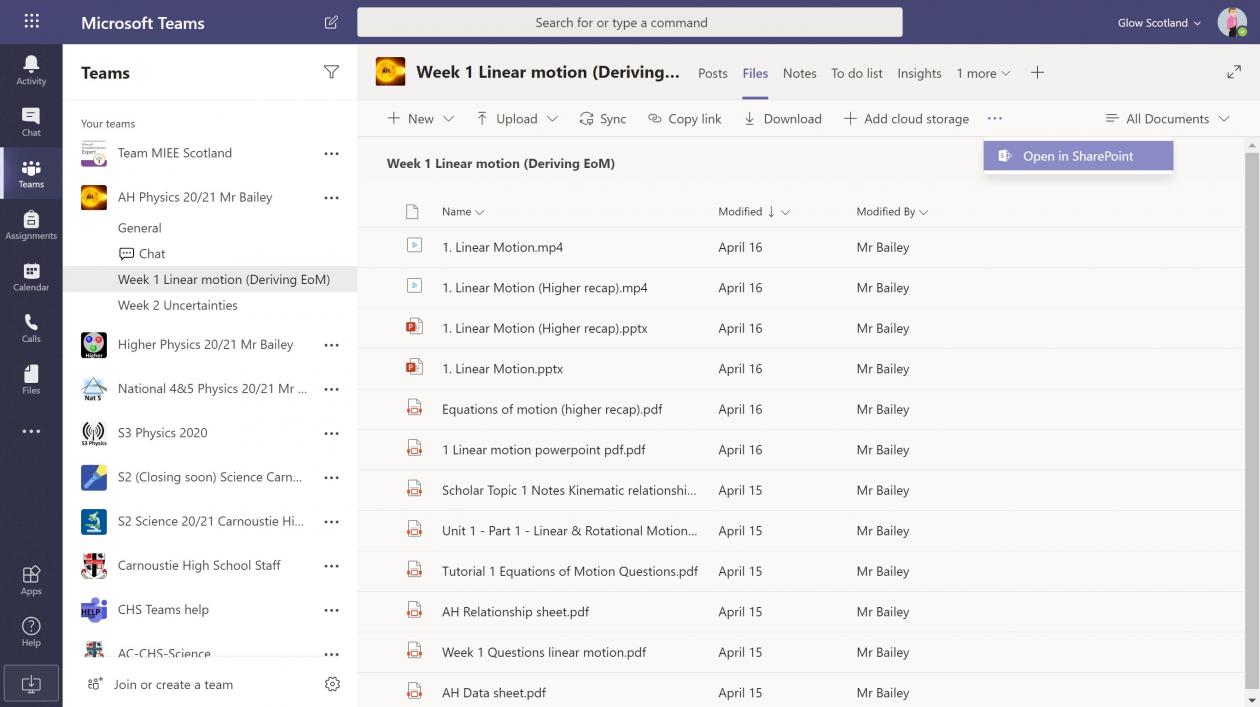
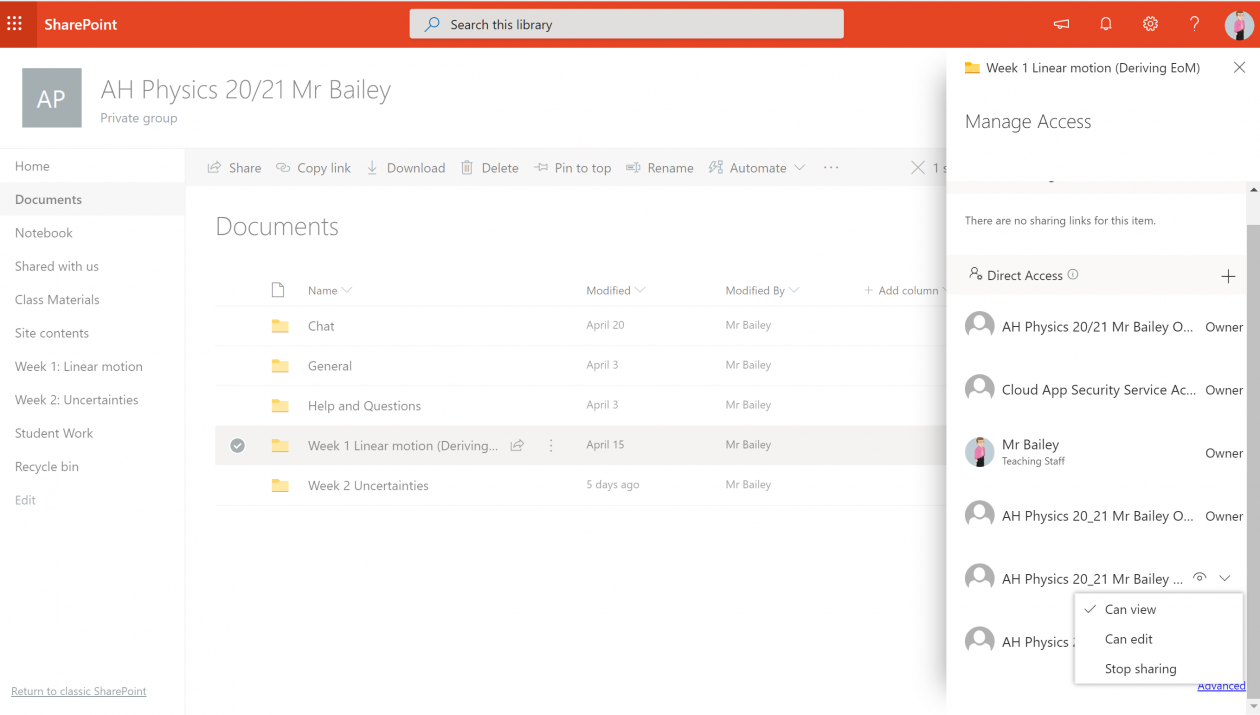
The same files are duplicated into the file tab within the week 1 channel. Unless changed this folder is not read only. To do that click on the three dots and select open in SharePoint.
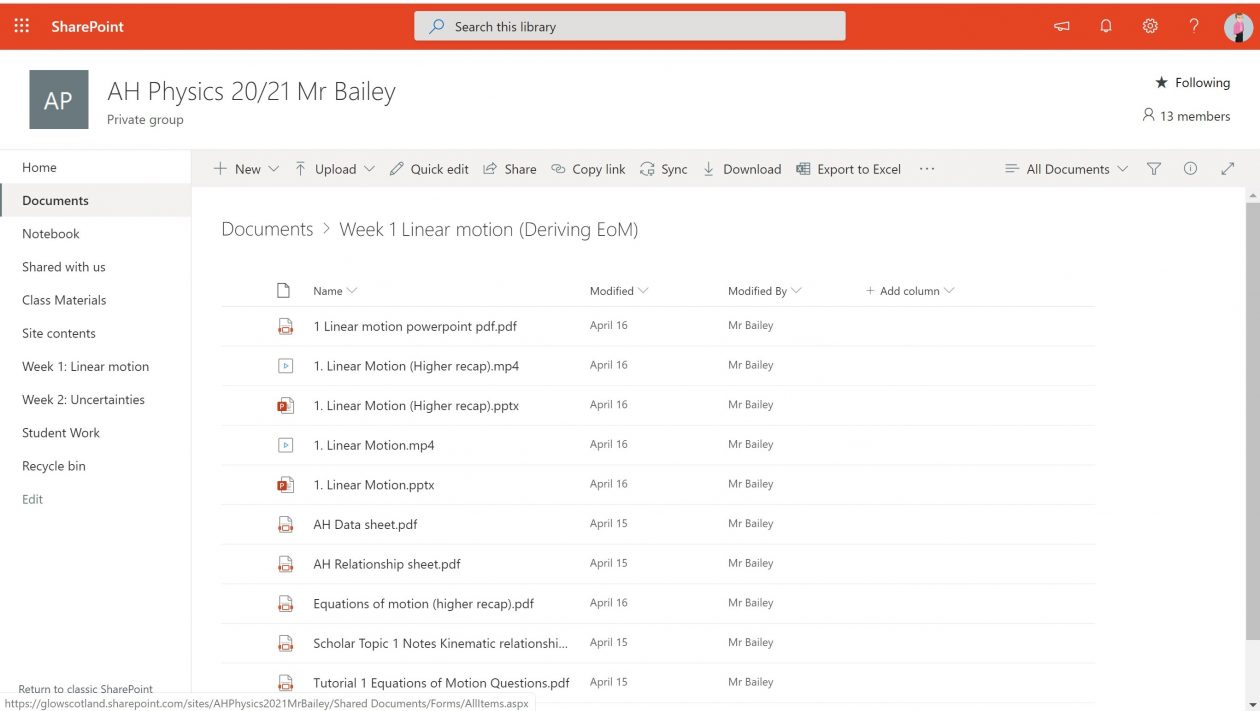
On SharePoint the library click the documents menu at the side.
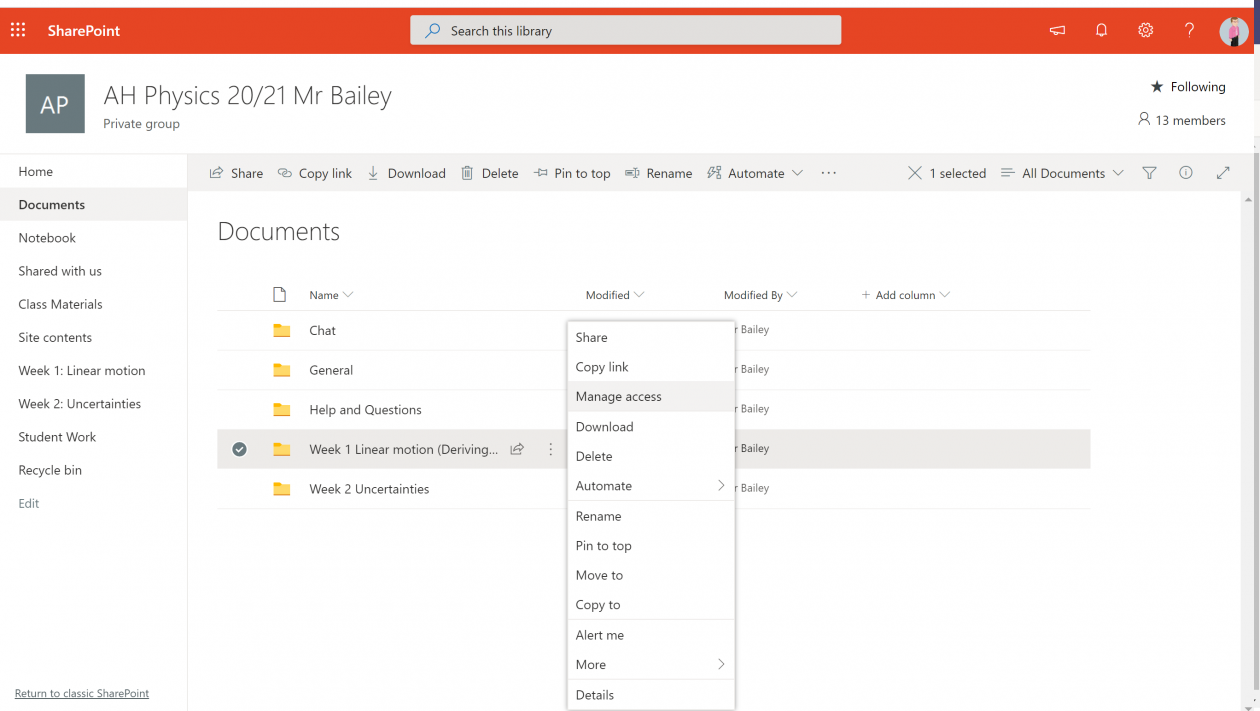
On the right of the folder click the three dots and manage access.
The panel on the right is then shown and change from can edit to can view.
Although this blog has a lot of digital specific details, the most important part of distance learning is the pedagogy. The work I am doing is almost entirely asynchronous so that it can be done at any time. There are some live chats or voice calls to check up on pupils and answer questions.
The Education Endowment Fund have published a research evaluation about digital learning. The key findings from their rapid research review are:
Teaching quality is more important than how lessons are delivered
Ensuring access to technology is key, especially for disadvantaged pupils
Peer interactions can provide motivation and improve learning outcomes
Supporting pupils to work independently can improve learning outcomes
Different approaches to remote learning suit different types of content and pupils
We know how important feedback is to learning and therefore I feel this is an important area digitally for two reasons. Firstly without face to face interactions and questioning we lose our ability to make judgements as to where the students are and to diagnose misconceptions and misunderstandings. Secondly without effective and regular feedback students do not get recognition of their efforts. We may then find that engagement may dwindle for all but the most dedicated students – hardly closing the attainment gap! Using Microsoft Form quizzes can provide that provide instant feedback. A short quiz can be used as a diagnostic assessment, branching functions can be used to provide more questions for learners that struggle and to add in a video or something to read as a substitute for the teacher classroom scaffolding. For each question feedback comments can be provided too indicating where to improve or what to think about.
The structure I have for most of the lessons or tasks are:
Recall quiz from previous week or prior knowledge
Introduction video
Activity
Questions
Diagnostic assessment
Consolidation
Some quizzes and assessments are reissued to pupils to do again if understanding is not shown or I can see they were completed in a very short time.
Videos are hosted on Office Videos as we don’t have Stream on in our Glow Scotland tenancy. I also have the videos uploaded in my Mr Bailey YouTube channel as some pupils find this easier to access.
I have been making videos for a number of years so am able to reuse some from the past and also the experience of making them.
Most of the videos are recorded using Microsoft PowerPoint recorder where I narrate over slides, sometimes incorporating animations and short online videos.
Here is a Microsoft video on using PowerPoint recorder. This includes some feature not available in Glow.
All Glow users can download Microsoft Office on their PC for free. If you log into Glow and go to www.office.com there is then an option on the top right to download. Many LA also have a tile on the launchpad to download Glow as shown in this video which you can on 15 devices.
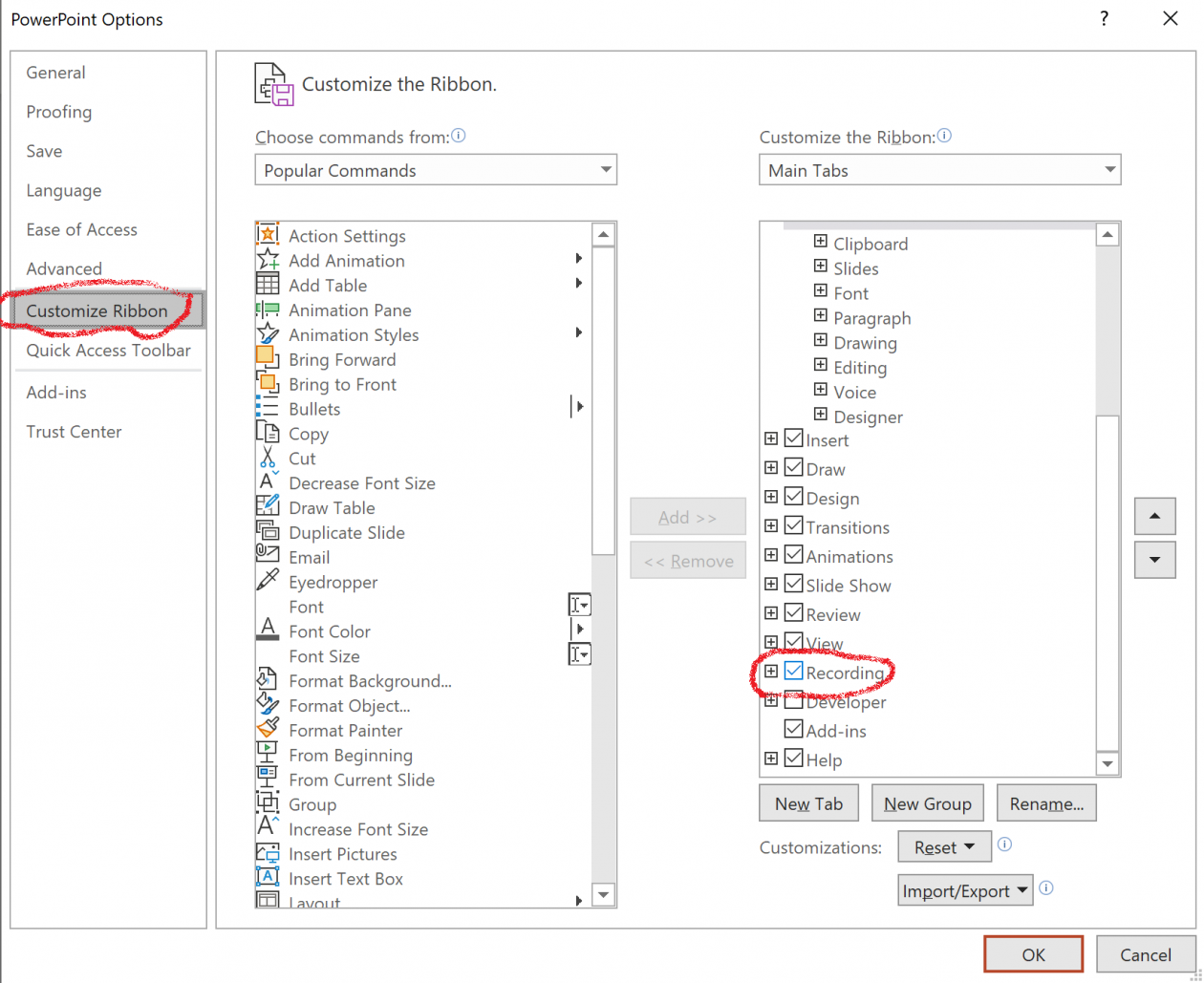
The PowerPoint recording menu is switch off, go to File menu then Options and customise ribbon. On the right side click recording.
The following week starts with a recap test on the previous week to check for understanding. Some quizzes are reissued to pupils to do again if they do poorly especially if I can see a small time of work.
If you are attaching files for pupils to edit and put in answers within assignments then you should make sure that they are:
docx not doc for Word
pptx not ppt for PowerPoint
xlsx not xls for Excel
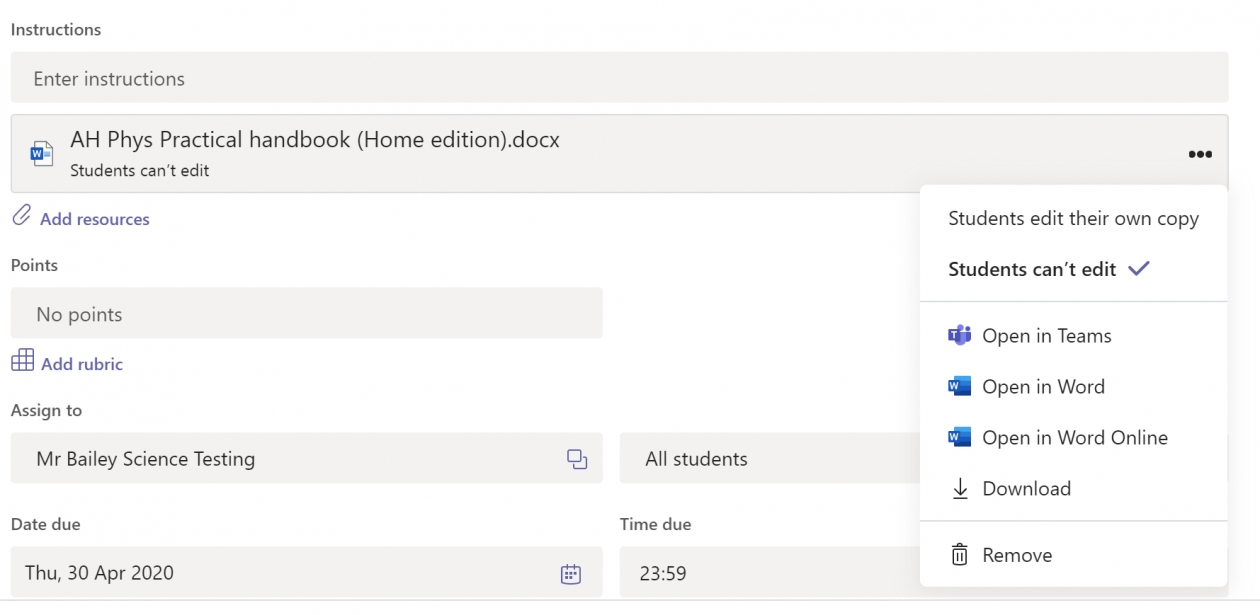
So make sure you upload the correct file format and if you want to make the file editable choose the students edit their own copy option in the three dots to the right.
Remember if you upload PDF files then these cannot be edited if if they are editable ones. So only use PDF files for notes or instructions. If you want to change PDF to word you can do this in Microsoft Word. Here is a video showing how you can change a PDF to Word using the Office app on your phone.
Alerts / Notifications for Teams Assignments
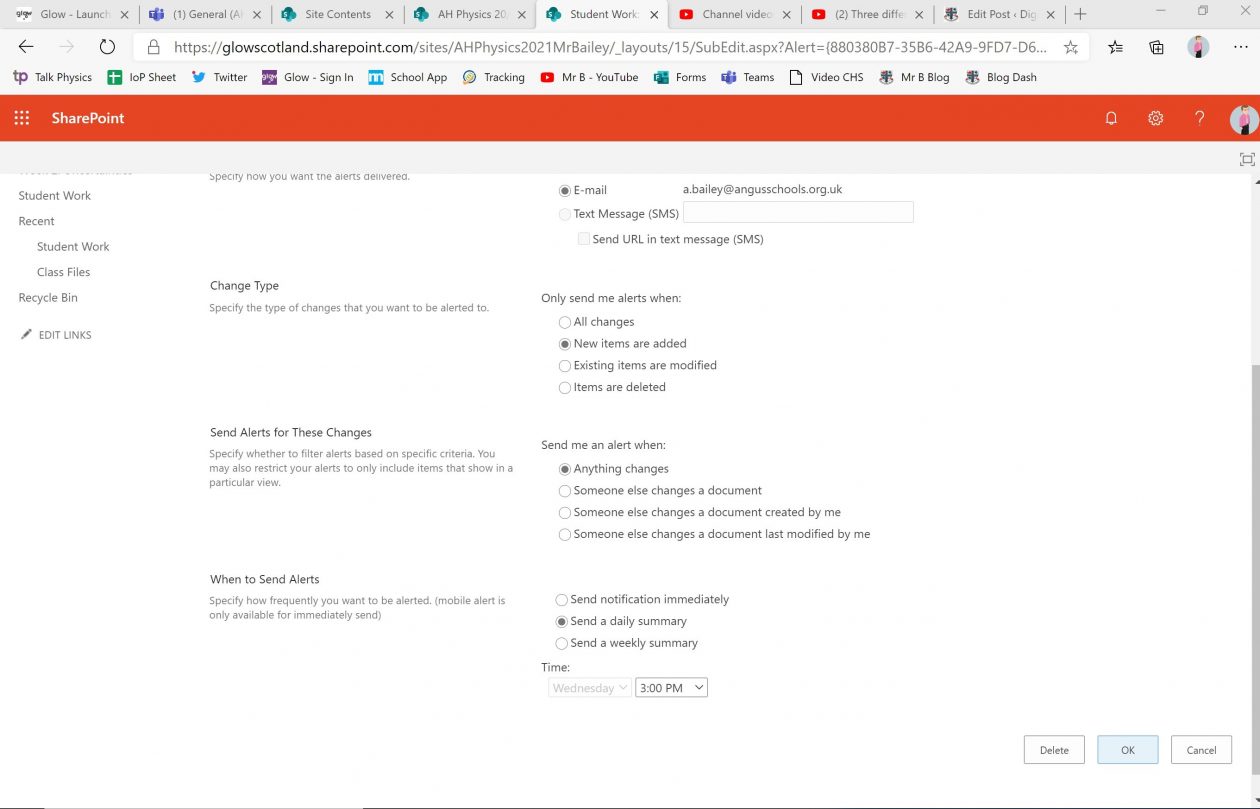
It is possible to set up notifications for when pupils upload work to Teams Assignments. Thanks to Donna Shah for sharing this. This is done in the underlying SharePoint site for the Team.
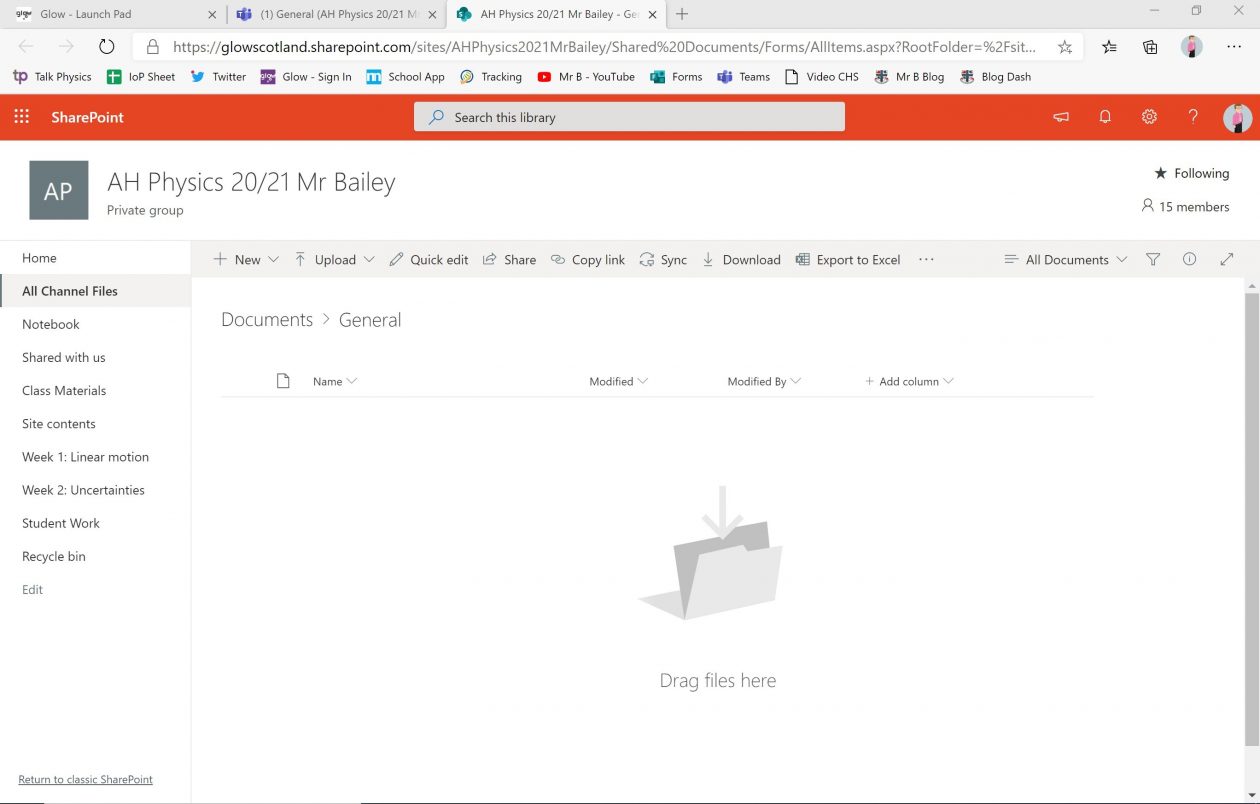
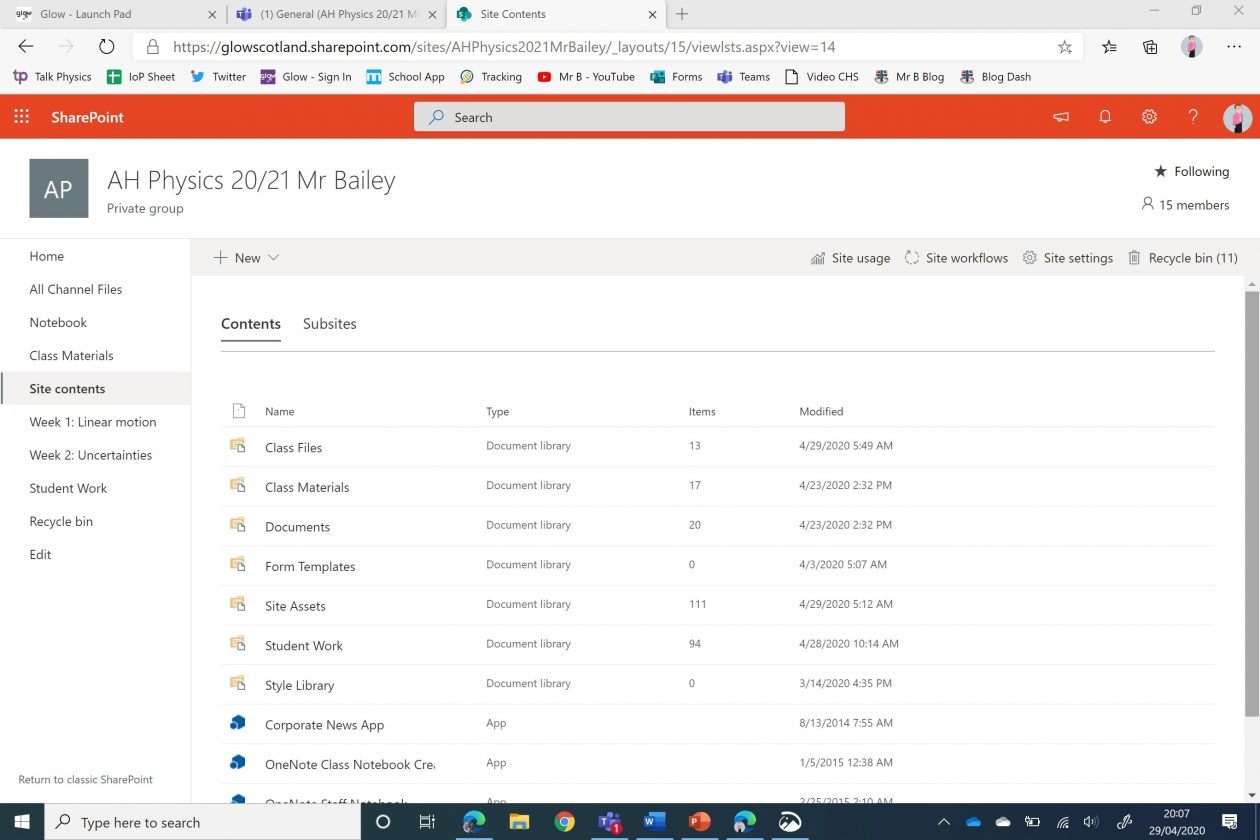
Go to the SharePoint site by choosing the files tab and then selecting behind the three dots on the right open in SharePoint. You then see the view below.
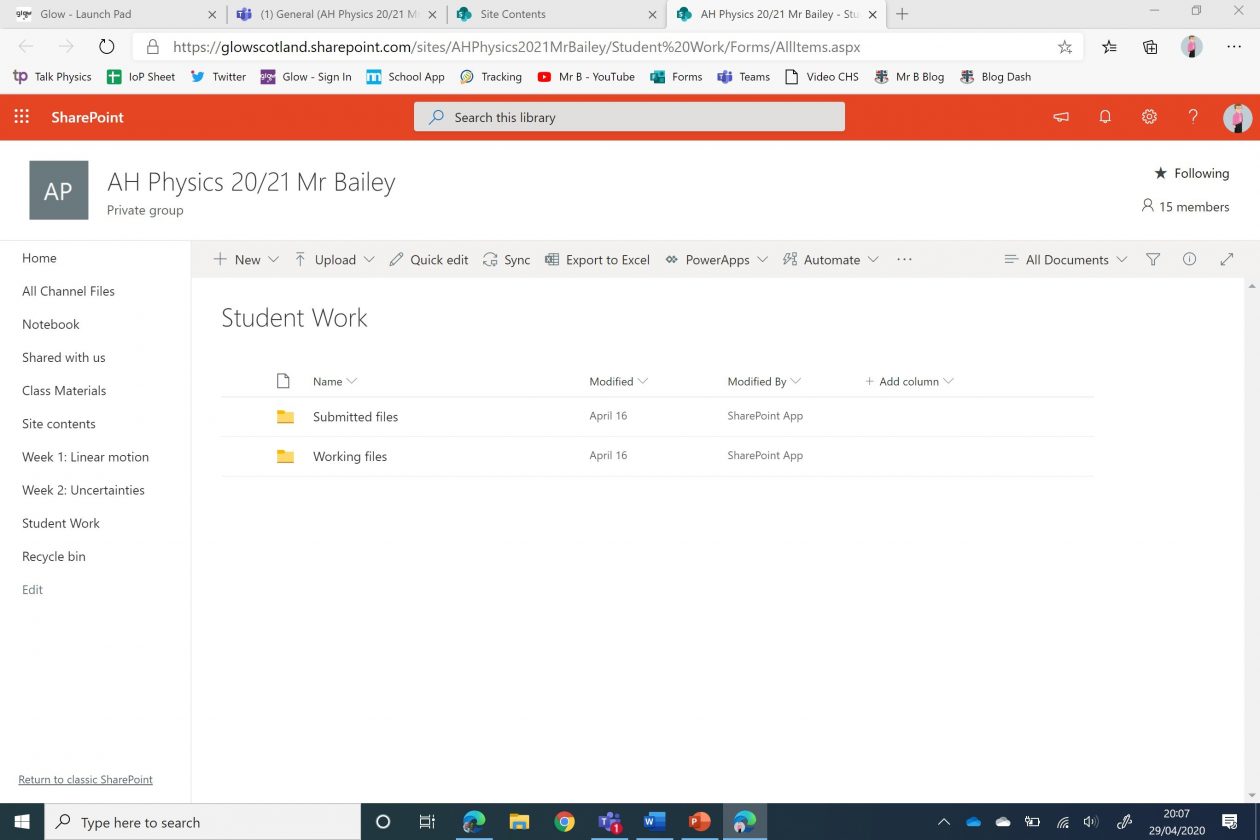
From here choose the Site Settings. Then click on the student work folder.
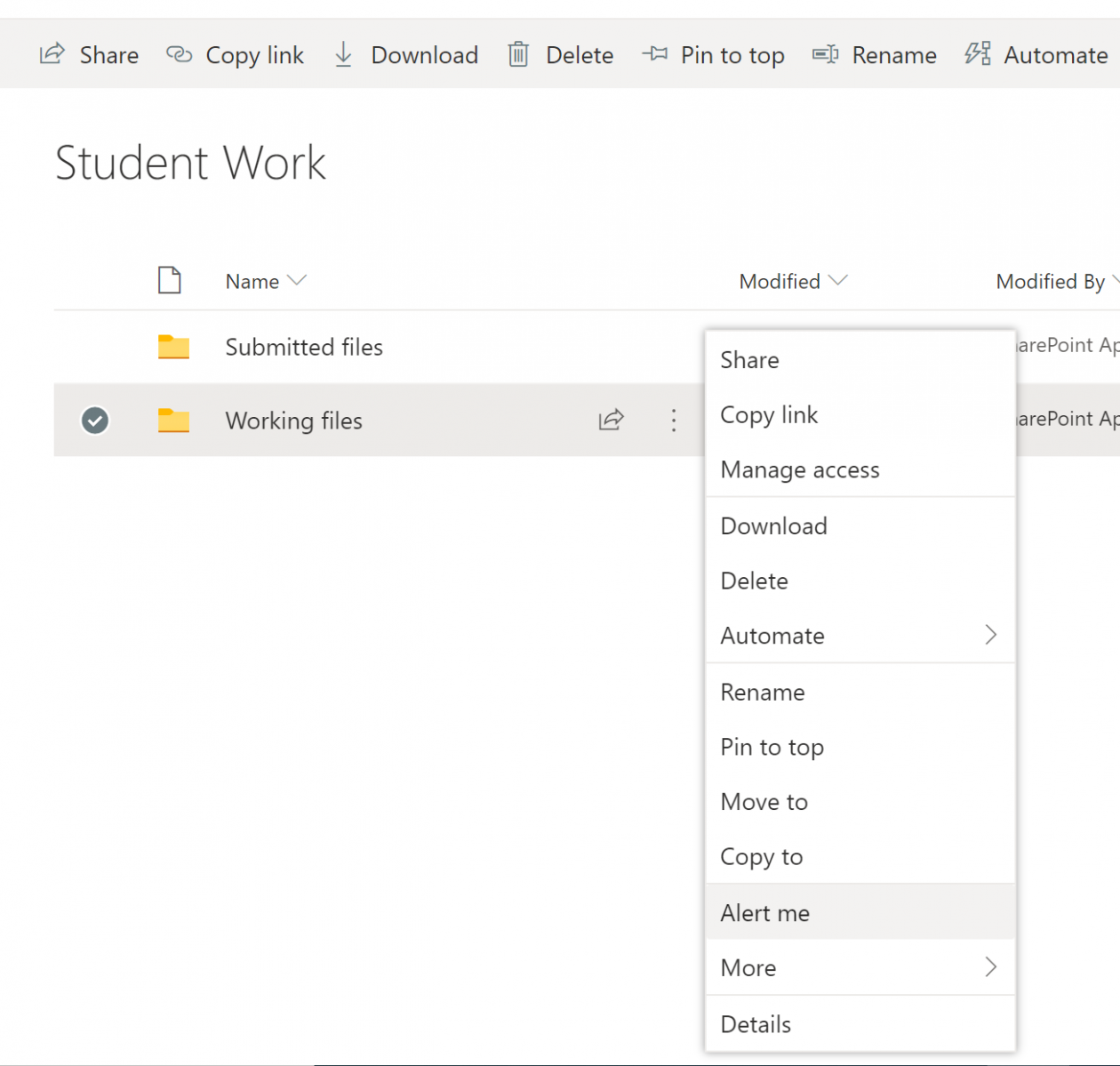
Within the student work folder are two folders submitted files and working files. The working files folder is the one we are going to use to set an alert/notification when a student add a file to Teams assignments. Here the student can still edit the file, when they click hand-in the file goes to the submitted files folder and the student can no longer edit it.
Choose from the three dots of the right of the working files menu, the alert me option.
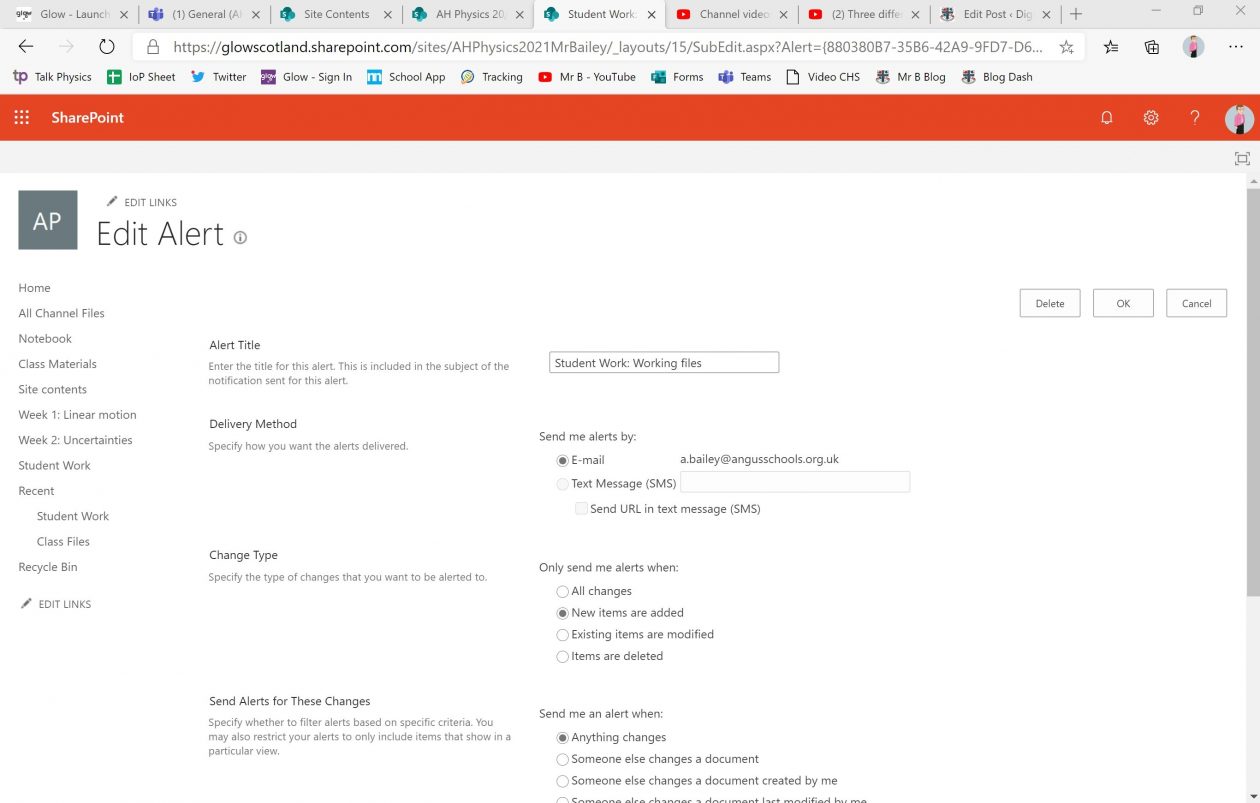
We choose email, alert when new items are added, all changes would also alert when pupils edit items. Then we have chosen a daily summary by email at 3.00 pm.
Tags for Assignments
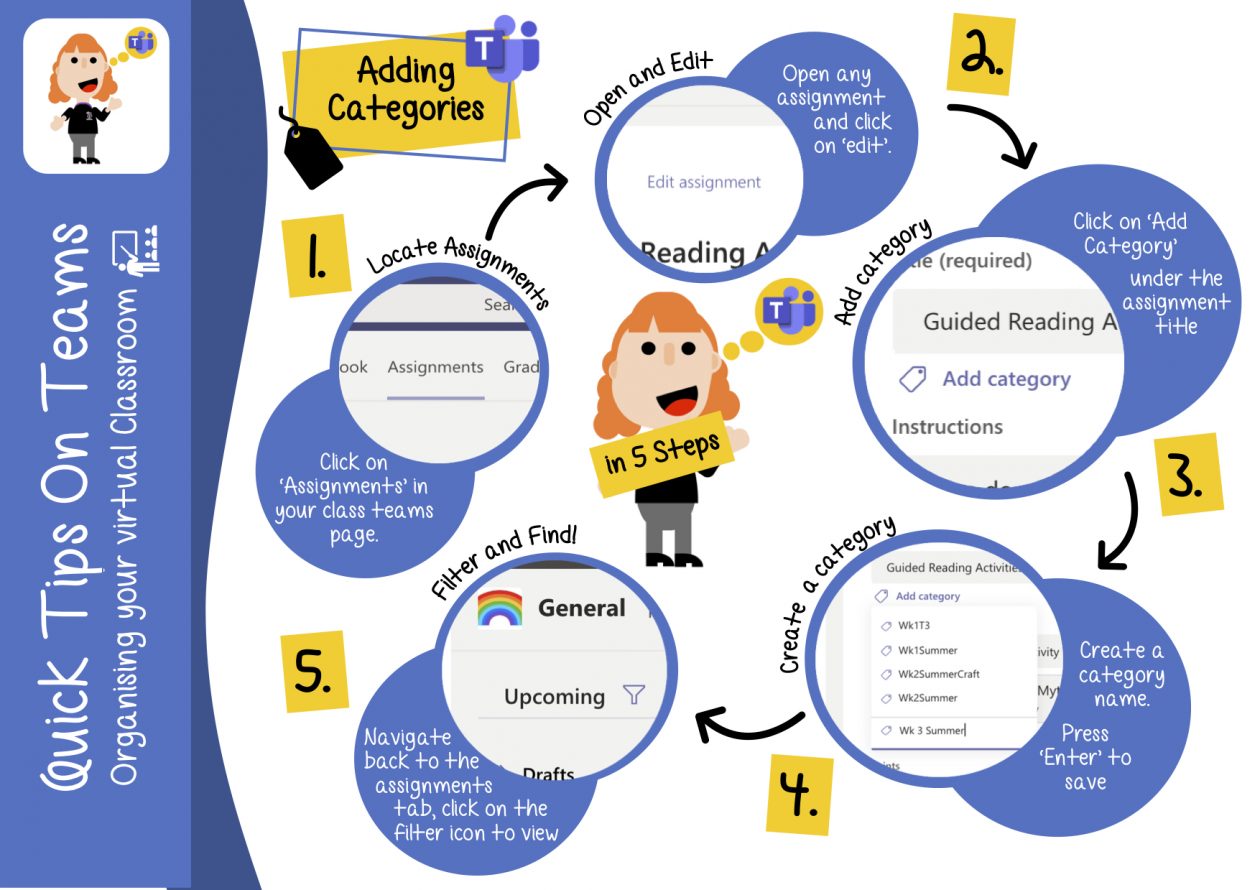
Adding tags for assignments can help you find them quickly and filter. This from Lucy Lock shows how to add tags.
Marking Assignments
Sometimes when reviewing students hand-in work in assignments the files don’t load properly. To overcome this I have added a link to the underlying SharePoint site adding a link to the Student work folder and then you can go to the submitted files folder, find the correct pupil and click the handed-in files. Here is a video showing how to add that Student Work shortcut the SharePoint navigation menu. You can see this on the left in the picture below.
Making Work clear to students
Here is my announcement post. Within the announcement posts I include hyperlinks to all of the resources that are needed for these tasks. I feel that this helps make the learning much clearer.
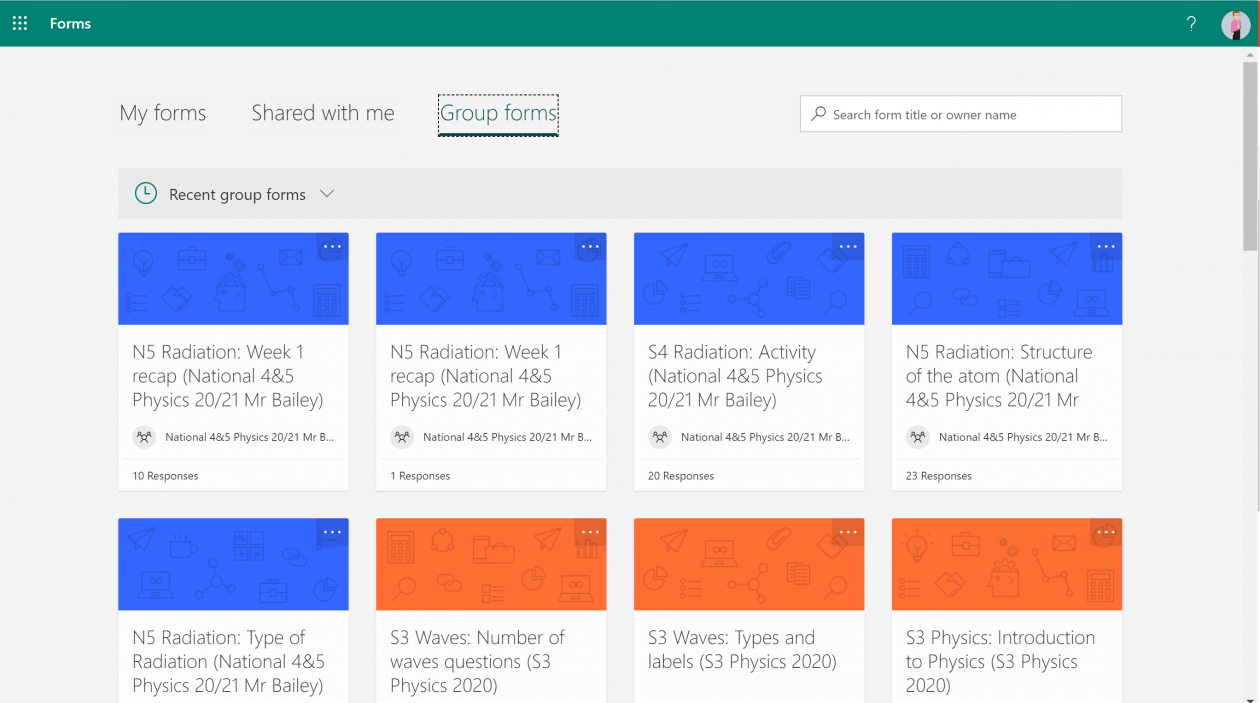
Note the Form link in the video above is not correct. The hyperlinks for the Forms quizzes if setting using an Assignment need to be shared from the Form that sits within the Groups part of Forms as shown below. Then open the Form and share. Here is a Microsoft video on Forms and sharing.
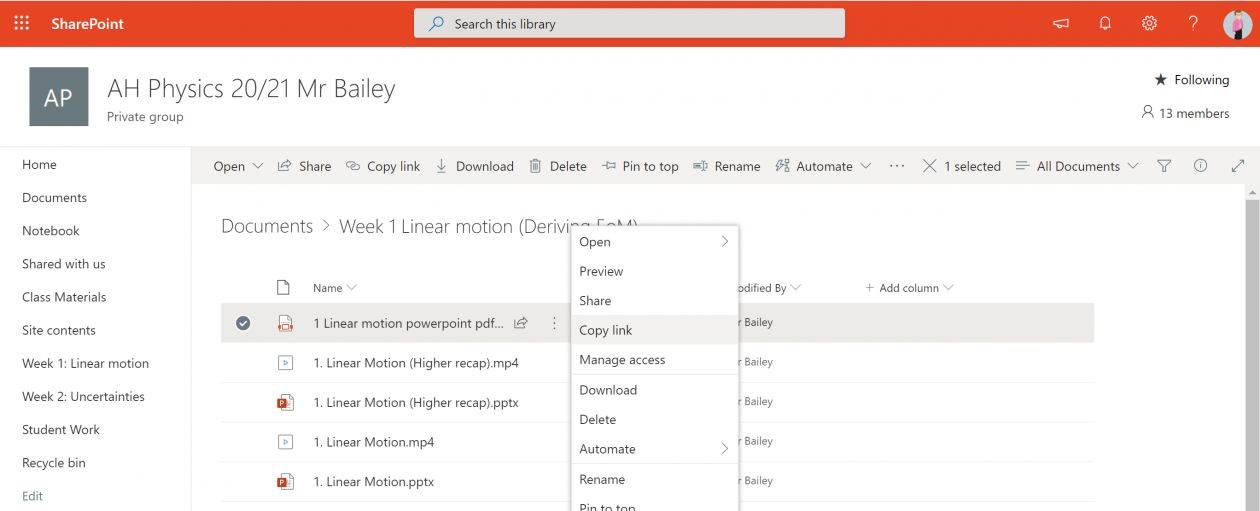
Opening the files document in SharePoint allow you to click the dots on the right of the file and click copy link.
Here is the announcement post with all the links. The same details are copied into the Assignments tasks including the hyperlinks as well as attaching the files to complete or Forms quiz.
This is what it looks like on the Assignment. By scheduling the assignments they can go live at the start of the week.
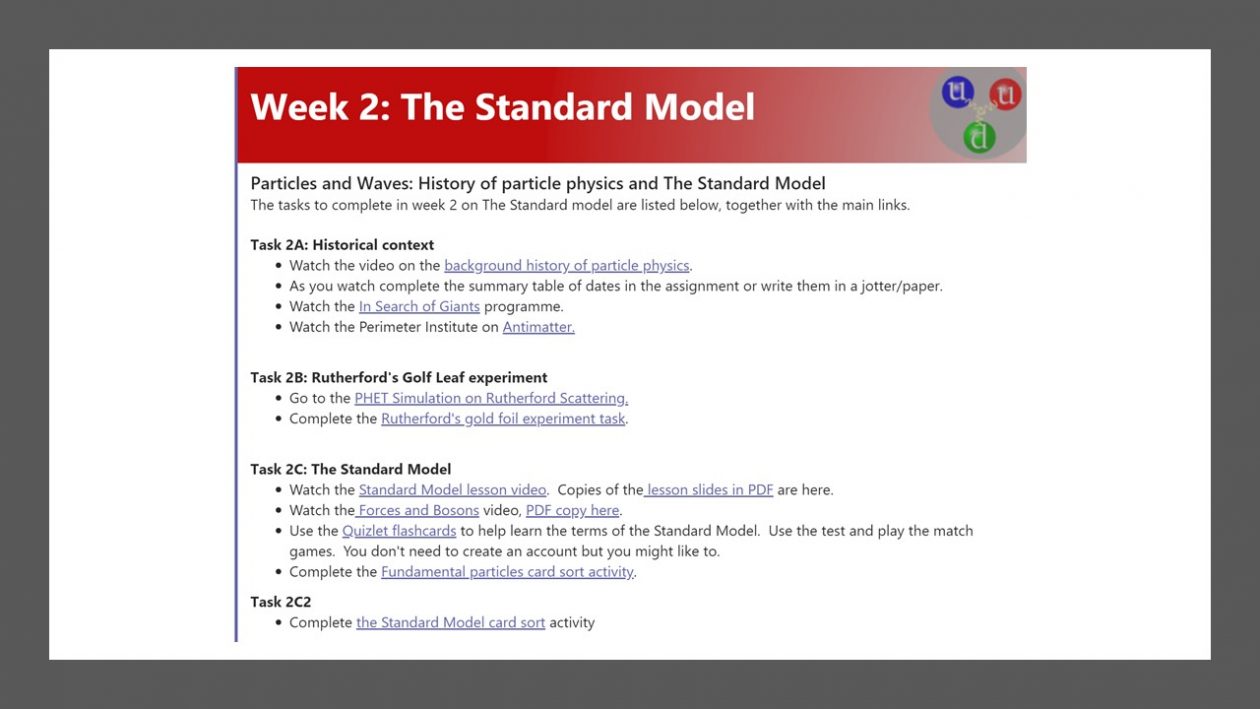
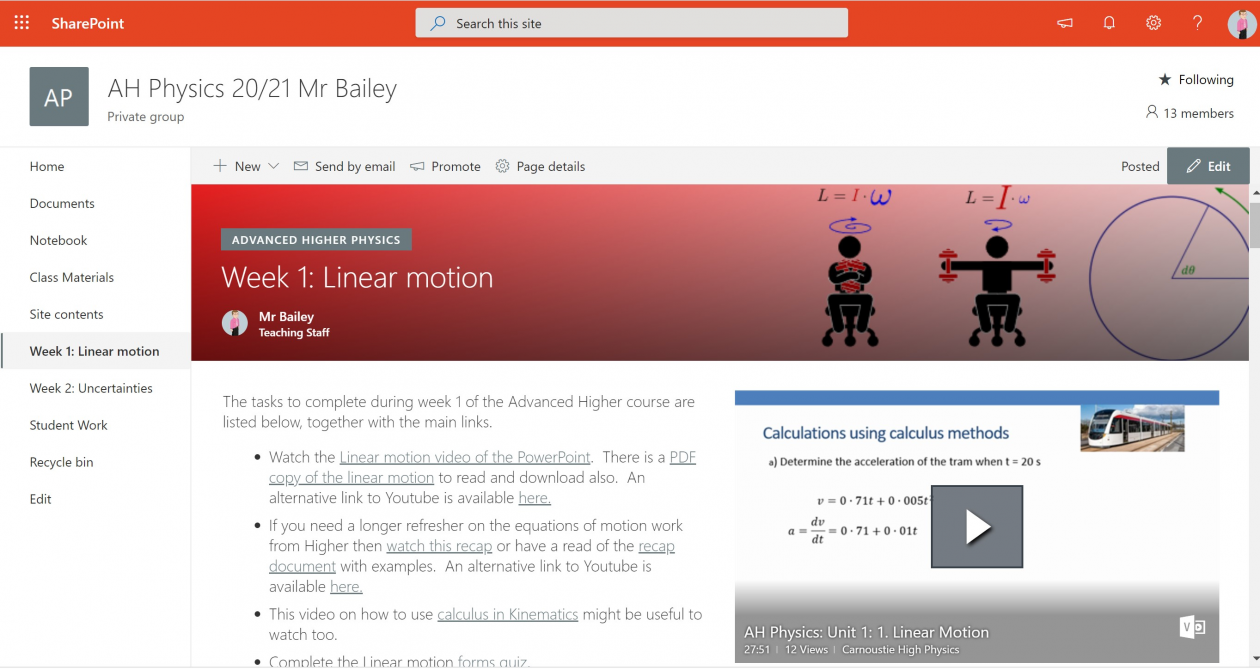
For each channel I have also created a SharePoint Webpage called To do list and have linked to this SharePoint page using a tab. I got this idea and some of the other I use from a Remote Learning webinar with Dr David Kellerman on what he is doing with Remote learning at UNSW Australia.
I have this saved as a template page and then adjust the content accordingly.
I add into the page:
Videos hosted in Glow Video.
Slides PDF documents
Forms Quizzes
Question documents
This SharePoint page is added as a weblink tab at the top of the weekly channel. At the moment resources loaded via SharePoint seem to be quicker to respond than those through the Teams interface.
Within SharePoint I have added a menu link to the Student Work folder link as sometimes I use that a few times Teams Assignments has struggle to load files handed in. So adding a link to the hand-in work directly in SharePoint means you can view the files there.
The file location is TeamName/Student%20%Work (the %20% is just the space) between Student Work.
Last but not least I have populated my OneNote class notebook in the Team sharing resources with pupils here.
This is a post to show teachers how to add feedback in Microsoft Forms and to show where pupils will receive and see that feedback.
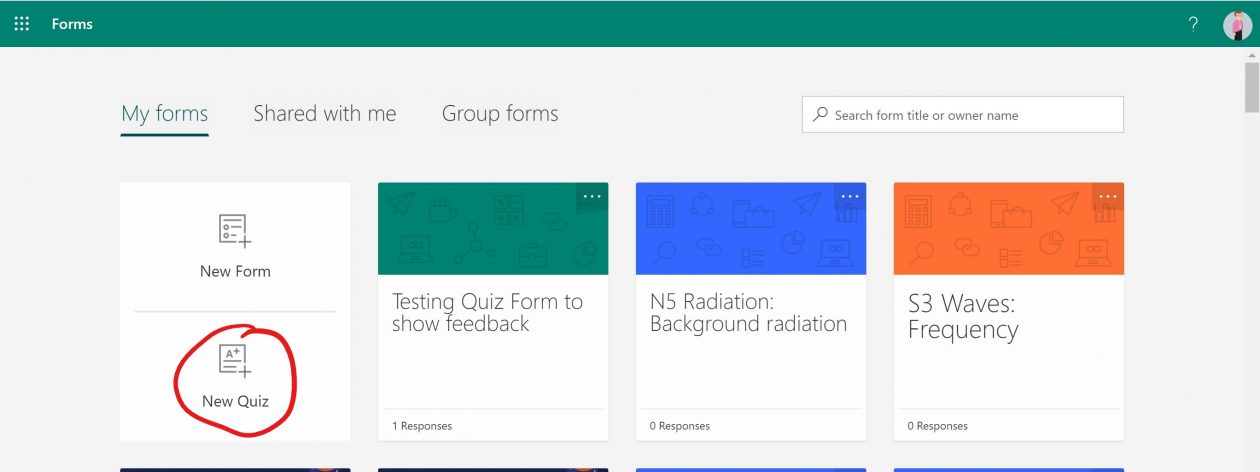
Create a Microsoft Forms Quiz
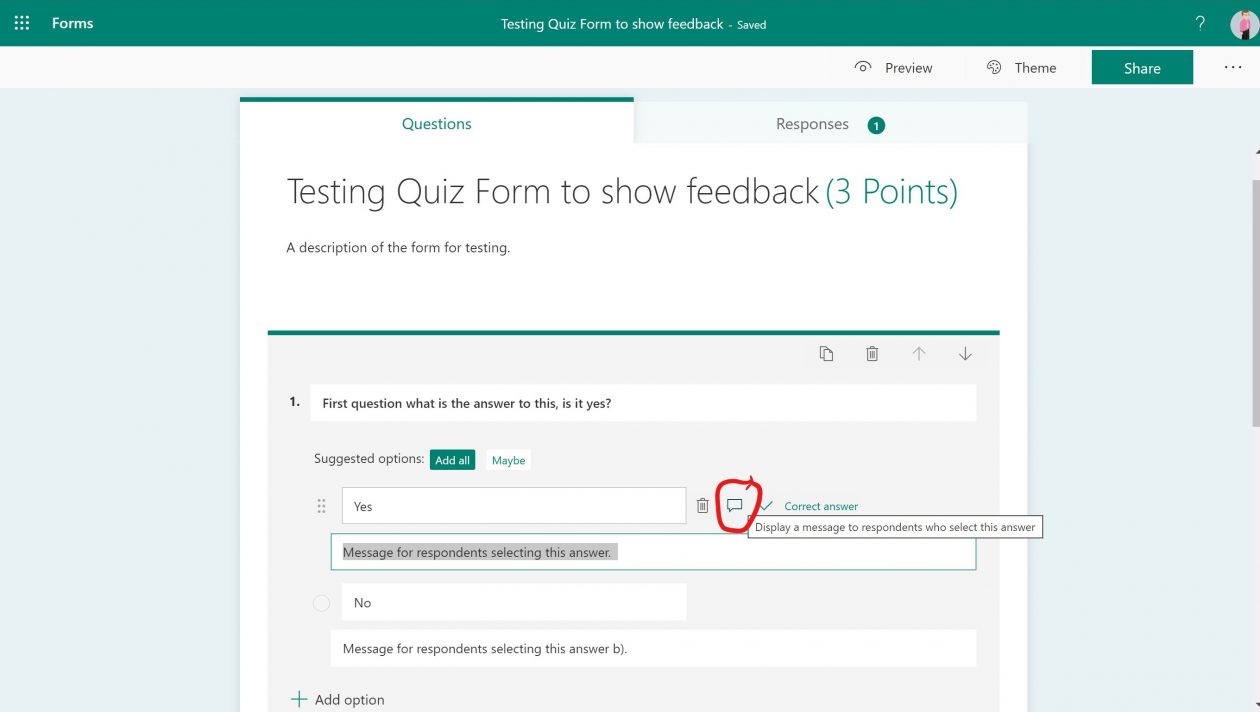
Add questions, in each multiple choice question there is an option to add feedback to students choosing particular answers. This is seen after a pupil submits the quiz.
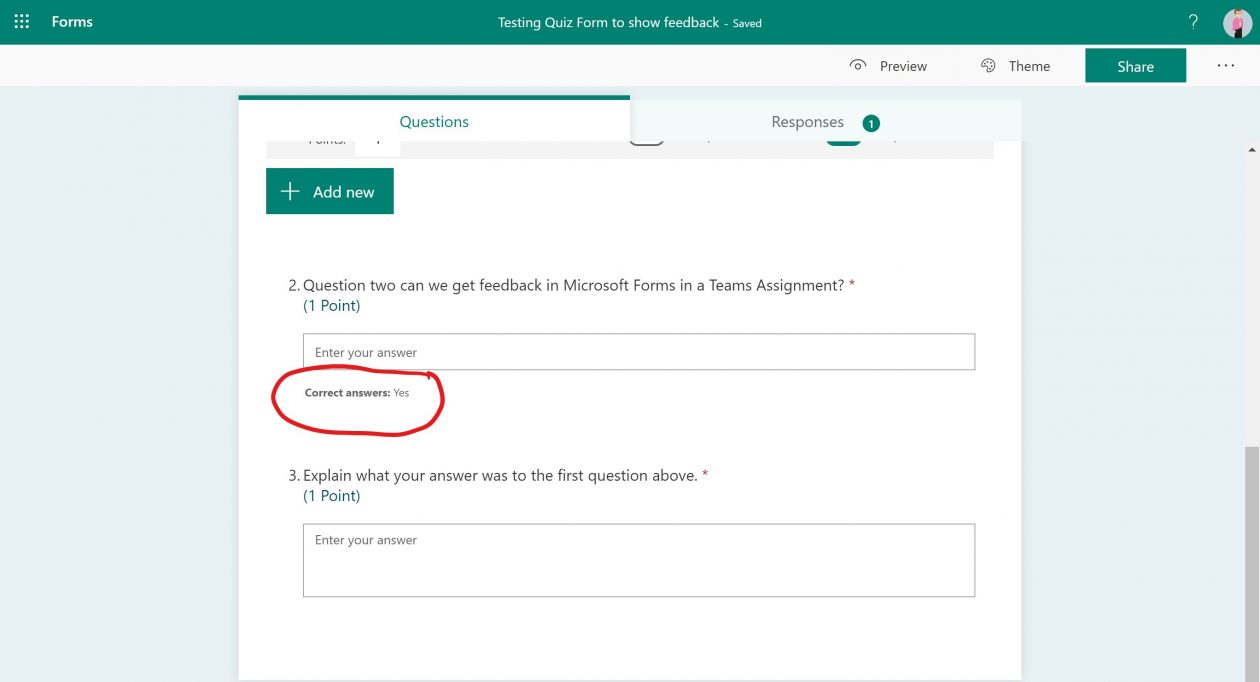
For short answers there is an option to put in the correct answer for automatic marking. For long answers there is not automatic marking response or feedback.
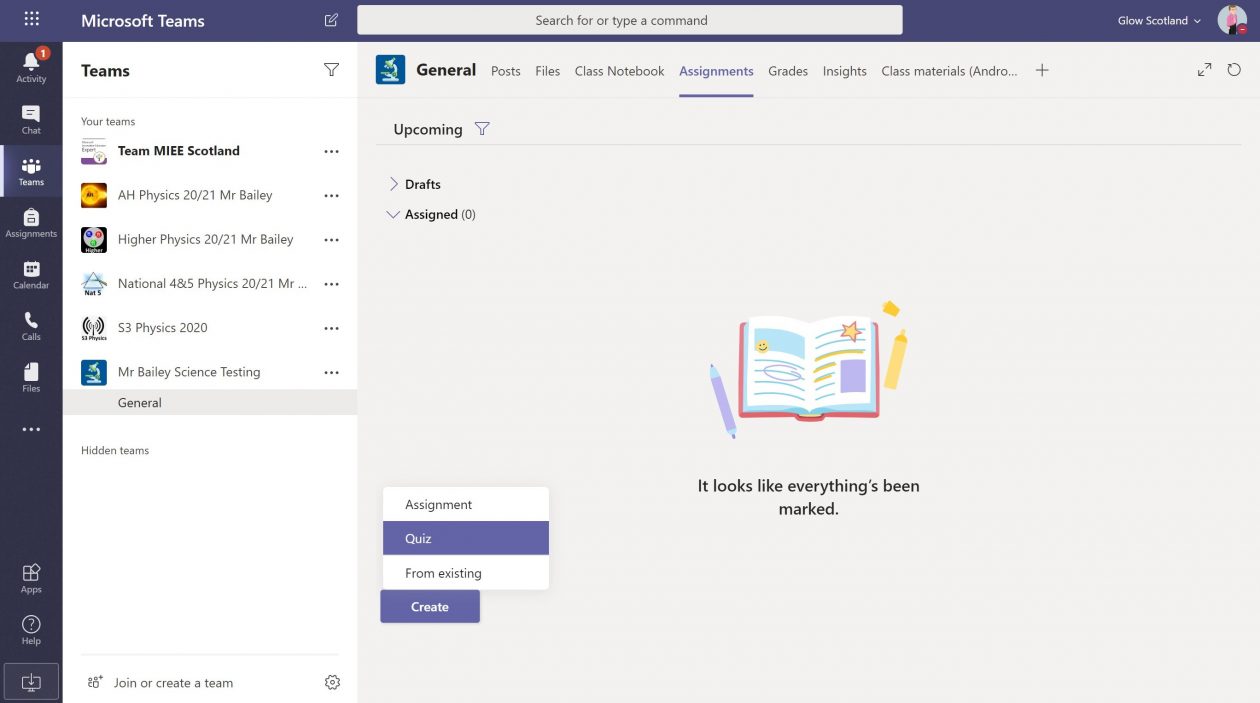
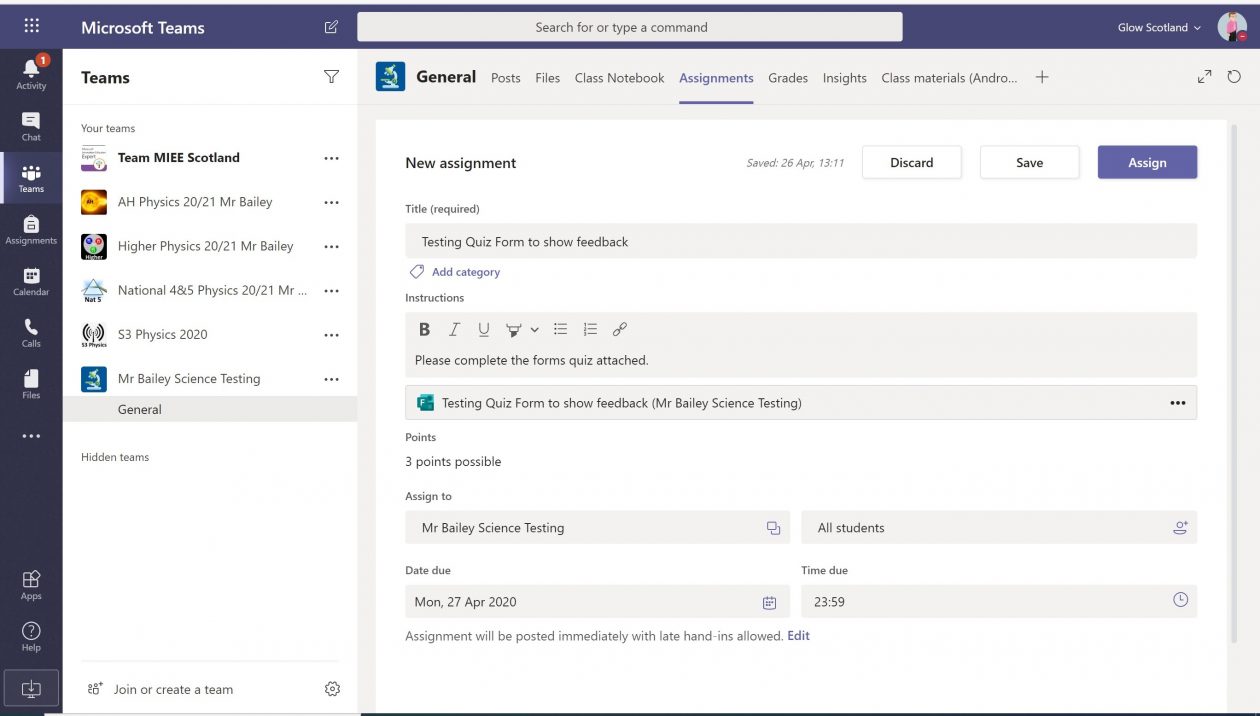
Now create the assignment with the forms quiz. Choose quiz in the create assignments option.
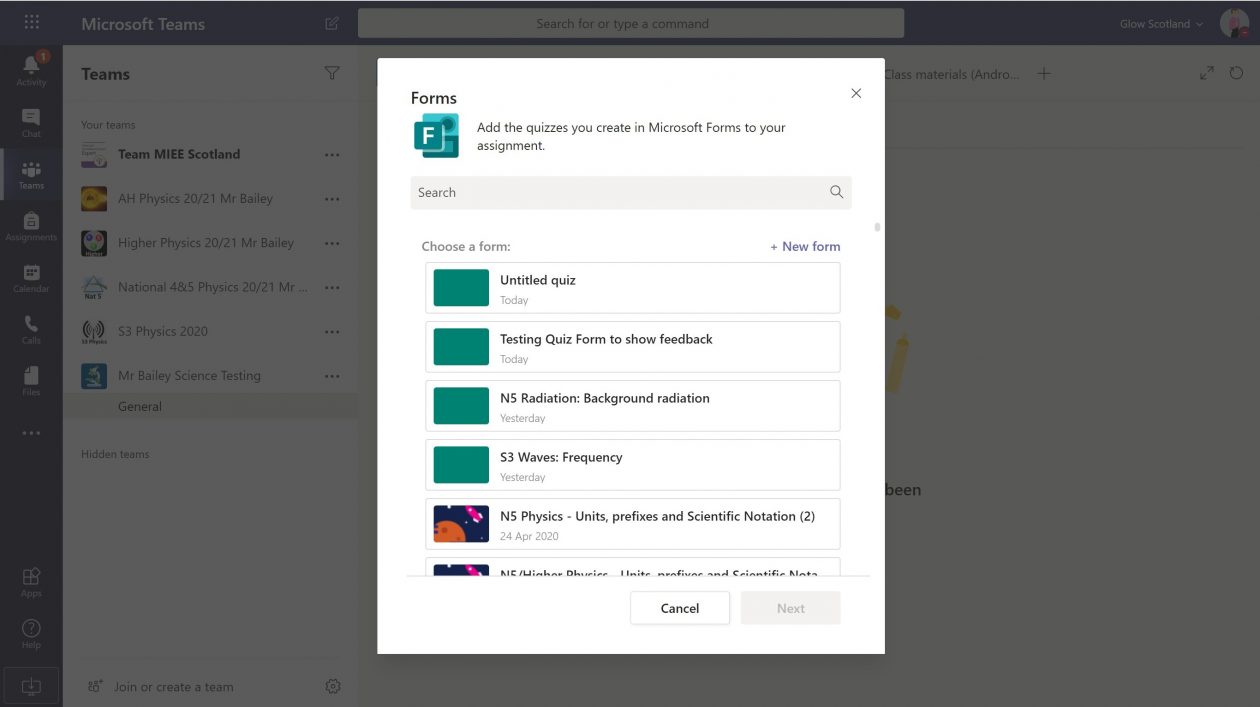
Select the Forms Quiz you made earlier.
Add instructions, set which students, dates etc. Then click assign or schedule if setting at a later date.
Pupil view
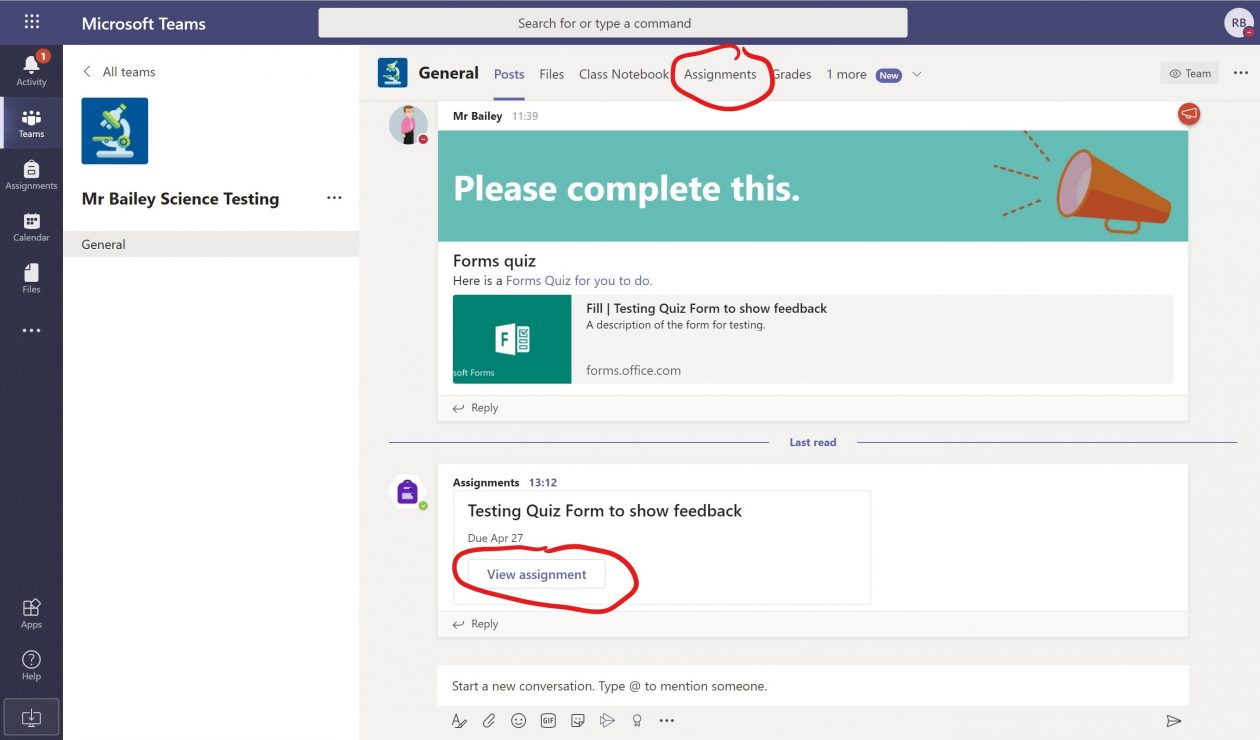
Assignment post appears in general channel and can be opened by clicking view assignments or can be accessed from the assignments tab.
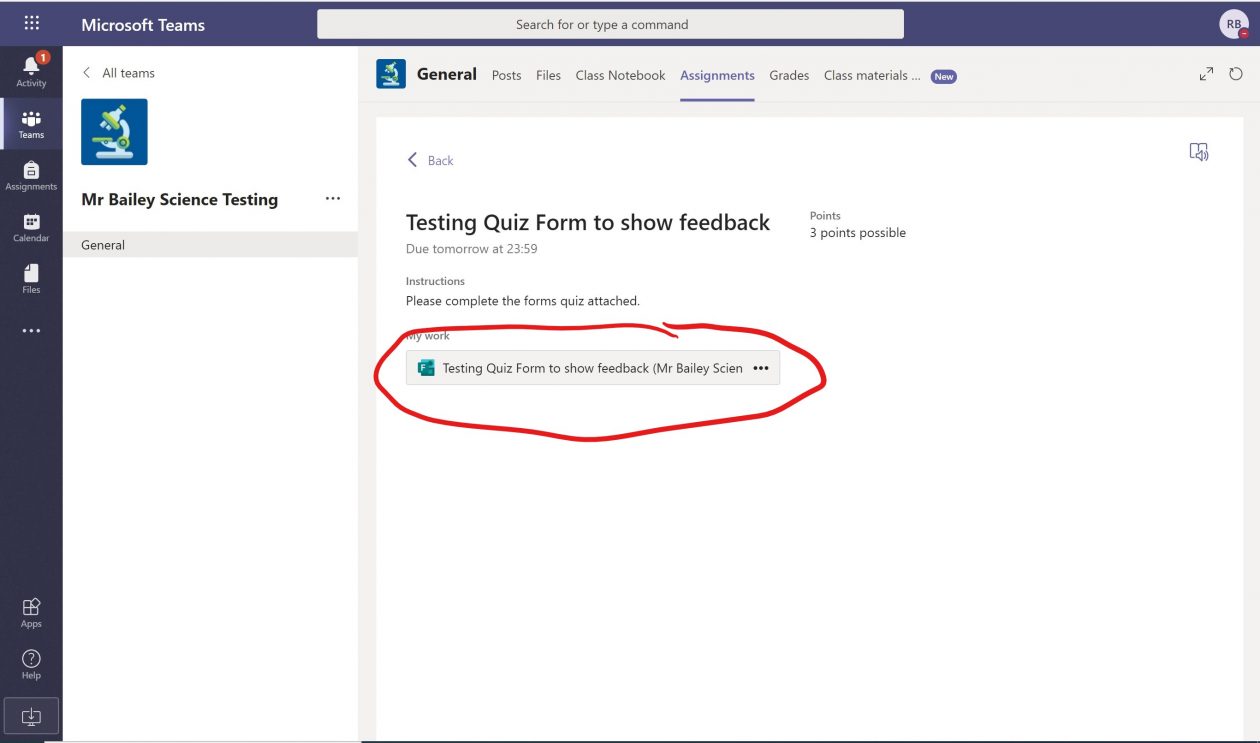
Pupil clicks on attached Form Quiz.
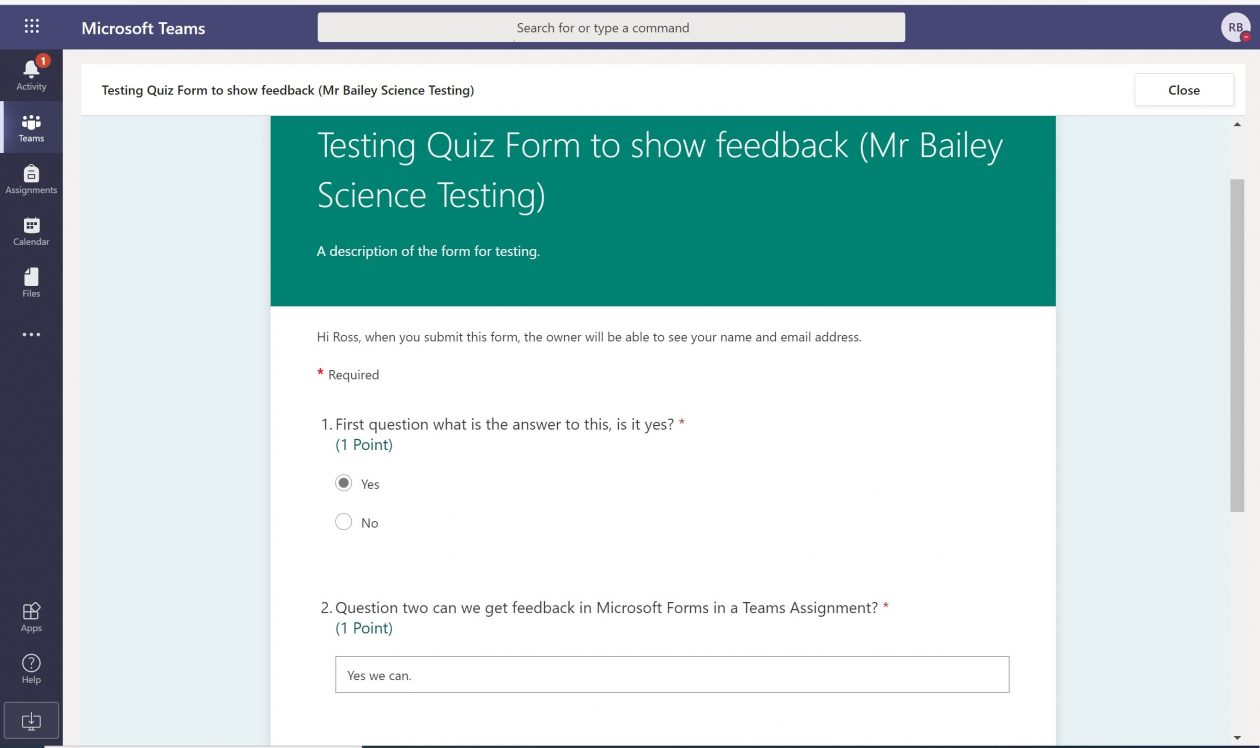
Pupil completes Forms quiz
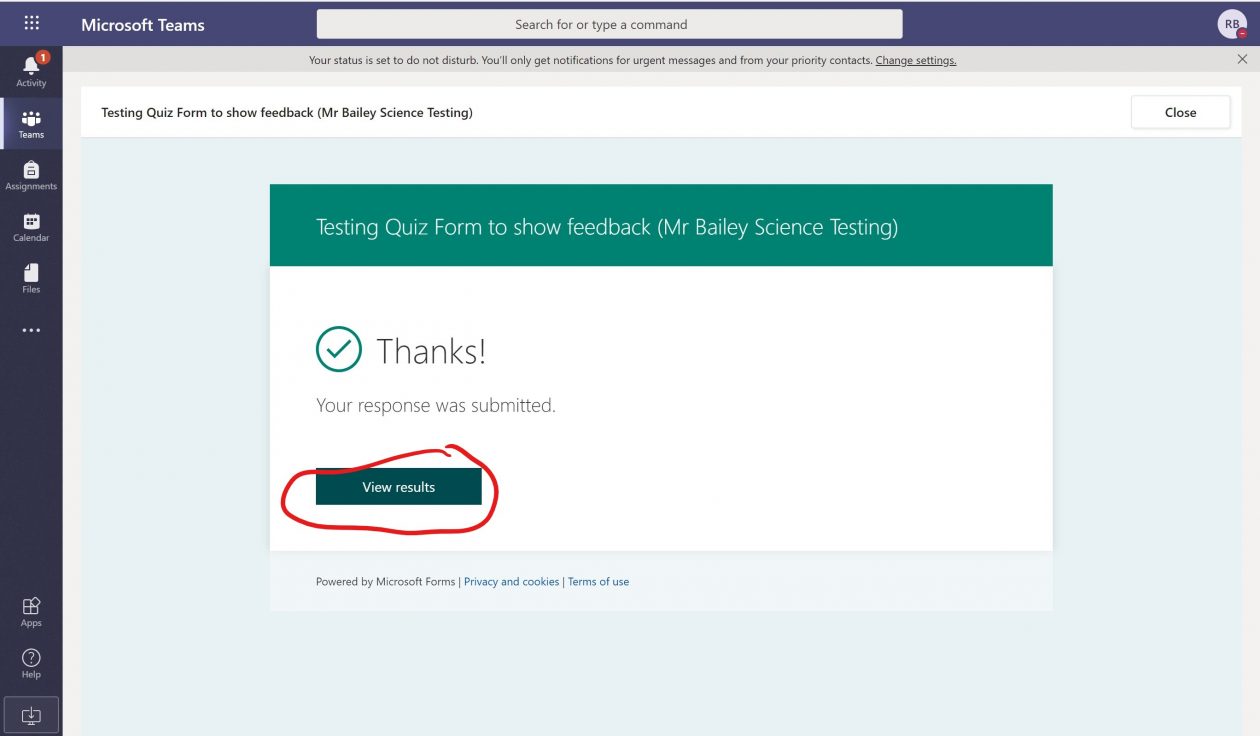
Clicks on submit. After clicking on submit the Thanks screen appears and there is an option to view results.
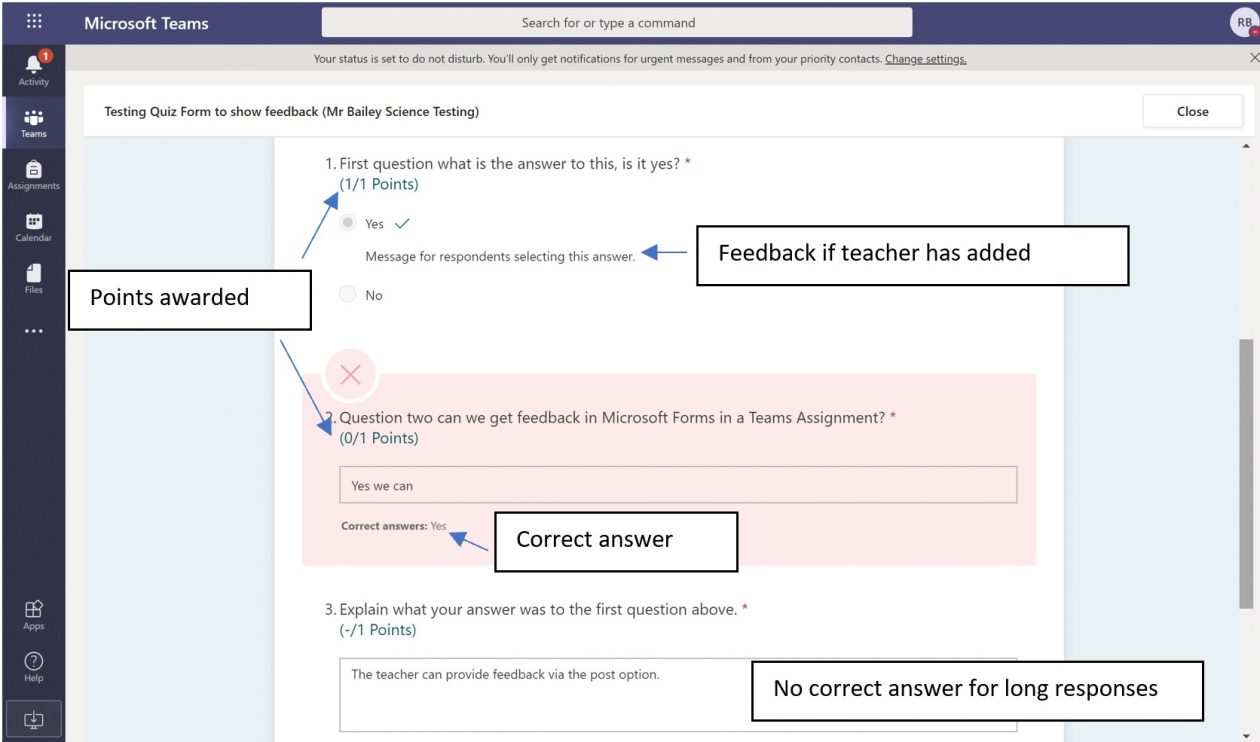
The view results screen indicates points awarded and can indicate feedback for question responses “message for respondents selecting this answer” if the teacher added them into the form.
Correct answers for short answer questions are shown. If the pupil answer differs this will be marked incorrect, it may be an acceptable alternative.
For long responses there is no feedback or mark at this stage.
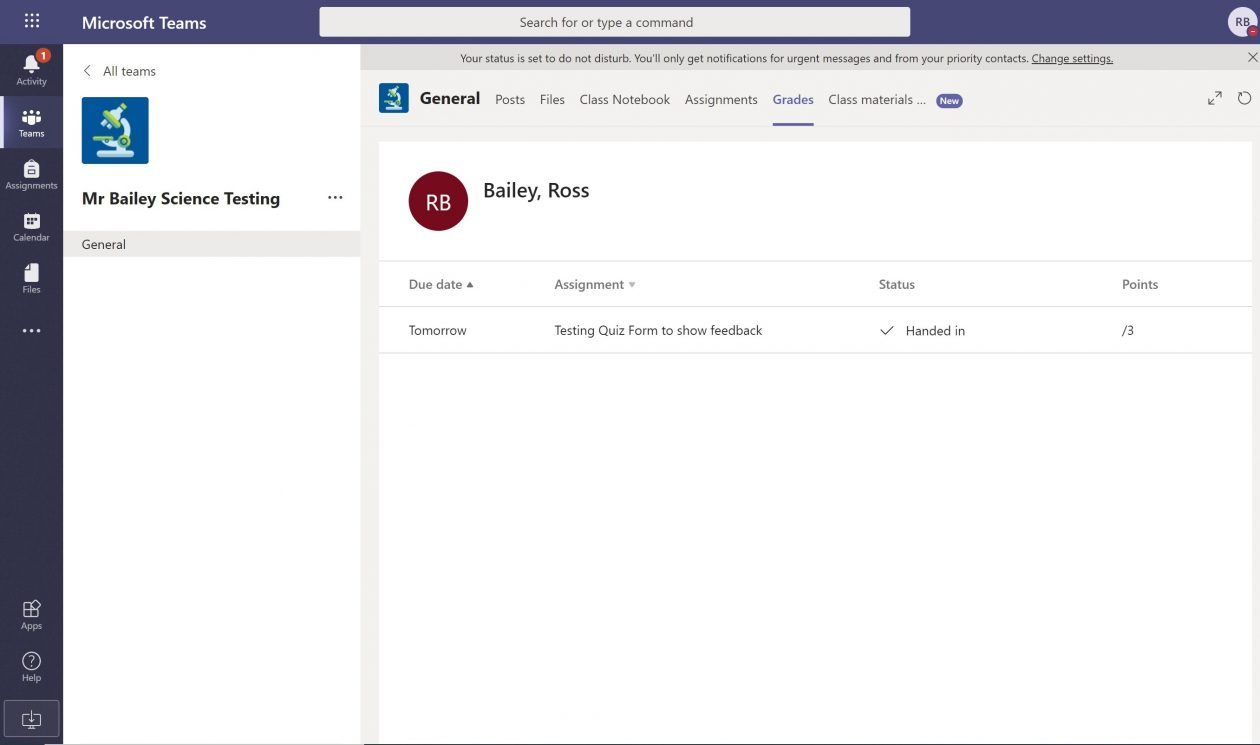
If the pupil goes to the Grades tab in that Team they see that they have handed in this work.
Now the pupil waits for the teacher to put in their comments and feedback and return the work.
Teacher adds feedback
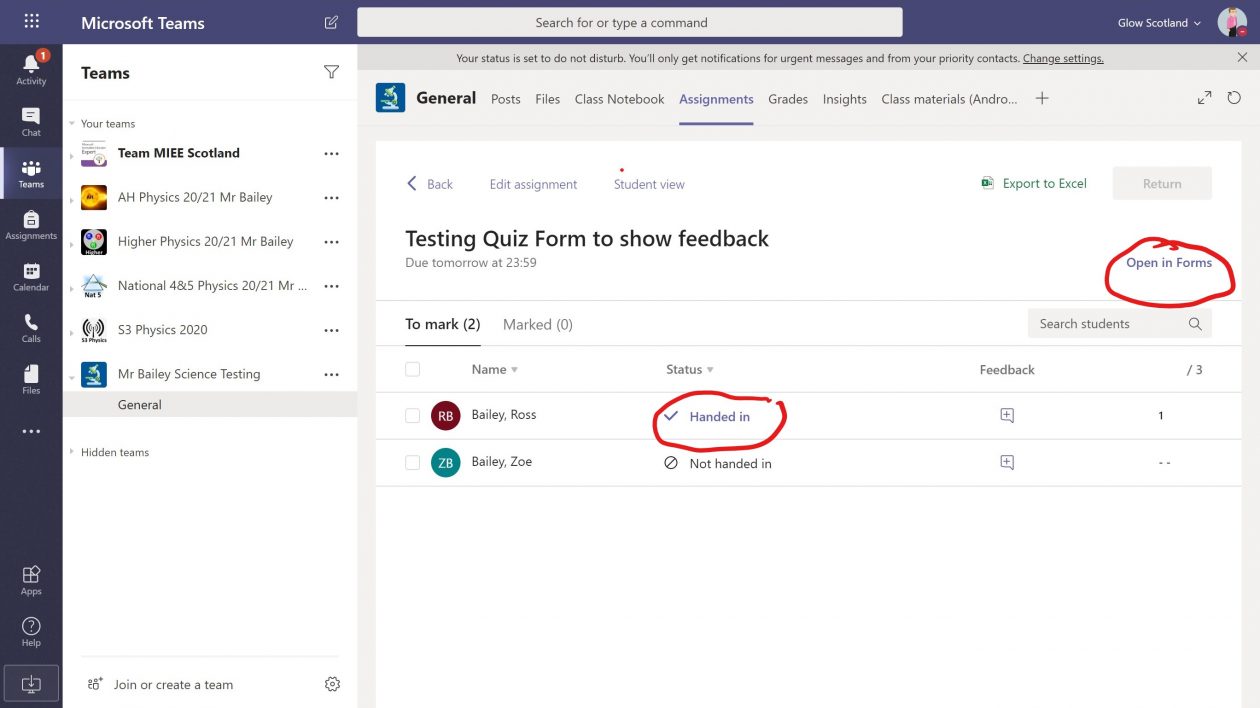
In the assignments tab, teacher can see pupil has handed in work. To open the Forms quiz, they can click on handed in or Open in Forms.
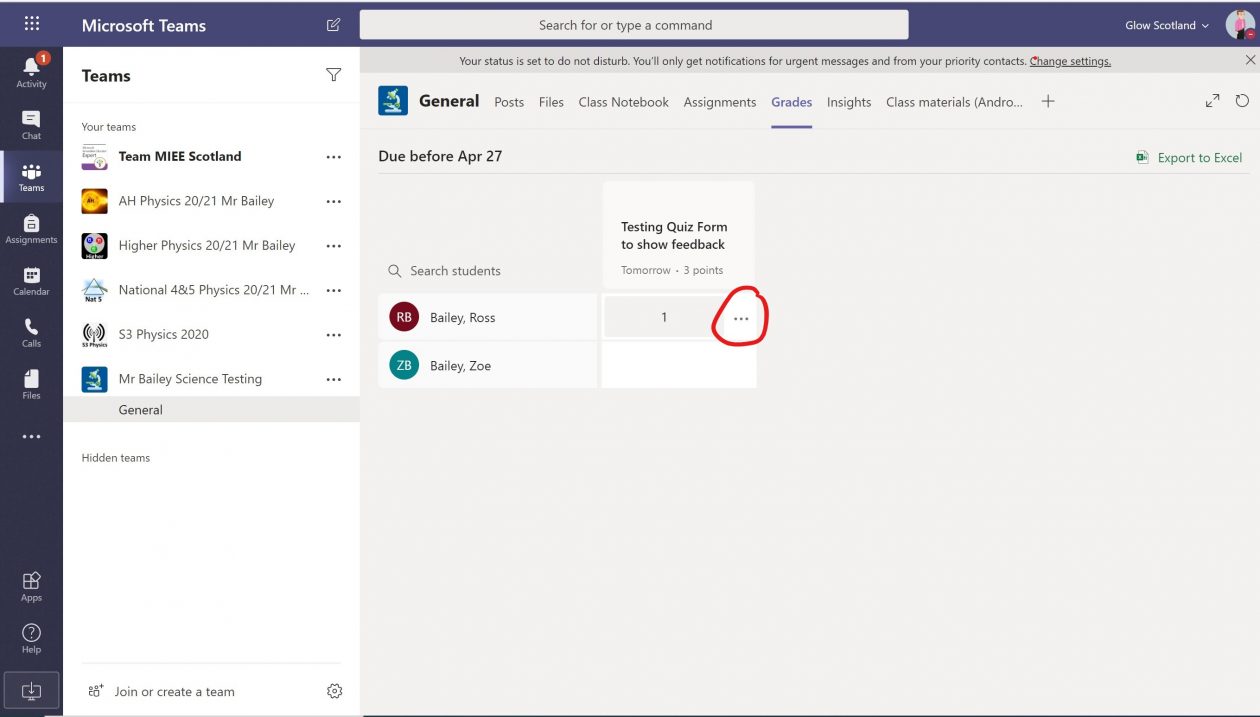
In the Grades tab, teacher can see that work has been handed in as they see a score. They can then click on the three dots …
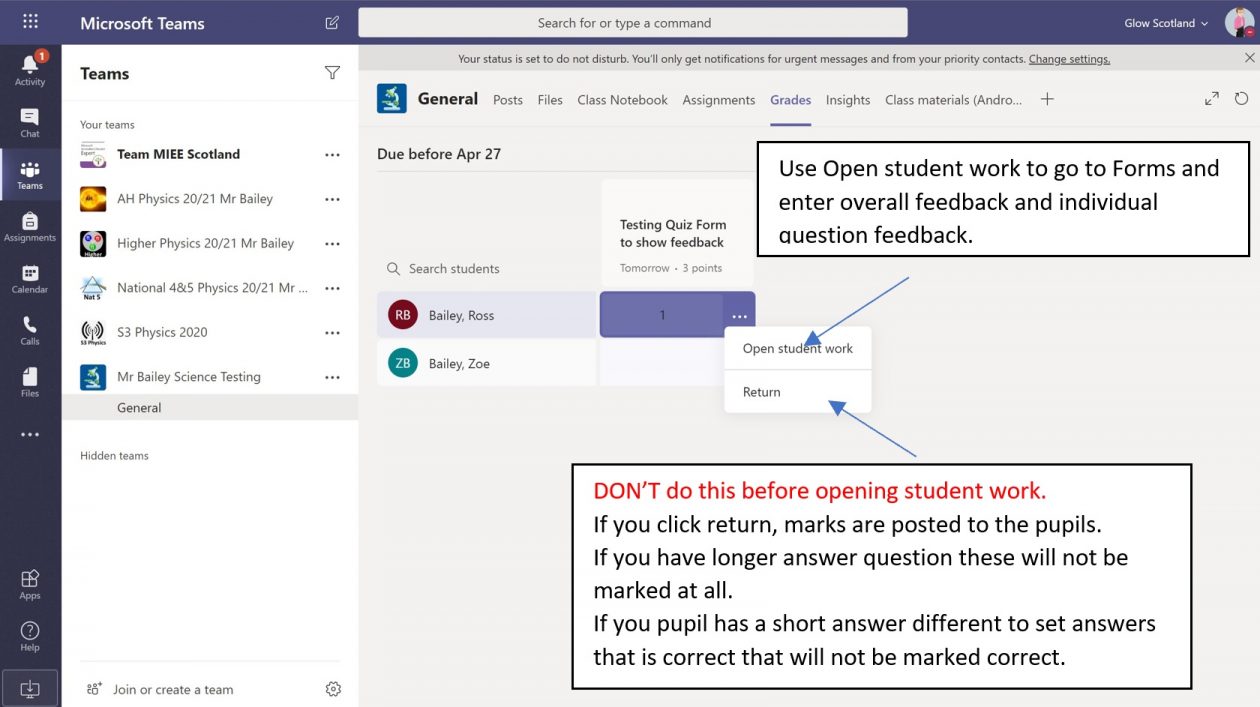
If using from Grades, click Open Student Work to enter feedback and correct marks.
Don’t click return work or you will not have sent in any comments or checked their work and will not be able to add later.
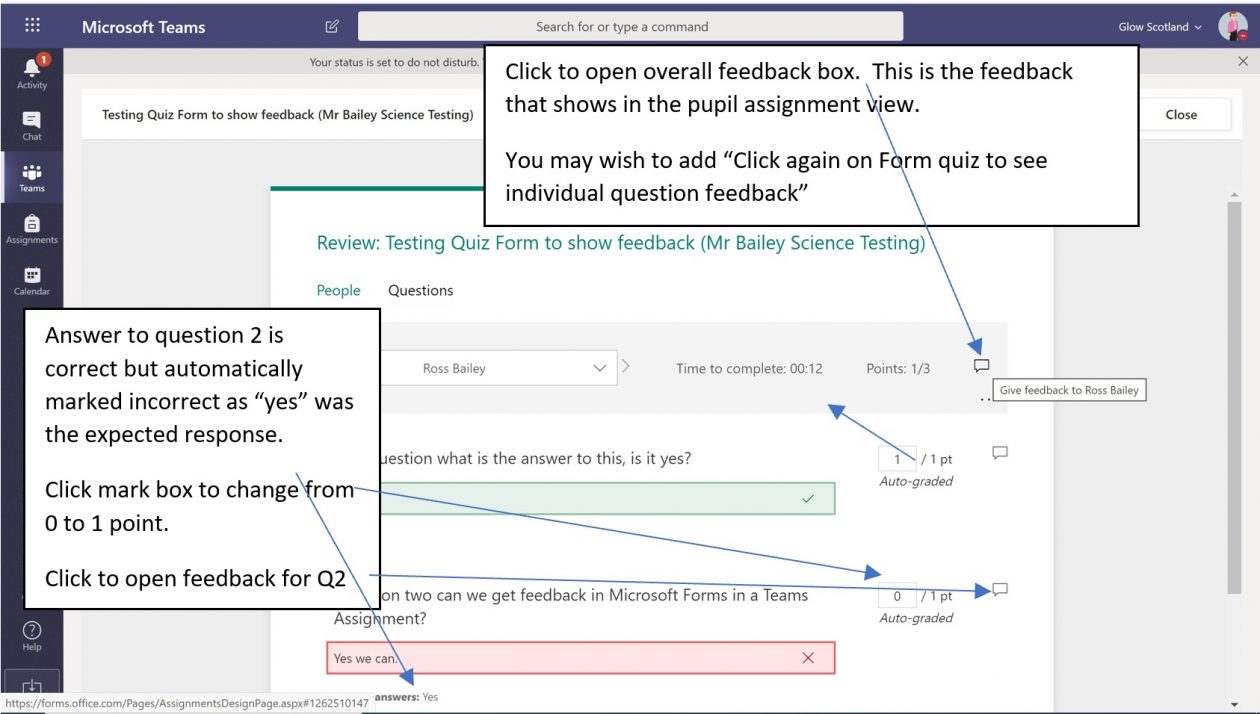
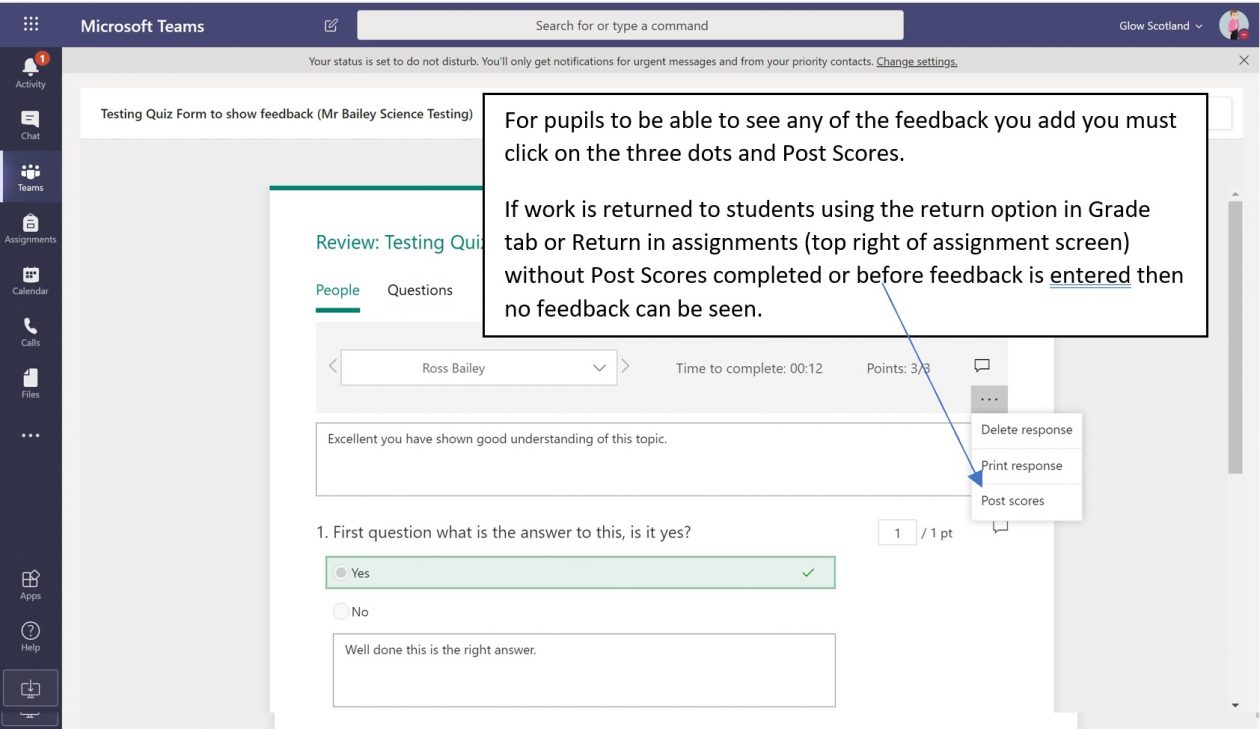
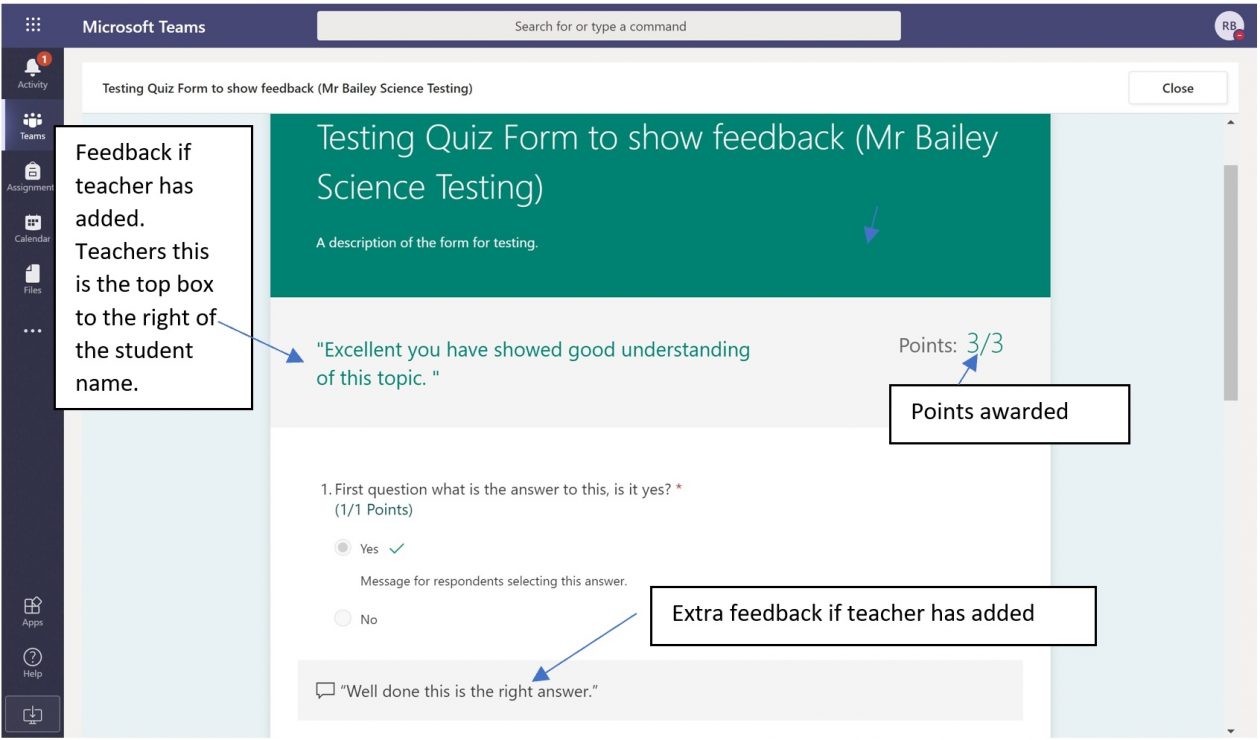
When Microsoft Forms is open you can leave overall feedback by clicking the box to the right of the band that includes the pupil name. This is the feedback that goes to the pupil assignment summary view.
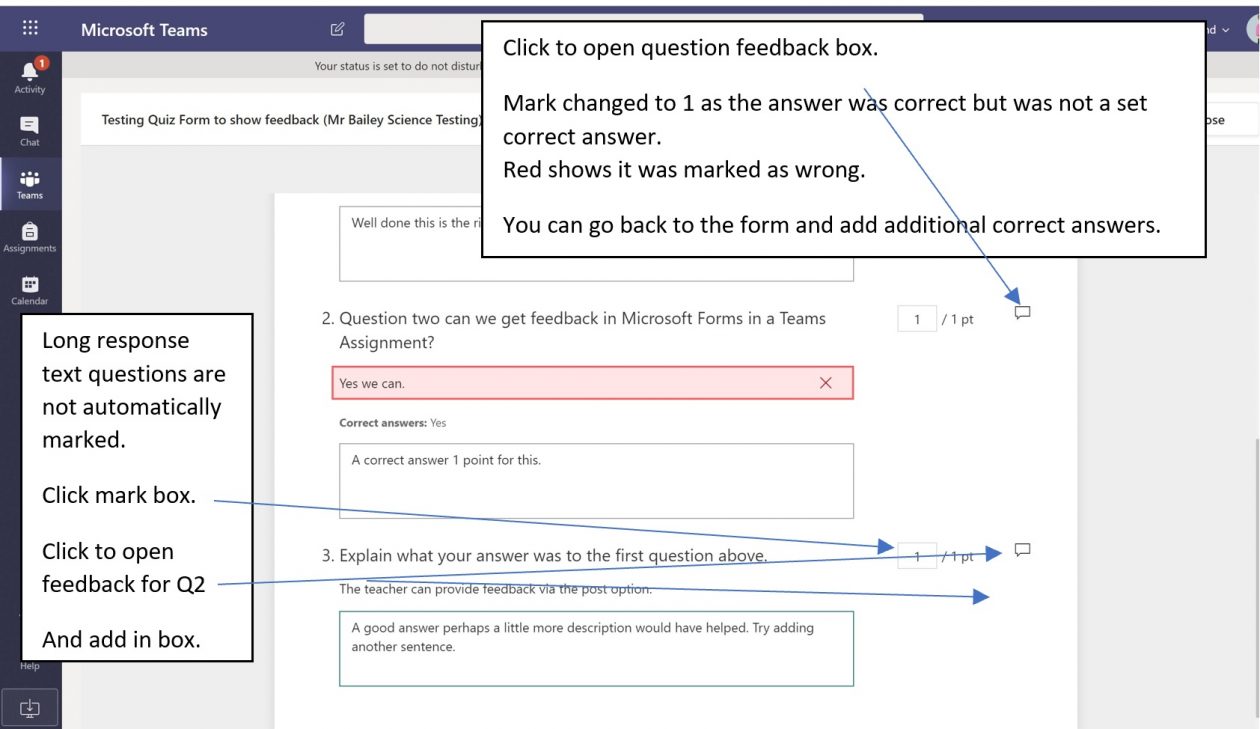
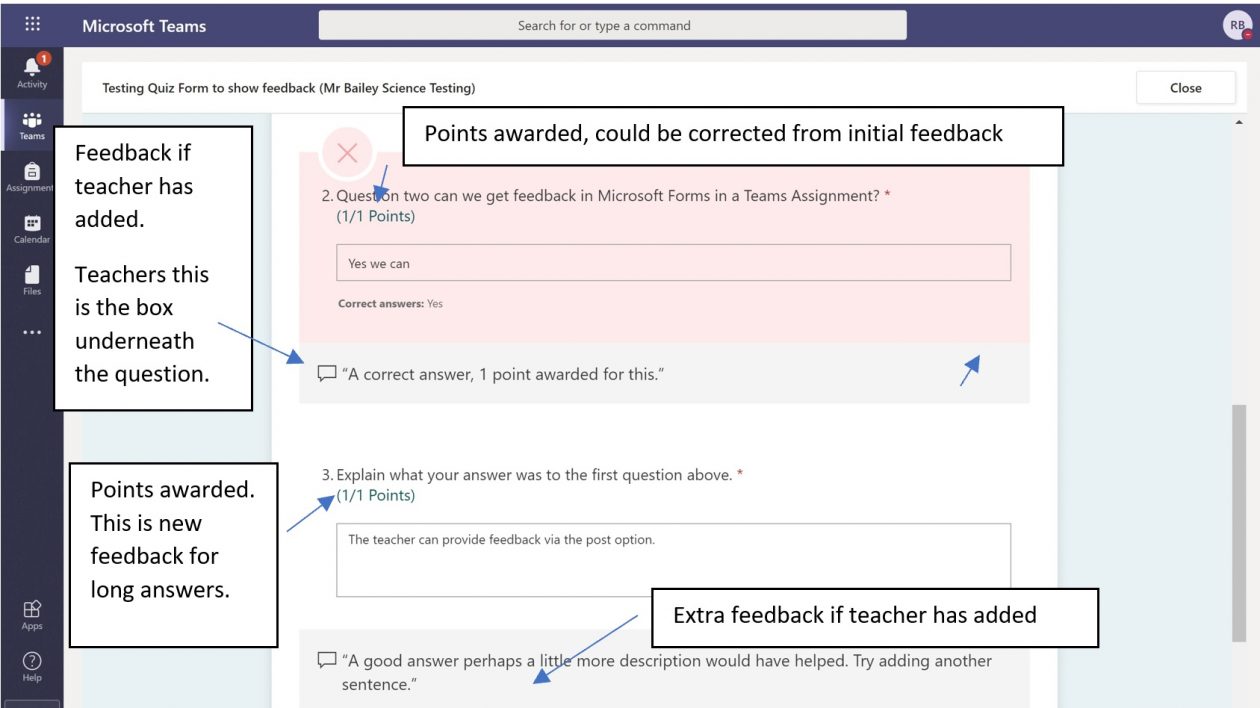
You can click on the other questions and accept answers if they were correct and not marked correctly for short answers changing the points awarded. You can leave feedback by clicking on the feedback option for each question.
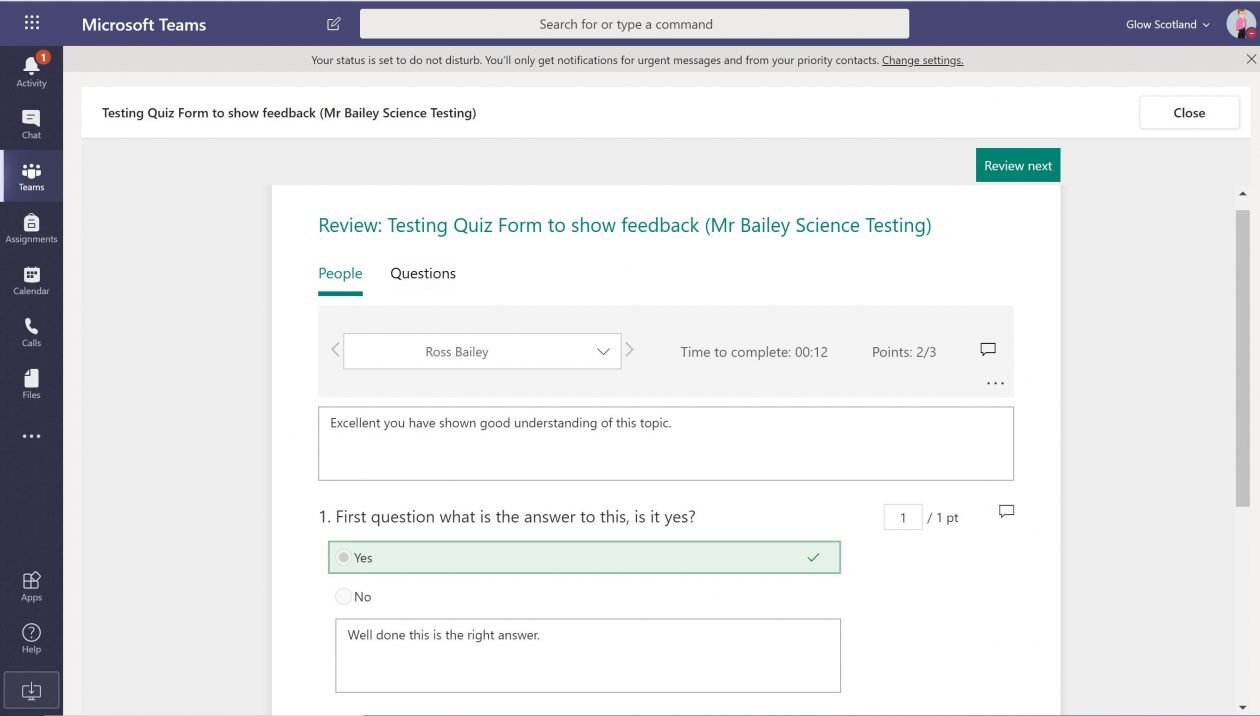
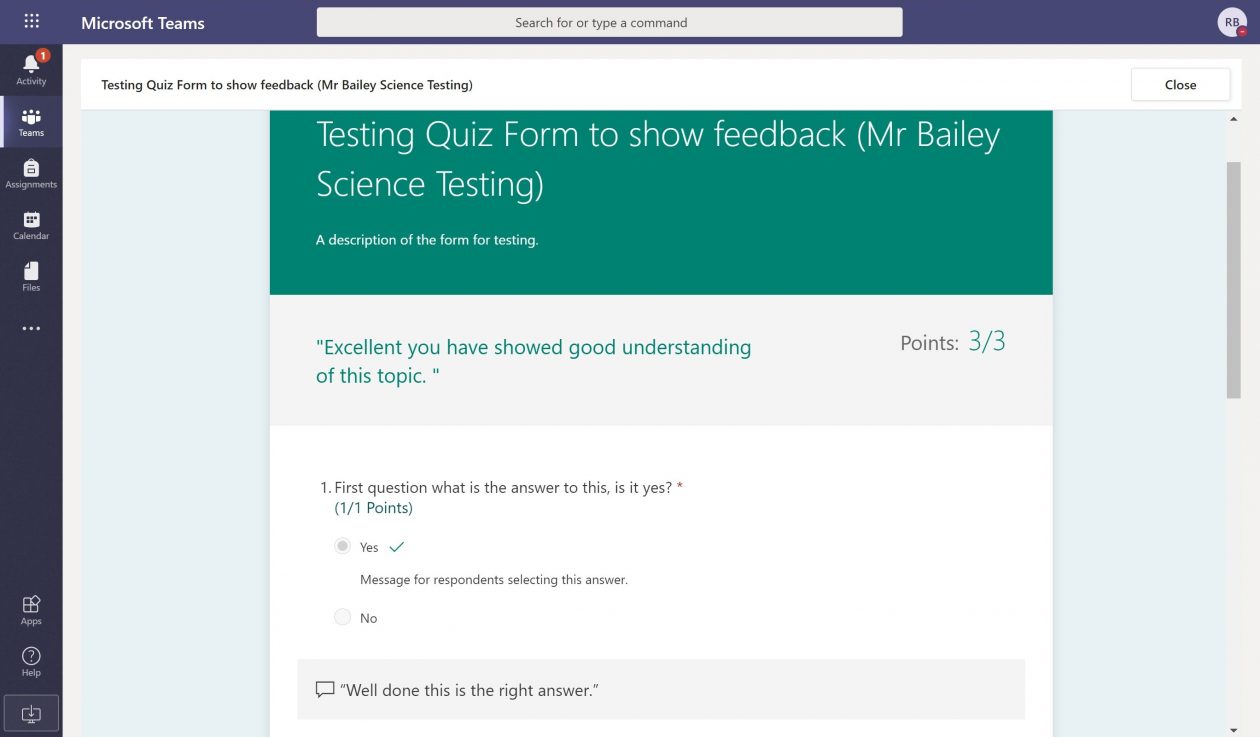
Here is a view of some feedback for the overall section at the top and question 1.
For short answer questions we can correct the automatic marking if the pupil response was correct but not exactly the same as the correct answer. If pupils are still to hand in you can go back to the Form and add other correct responses. You need to go to Forms then Groups then choose the Team Form you have set. You can then click it open and edit the correct answer option for this question.
Longer questions are not automatically marked so you need to read the response and allocate marks accordingly. You can leave additional feedback under these questions.
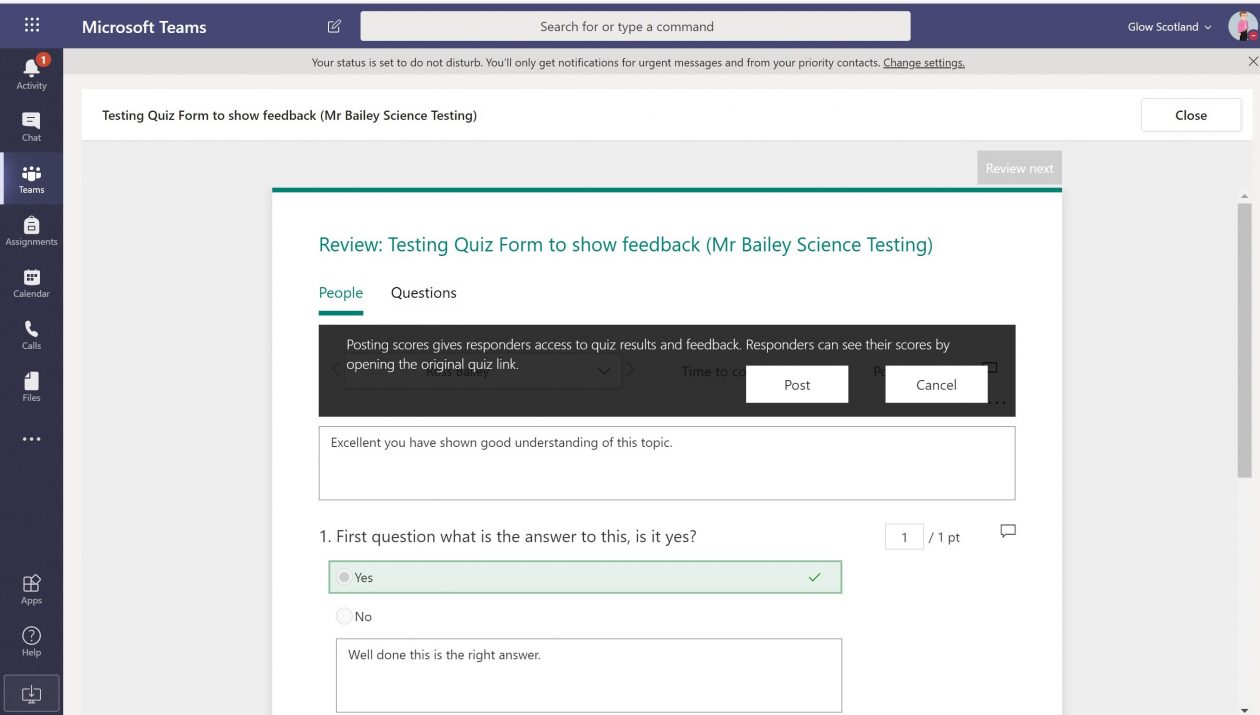
Now you need to Post Scores for pupil to see the feedback you enter. If you do not Post Scores the pupil will not see any of the comments.
A confirmation message comes up when Post Scores is selected.
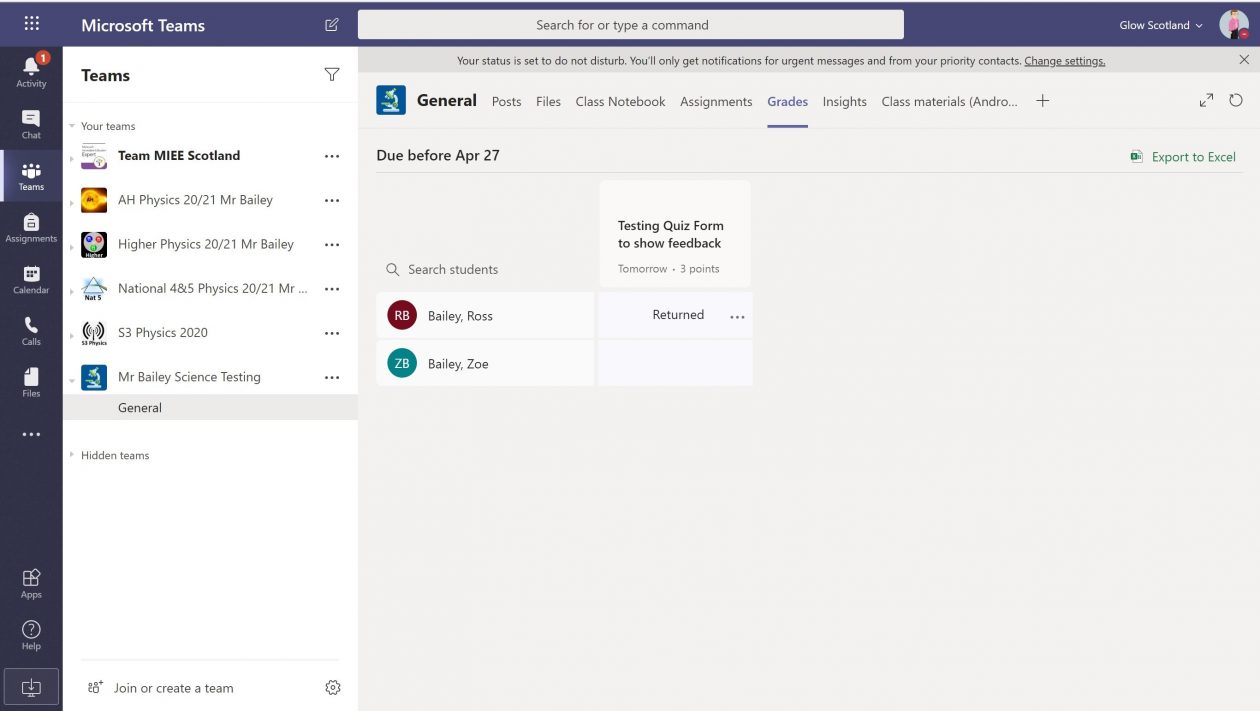
The teacher view in the Grades tab now shows returned.
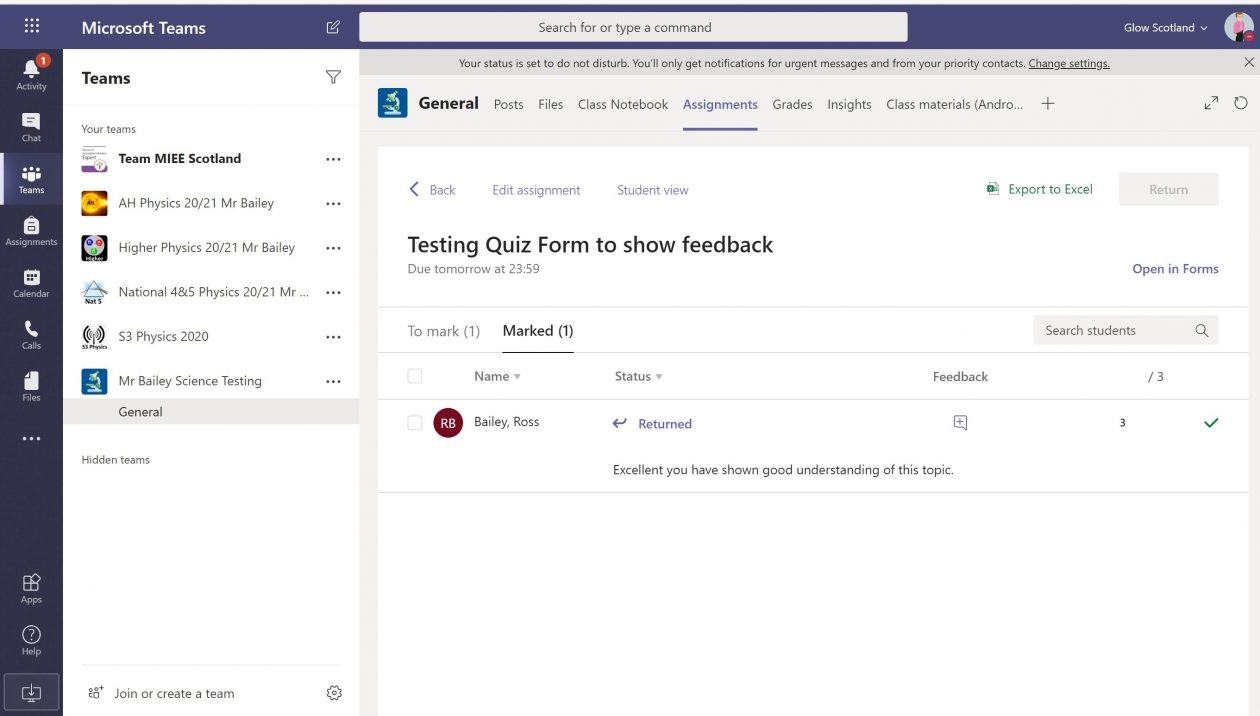
In the assignment tab the pupil moves from the To mark list to the Marked list. Clicking on the toggle feedback option shows the summary feedback you entered in the Forms quiz and you see the total marks.
Pupil view to get feedback
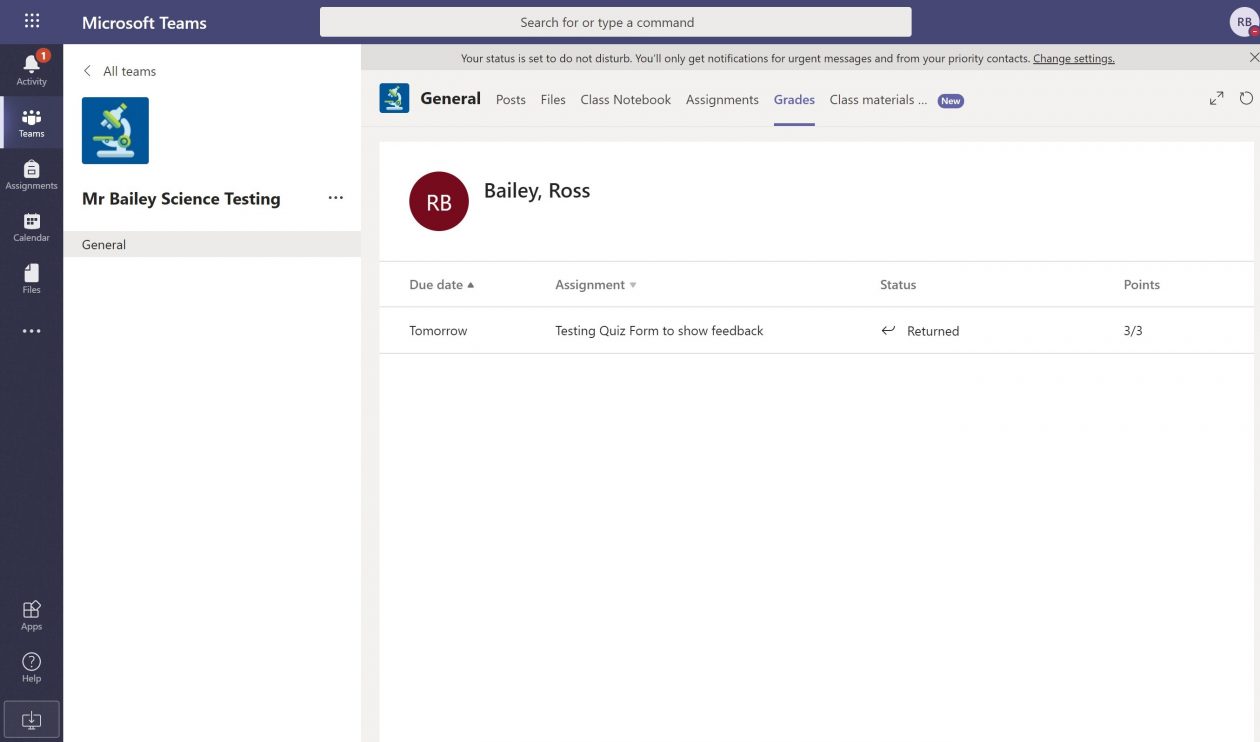
Grades view in Team shows assignment has been returned to pupil and a points score.
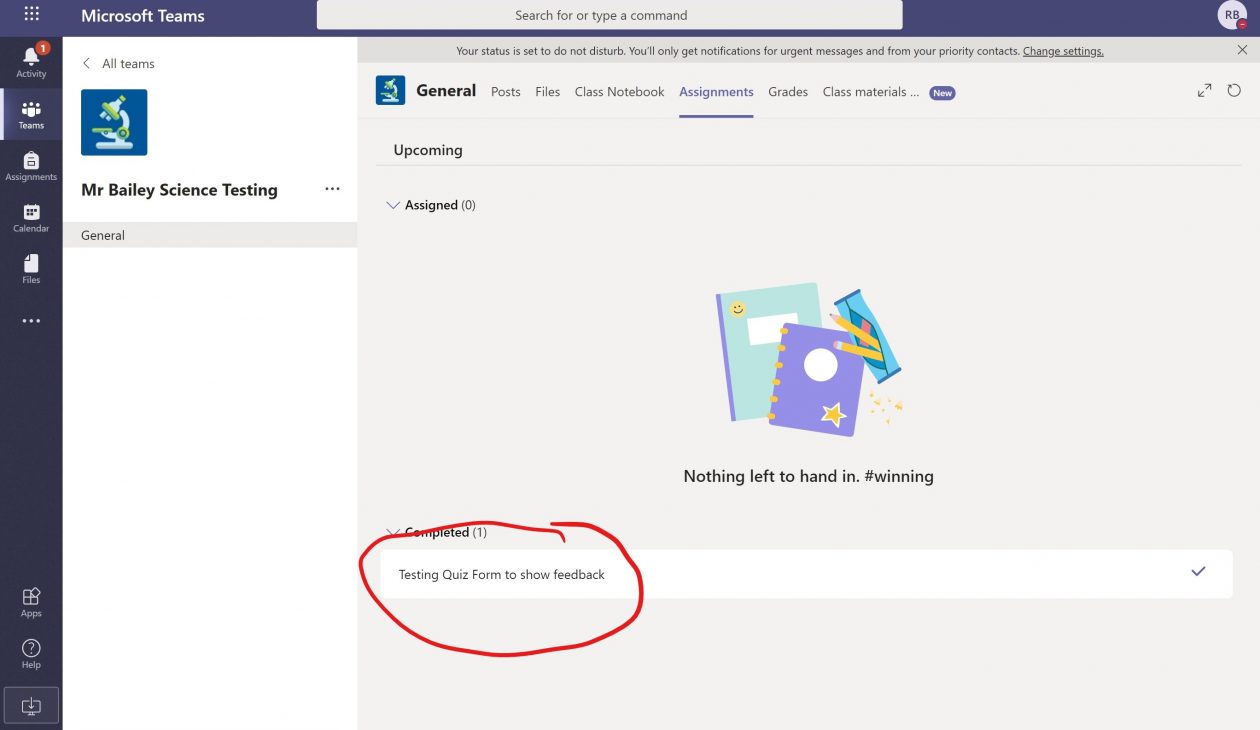
To see the detailed information the pupil click assignment and goes to the completed assignments.
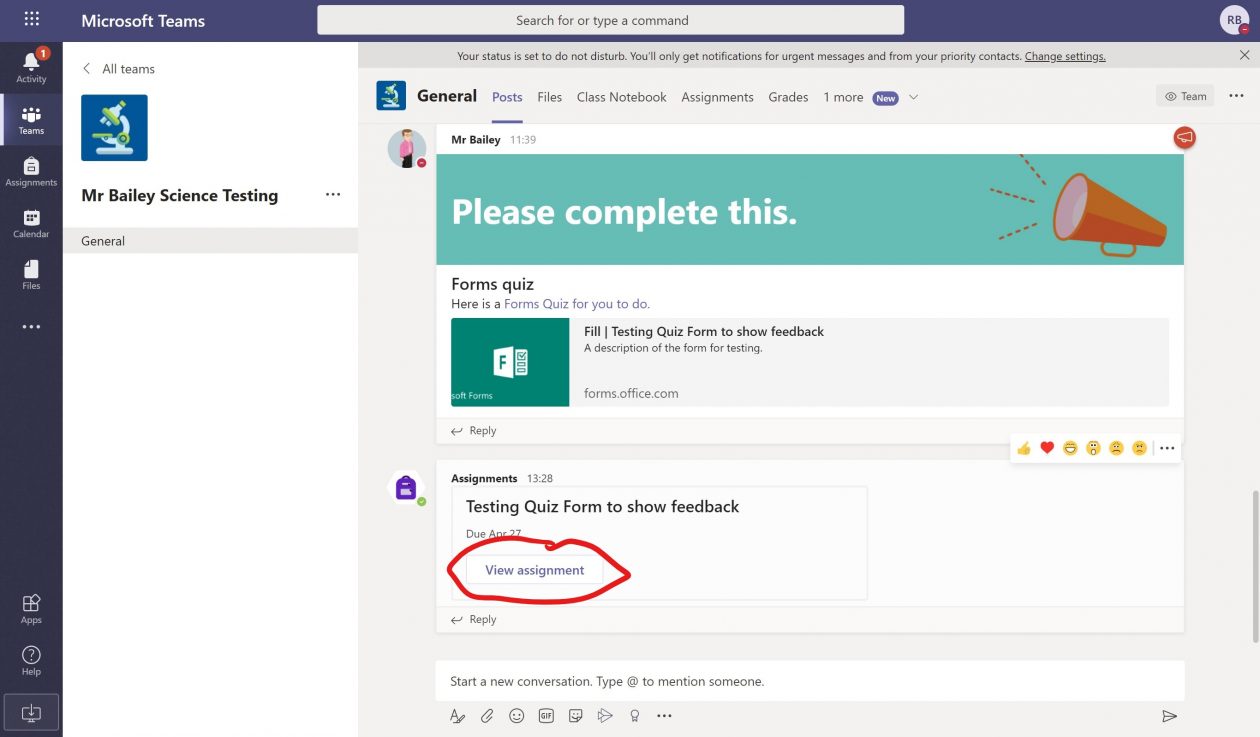
Or they can click on the view assignment post in the general channel.
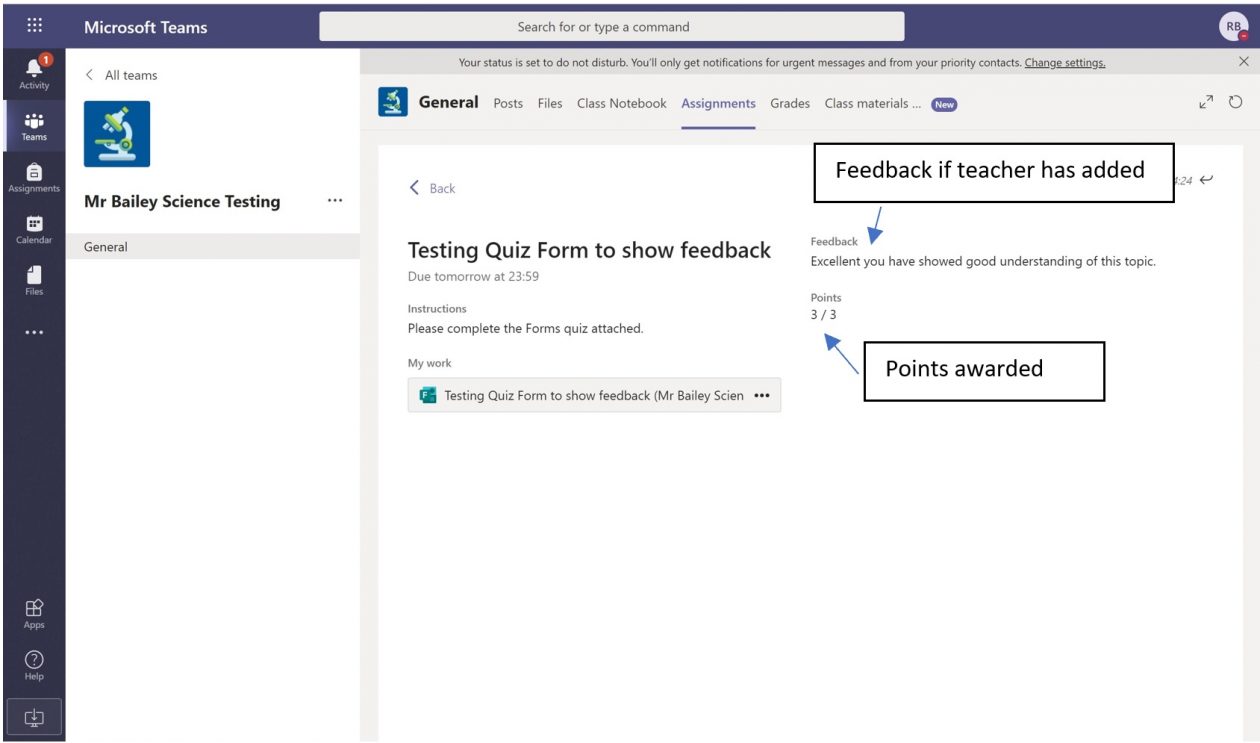
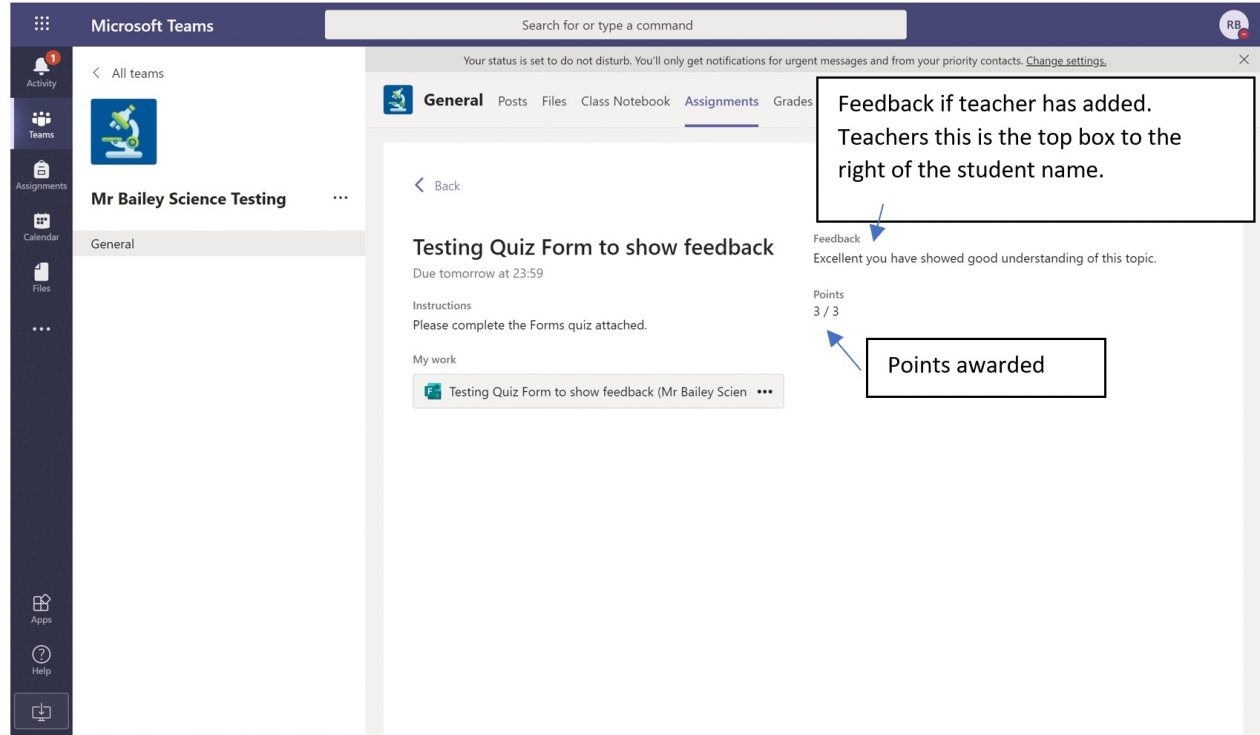
Pupils see this, the points and the feedback added. This feedback area can be blank if none was added by the teacher.
The feedback added here is from the overall feedback section (see teacher view).
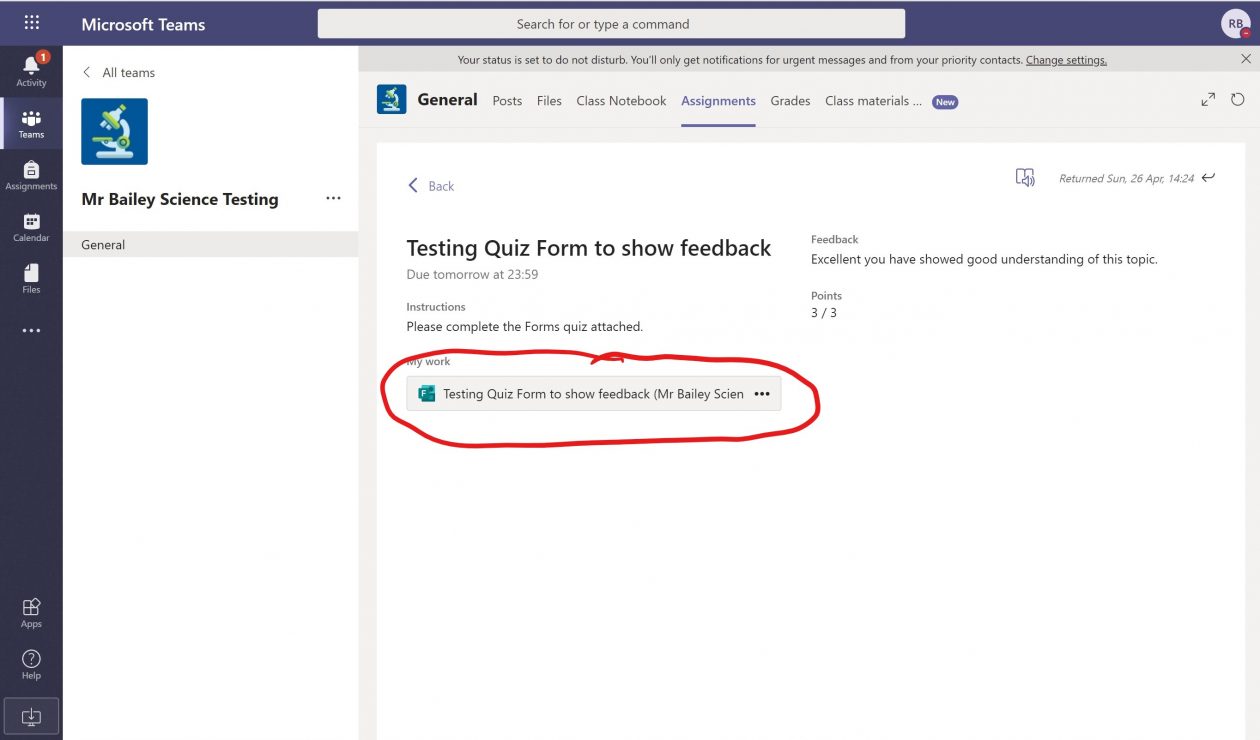
Pupil clicks back on the attached Forms quiz.
Feedback is shown (if teacher has added more).
Here are some annotations of the feedback and where it comes from.
A video showing the process above, how teachers can provide feedback in Microsoft Forms.
A video showing how to view pupil feedback in Microsoft Forms.
These instructions are created thanks to Al Friend from CastleBay school in Barra and the #TeamMIEEScotland team where this was shared.
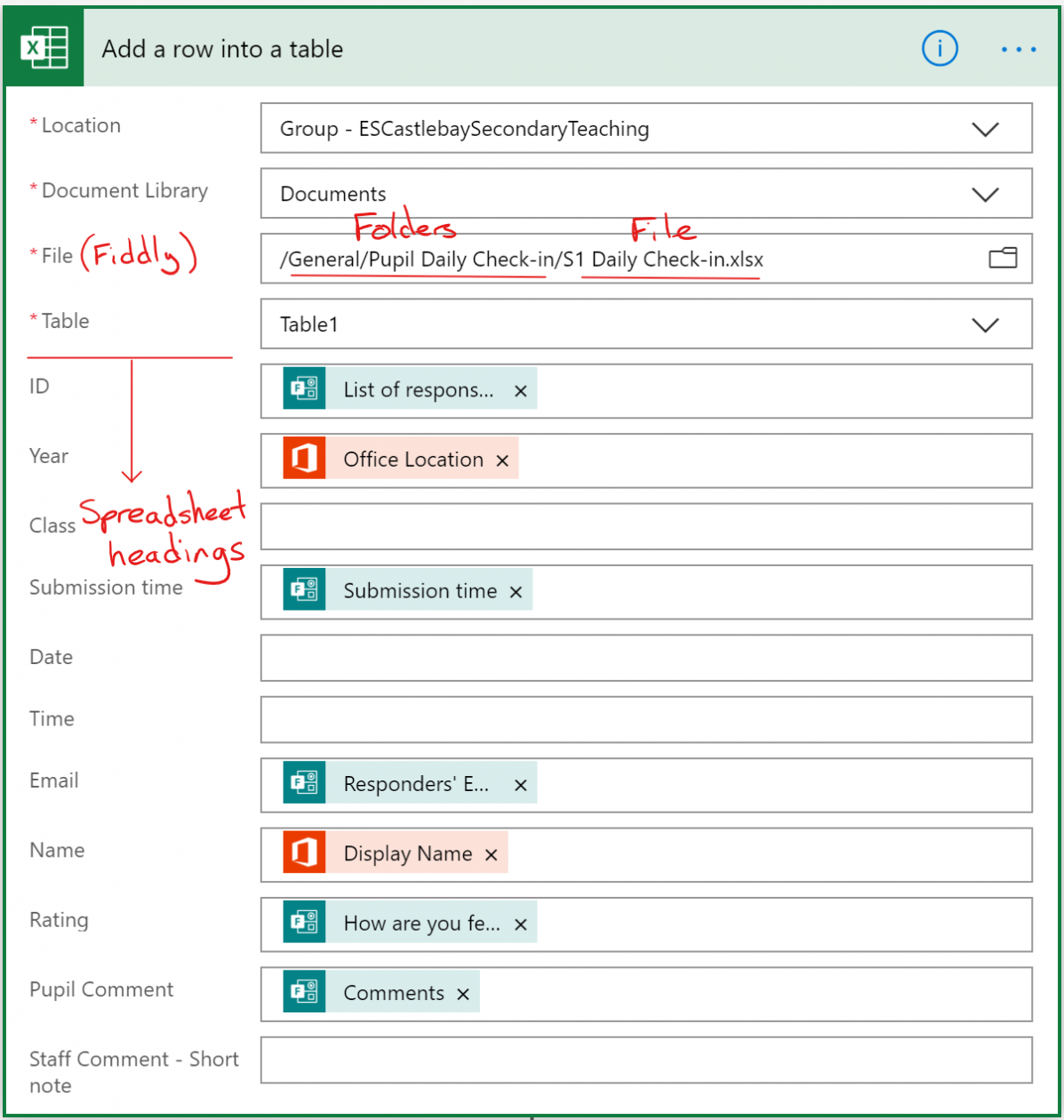
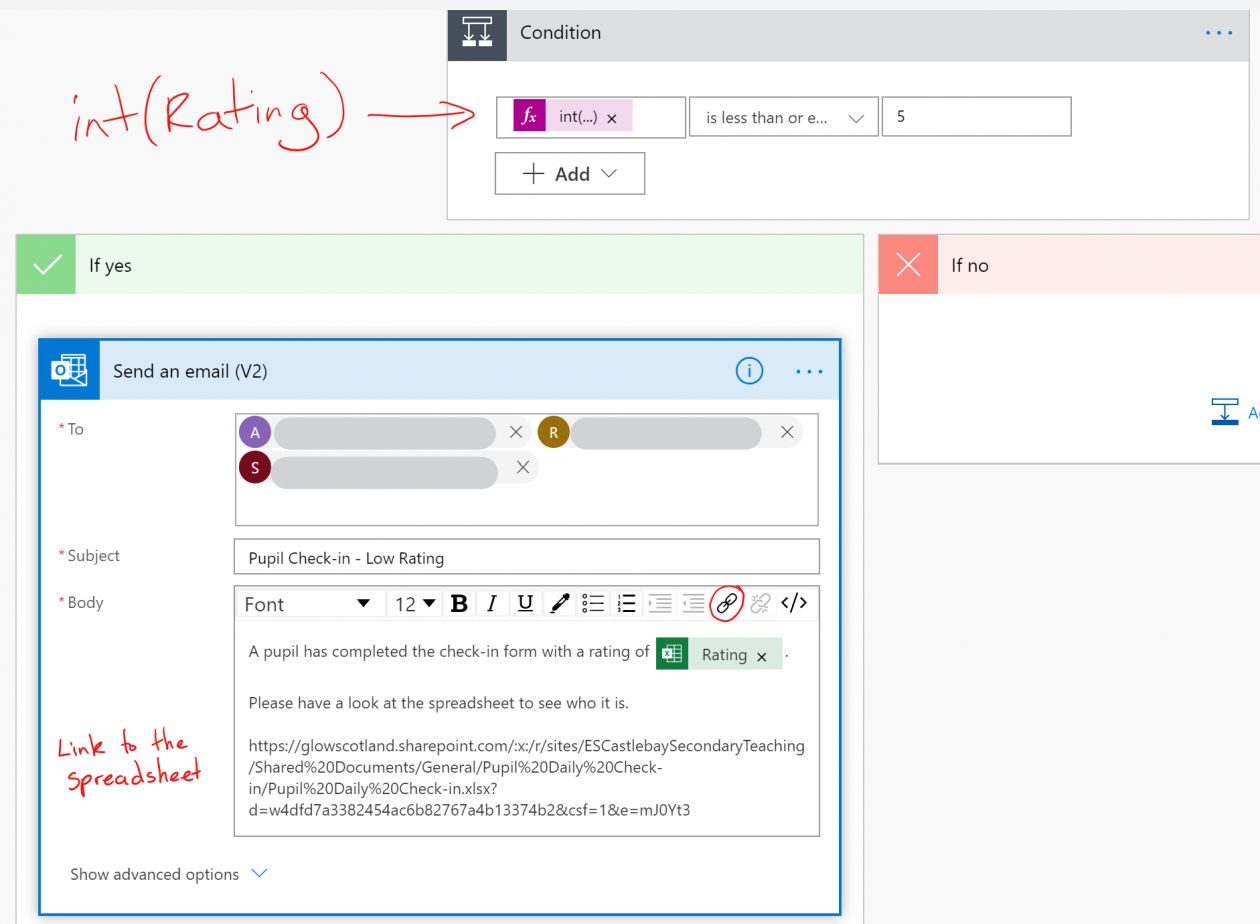
This uses a Microsoft form to add an entry into a shared Excel spreadsheet. The form includes a rating question asking how the pupils are and if the mark is 3 or 4 out of 10 then it sends an email is sent upon submission to certain staff members. If the mark is 1 or 2 out of 10 an email is sent upon submission to other staff members.
Our pupil care and support staff team, heads of years, deputes and senior leaders have access to the shared Excel file so can check the entries during the day and contact the young people or their families accordingly.
Instructions for creation.
Create the Microsoft Form . We have found this only works with a personal form. Power Automate doesn’t give the group forms as an option to choose from.
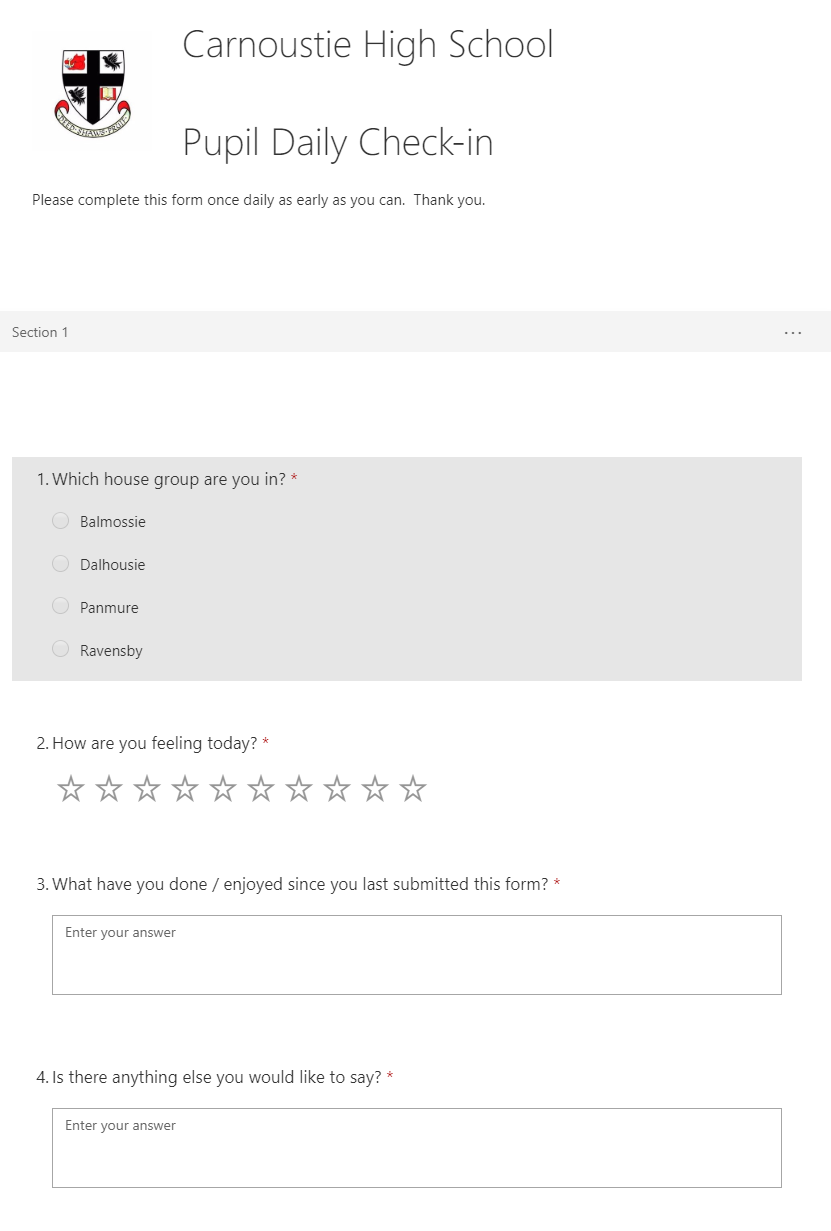
Here is the form we are using. A mixture of multiple choice, a rating, long answer questions.
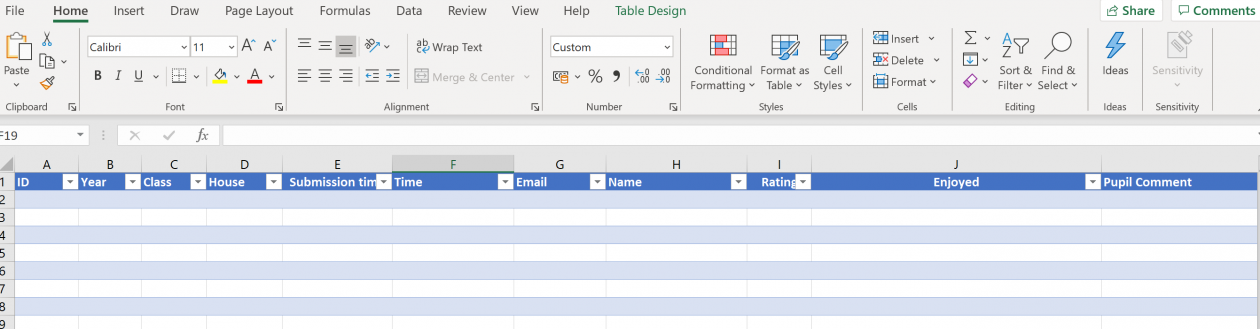
2. Create the Excel file that will store the data. Ours in created in the documents storage in SharePoint in a Staff Microsoft Team.
Create the headings.
Insert Table to turn them into a table.
Not all of the headings we have are used by Power Automate.
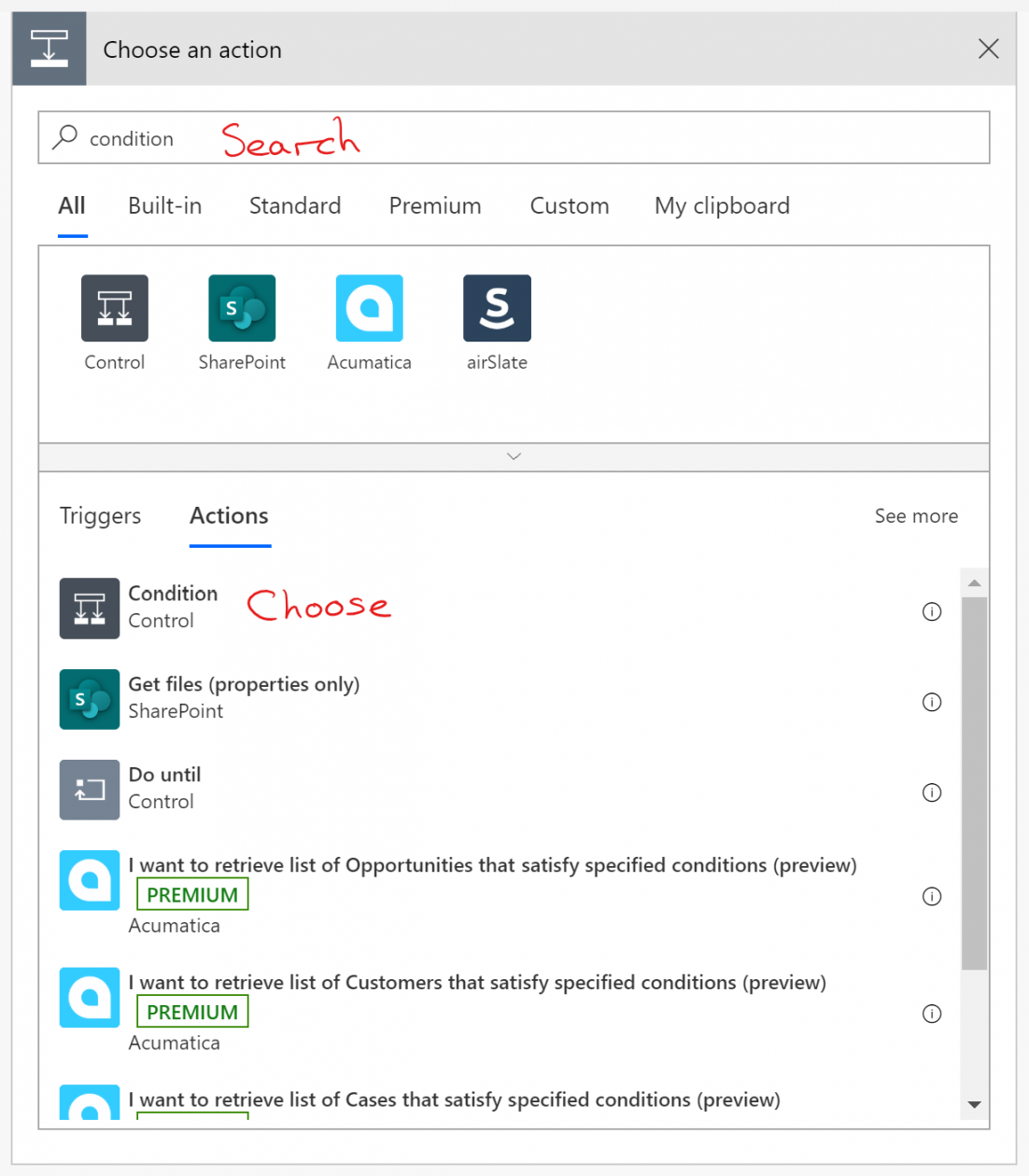
3. Create the Power Automate Flow. Here is the outline of the Power Automate (Flow). We will go through each section.
Step 1 and 2 shown below.
Name the Flow (1)
Choose the when a new response is submitted from Microsoft Forms (2)
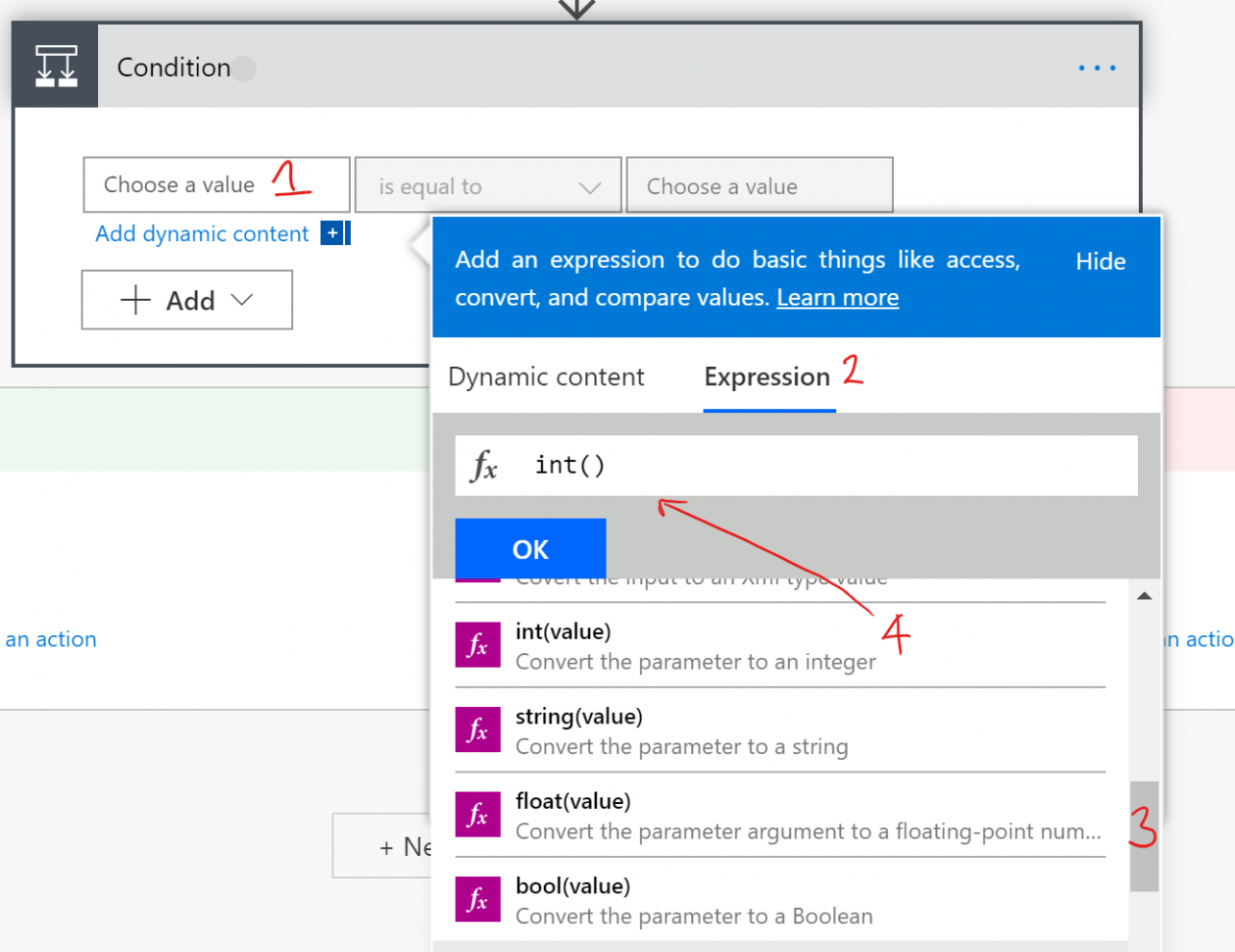
For the condition int (rating) part put the cursor into the brackets of int( ) and then click on the green field that holds the rating value. and choose from the Dynamic Content tab.
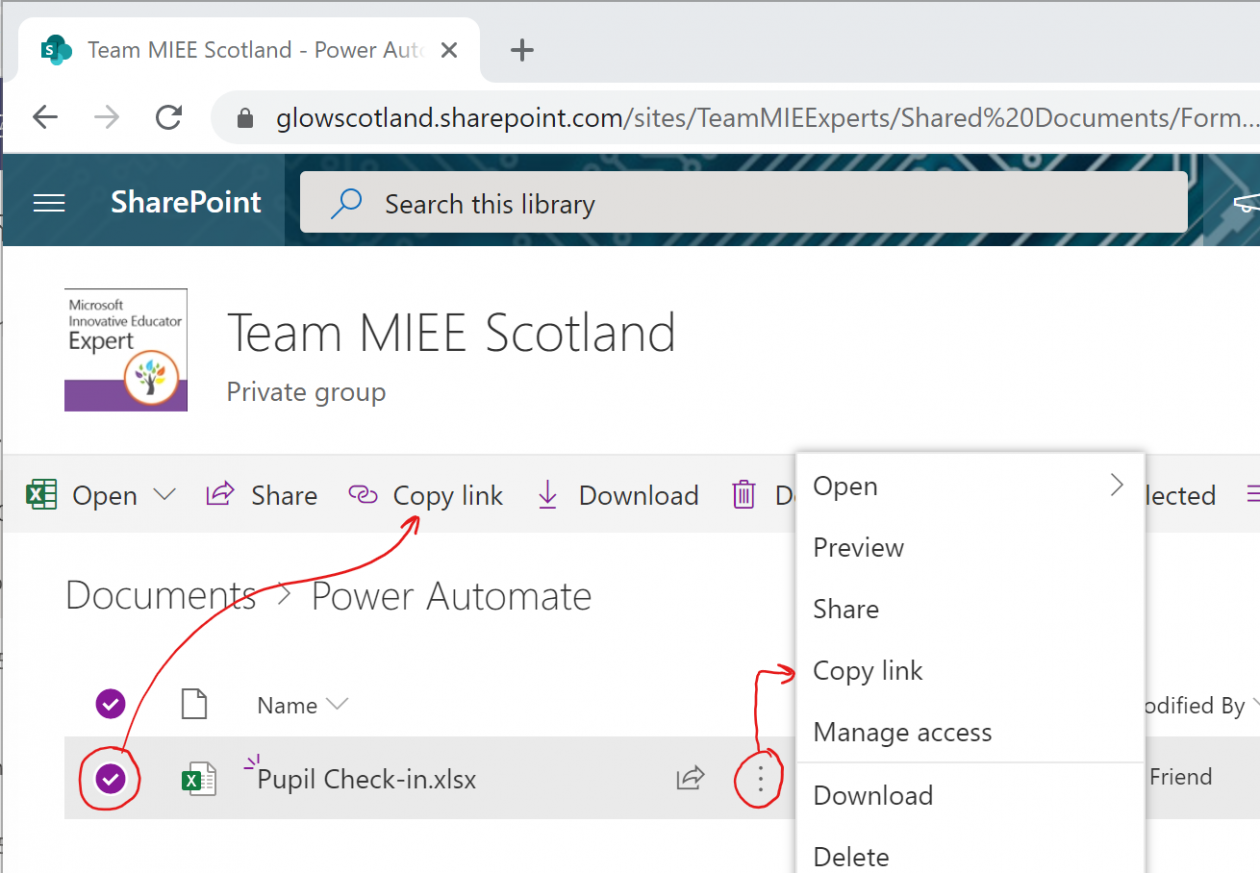
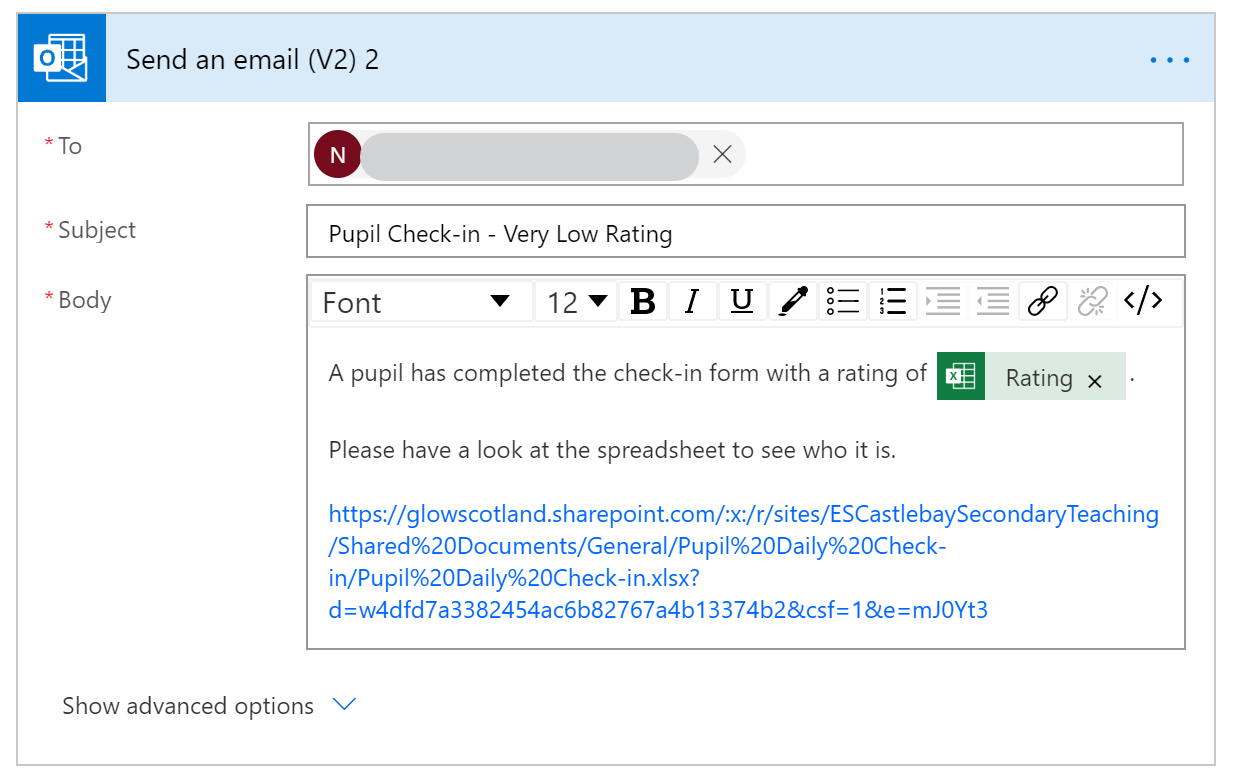
The link to the spreadsheet in the email can be copied from the document library. You can of course put in the pupil names if you wish into the email, we choose to make the email anonymous and ask staff to check the spreadsheet for the name.















 snup
snup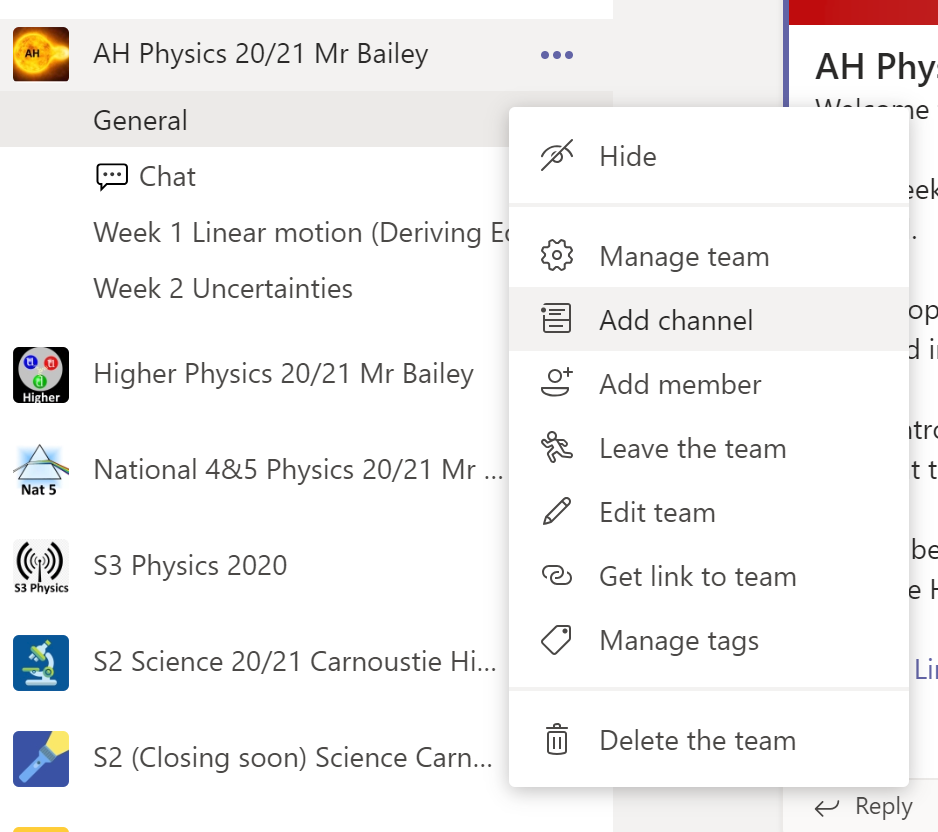
 in the channel name this is a fun way to get visual engagement. It is recommended that you name the channel with normal characters first for Team stability in underlying SharePoint then you can edit the channel name to the right of the channel. Remember you can’t rename the general channel. On Windows devices pressing windows key and . together get you the emoji keyboard. Teams channels are ordered alphabetically and by unicode number for emoji.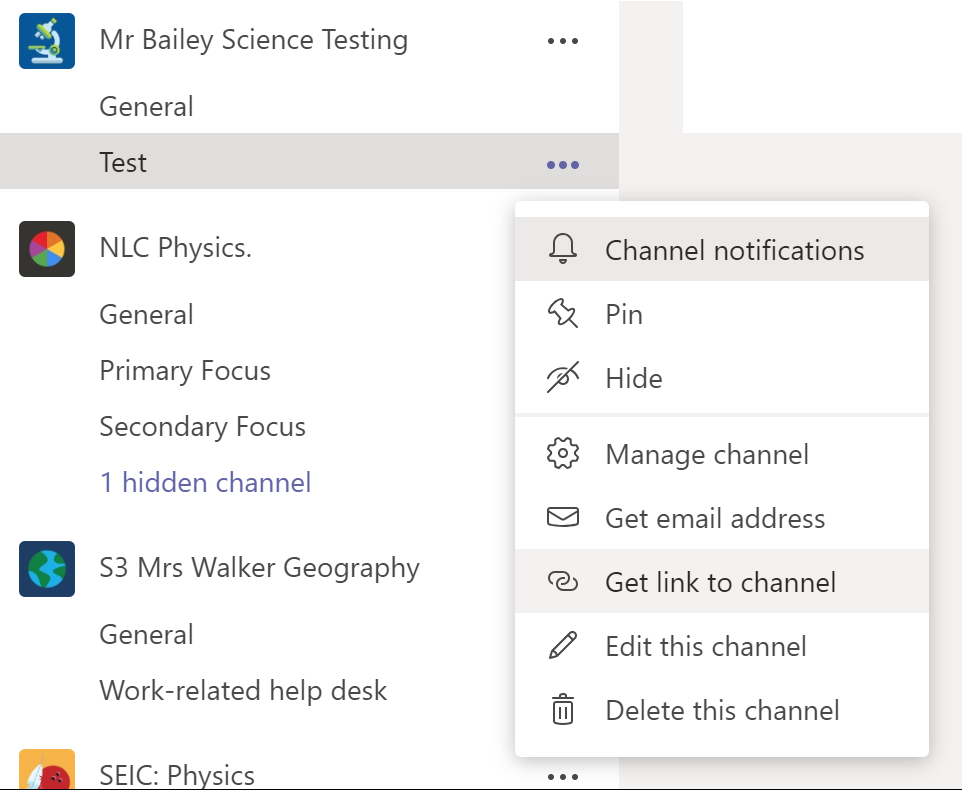
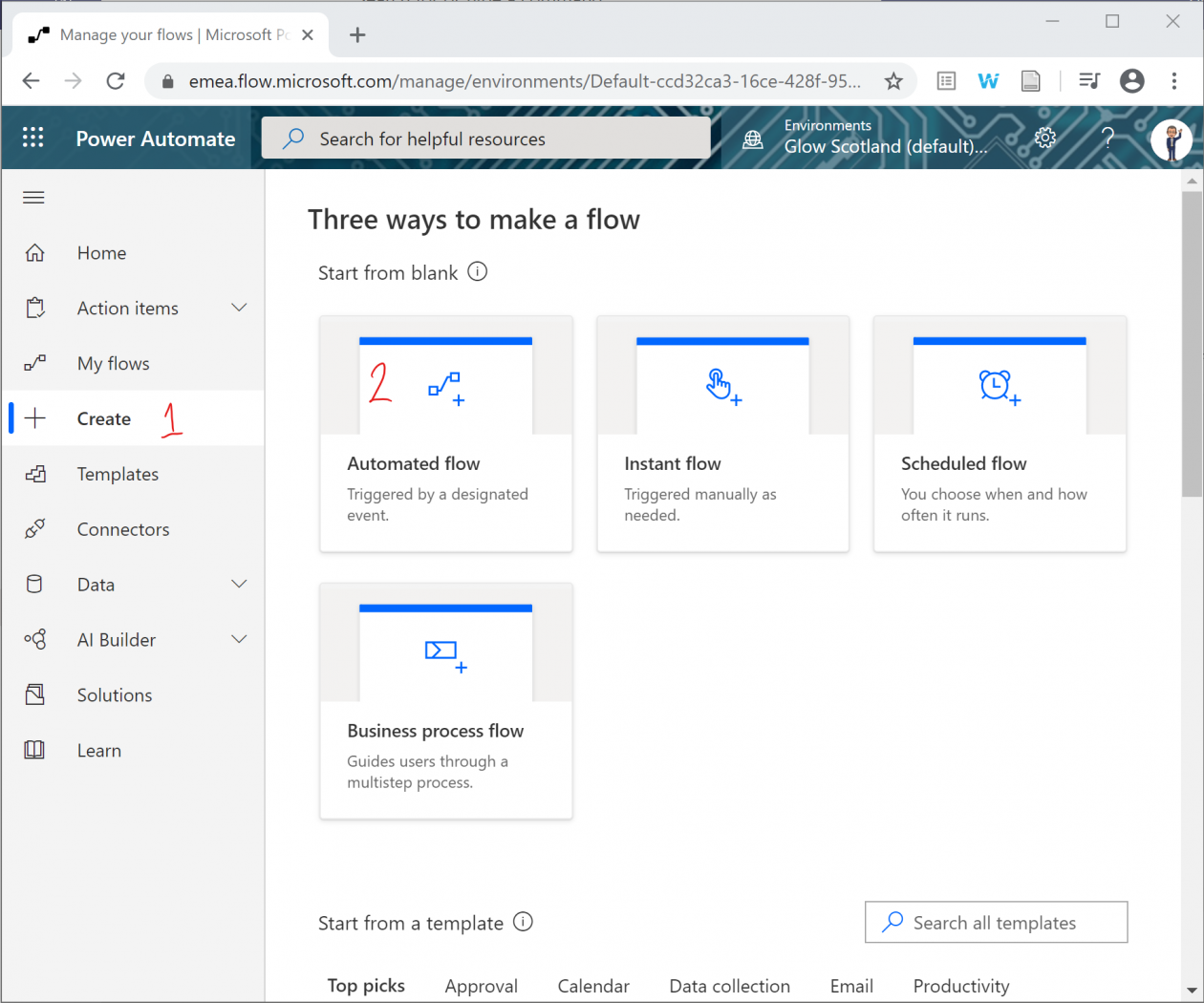 Name the Flow (1)