Tag Archives: iOS

iPads: Words and Pictures⤴

from @ wwwd – John's World Wide Wall Display

This is pretty basic stuff but I’ve found it useful in class.

I’ve often combined writing poetry with digital tools in the classroom. There are a lot of short forms that mean even the slowest typist can produce something good in limited time. From a pupil blogging perspective pupils of varying ability often get great results they can be proud of publishing.

When I started using iPads in teachers training and with pupils, I started using simple poetry forms as a way to produce something quickly that could develop from text be combined with images, video and audio.

Good, IMO, forms are kennings, lunes, haiku and six word stories.

Back then we used skitch and comic life to added text to pictures. More recently I moved on to the free version of pic collage 1.

When I arrived back in the classroom with a pile of iPads I’ve been using the technique quite a bit.

More recently 2 I’ve cut out third party apps to use the newish built in markup in the Photos app. Recently I demoed the process at an interview and saw Jenni Robertson show it at an Apple event in Glasgow. On both occasions I was surprised to find that it was a new concept to most of the audience. I though it might be worth a post here. There is a video embedded at the bottom of this post, but here are some written instructions.

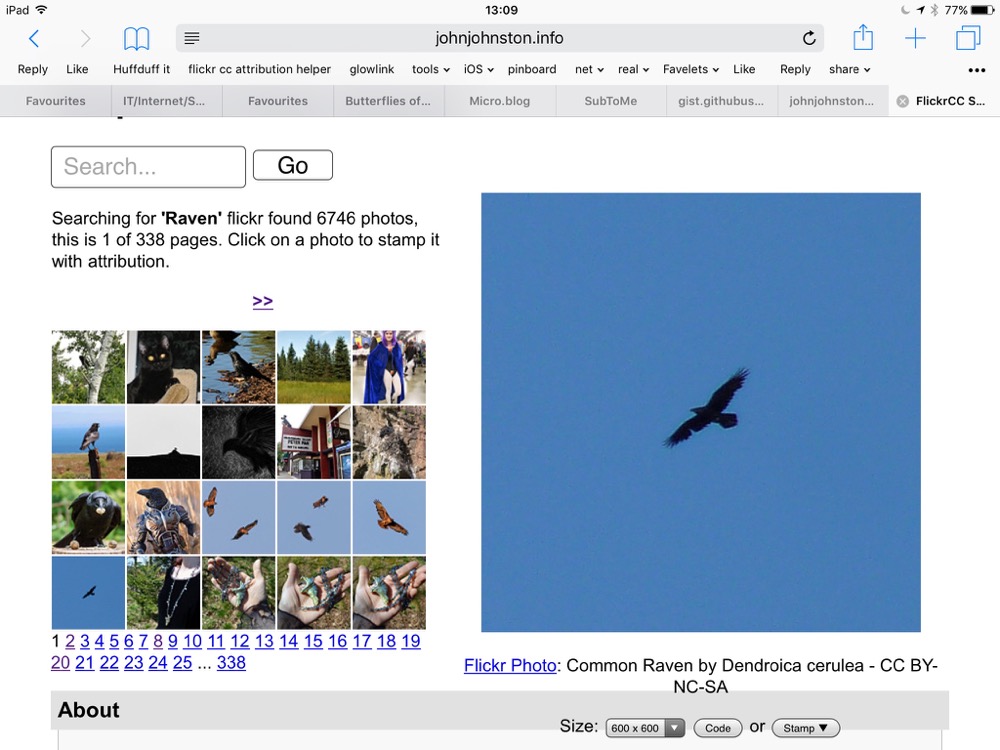
Start with an image

This is a good opportunity to talk and demo a wee bit about copyright and attribution. In class we often use the Morguefile or my own FlickrCC Stampr.
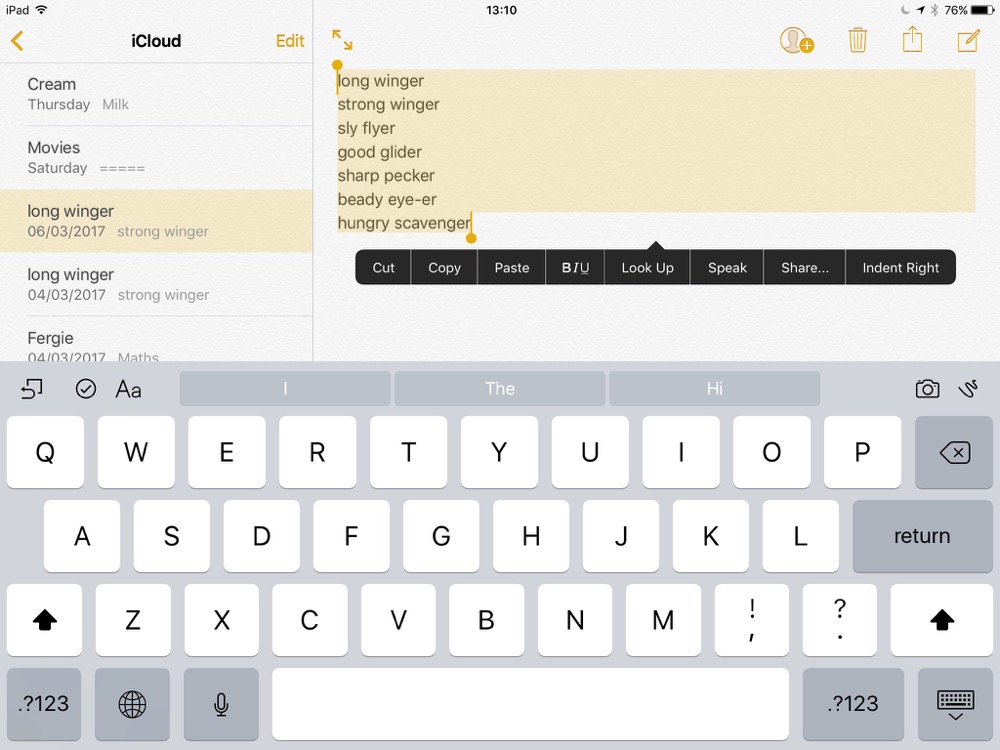
write some words

I believe it is best to use the notes app for this, avoiding thinking about how the text looks, where it goes etc.

Copy the text to the clipboard.
Combine the words and pictures

Open photos

Select and view the image.

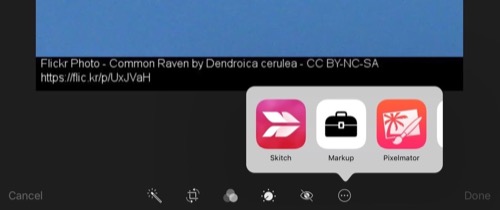
Click on the adjustment icon

When the photo opens click on the ellipses and then Markup
On the markup screen click the T tool to add a text box and then press on the box to edit it.
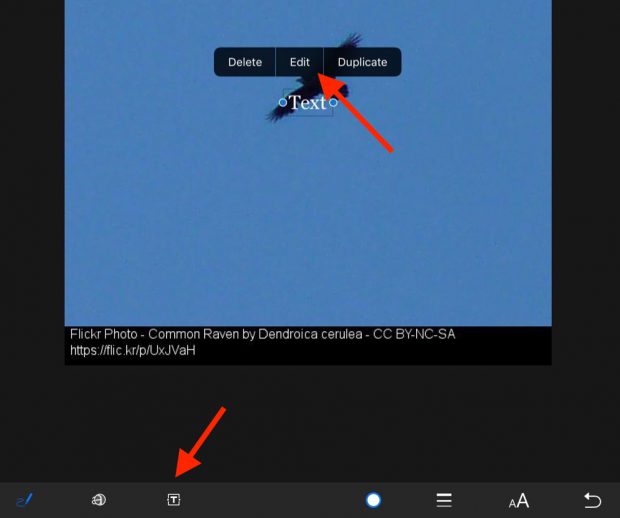
 

Paste in your poem.

Adjust the size, colour and placing of the text.

Bonus Tip – drop shadow

Duplicate the text, change the colour of one and move the top one over the bottom leaving a nice ‘old style’ drop shadow. I think this is worth it as a intro to layers in graphics. It can also hep readability on complex backgrounds.

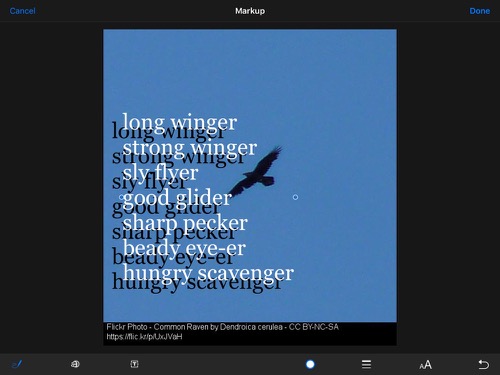


Although this is a very simple lesson I think it give the opportunity to teach a few different things over and above literacy involved in the writing:

  • Copyright and creative commons
  • Combining apps (safari, notes, photos) in a workflow.
  • Layers

It has the potential for being extended into video & audio editing (groups pictures perhaps) and sharing the results.

Here is a quick screencast.


1. Some examples from my class using pic collage Frosty Photos and Poems – Banton Biggies ↩

2. For example Kennings, we know about animals – Banton Biggies ↩

above

Podcatching with Castro⤴

from @ wwwd – John's World Wide Wall Display

Recently I was being Pedantic about Podcasts. Trying to point out that the important thing about podcasts is the way they are distributed making it is be easy to listen as we wash the dishes or drive to work.

I posted about this before: EDUtalk: How to Listen.

Once you get this set up to be automatic it makes listen to podcasts as easy as listening to the radio.

I started way back, syncing podcasts to an iPod. One I got my first iPhone I used that, trying a few different apps before settling on  Overcast.

A few weeks ago I deleted Overcast as I was running out of space to record a movie, planning to reinstall ASAP.

Last week as I went to do this, on a whim,  I spent £3.99 on Castro 2 instead. It turns out that this app matches my listening habits better than overcast. I’d guess, from memory, it has less settings and options but that is not a bad thing.

I listen to podcasts mostly on my 45 minute commute home. I am interested in more podcasts than would fill that amount of time. Castro lets me subscribe to a bunch of podcasts and queue up (and download) only the episodes I want to hear. It does this in a very simple way.

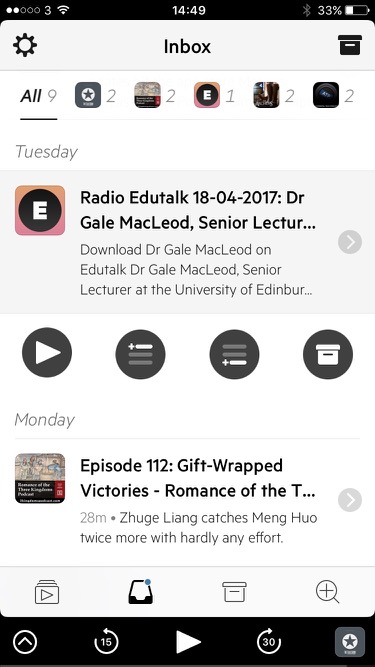
  • New episodes from the feeds I am subscribed to get listed in my inbox.
  • From there you can quickly add then to your queue, at the end or at the top. At this point they get downloaded.
  • You can set any feed to have its episodes automatically added to the queue.
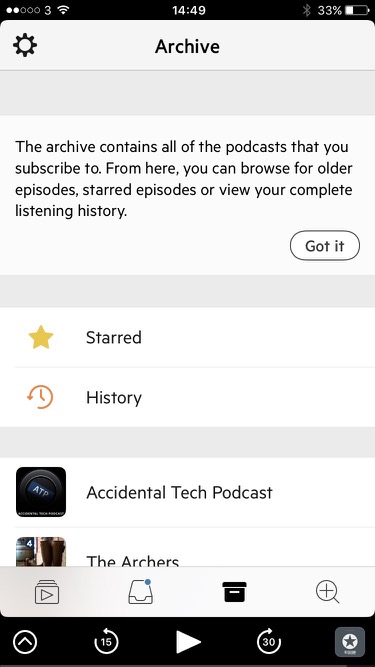
  • You can archive episodes, you don’t loose them but they get out of the inbox.
  • You can queue episodes from your archive or the discovery tab. That means you can search or paste the url to a podcast into the discovery tab and see the episodes, you can add one to the queue without subscribing.

Once in the queue you can rearrange the episodes and they play in order. Each moves to the archive after it is played. Importantly for me, the next queued episode plays automatically.

Bonus, as you add an episode to the queue there is a nice wee animation as seen in the featured image of this post (my image is a gif, speed and quality are not reflections of the app.)


Apple Apps go free⤴

from @ wwwd – John's World Wide Wall Display

iMovie, Numbers, Keynote, Pages, and GarageBand for both Mac and iOS devices have been updated and are now listed in the App Store for free.

Apple Makes iMovie, GarageBand, and iWork Apps for Mac and iOS Free for All Users – Mac Rumors

Worth noting, although these are free already on new devices. This will help classes like mine whose iOS devices are on their second Apple ID.

Also good for distributing through MDM, which seems to be the idea.

Also Clips

Apple Teacher widens its reach⤴

from @ The H-Blog

Last year, when the iPhone 7 was launched I think, I had been reading about the new Apple Teacher program and got quite excited about signing up – only to find out that I couldn’t because it was for the United States only. It did give a page to keep checking back on that they promised to update as the program became available in other countries or regions – and I had even been remembering to check! The last time I checked it was after we came back from the Christmas holidays, and I was still faced with the single line of availability: United States

Anyway, last Thursday, I got an email notifying me that the Apple Distinguished Educator (ADE) programme was open to applications again. Remembering the heft of the application last time, I thought I would have a quick glance to see what was involved this time. Imagine my surprise to find that being an exisiting Apple Teacher was a prerequisite to applying to be an ADE !

 

When I dug deeper into things, I found that the list of countries had been updated (on January 24th, just in time for BETT?) and now included Australia, Denmark, Hong Kong, Ireland, Mexico, the Netherlands, New Zealand, Singapore, Sweden and the United Kingdom as well as the United States.

So obviously I had to go and have a look.

An early stumbling block you might face is to do with your Apple ID. The Apple Teacher site states pretty specifically that it’s your own personal Apple ID you’ve to sign up with, and not an ID provided by your establishment. That’s fine for people like me – who surf the wave of our copious IDs with ease – but for some other teachers it may prove a bit more challenging.

Once you are through the sign-up hoop, you will find yourself logged into the Apple Teacher Learning Centre. Pick your device of choice – esentially iOS or Mac – and there are a set of tutorials and quizzes for you to complete to become an Apple Teacher. I can’t speak for Mac, but the iOS ones were:

  • iPad
  • Pages for iPad
  • Keynote for iPad
  • Numbers for iPad
  • iMovie for iPad
  • Garageband for iPad
  • Productivity with iPad
  • Creativity with iPad

Having completed the quizzes for iOS, I can confirm that they are not pitched at “Expert” level, the main plank of evidence being that I managed to pass them all. I got a very nice, shiny email for my trouble:


Interestingly, passing quizzes opens up more quizzes and the interface itself is pretty user friendly – as you’d expect from Apple. I’m looking forward to seeing how the site and the program develop, that’s for sure.

If you’re interested, you can sign yourself up for Apple Teacher at:

http://www.apple.com/uk/education/apple-teacher/

Microcast 5: Choices⤴

from @ John's World Wide Wall Display

IMG_7438.jpeg

Some thoughts about making choices about the software and systems you use, they may have hidden positives or negatives.

Featured image, iPhone screenshot, edited in snapseed

    iPad Glow Tip⤴

    from @ John's World Wide Wall Display

    shortcut-featured

    At the weekend during pedagoo muckle there was a mini TeachMeet. Everyones name was in a bowel and there was a series of random 2 minute talks. I though I was prepared with this tip. In the event I was quite glad I didn’t get picked all the people who got picked had two minutes of great ideas, as opposed to a wee tip.

    I did mention it to one or two folk at my conversation and it was well received so I though it would be work posting.

    One of the minor hassles I’ve been having with Glow and iPads is multiple logons. Some of the MS apps seem to get themselves in a state of confusion, requiring pupils to log on frequently, and more than once. This is a particular pain if you work in Word, save to Onedrive and then upload that file through the browser. I’d like this to be a thoughtless and painless process for my class but it is not. This is compounded by the fact you need to put a glow email address into an MicroSoft iPad app, this them loads the RM Unify logon where you need to use your glow username and password. Given you can use your glow email in place of your username this make the tip even more useful.

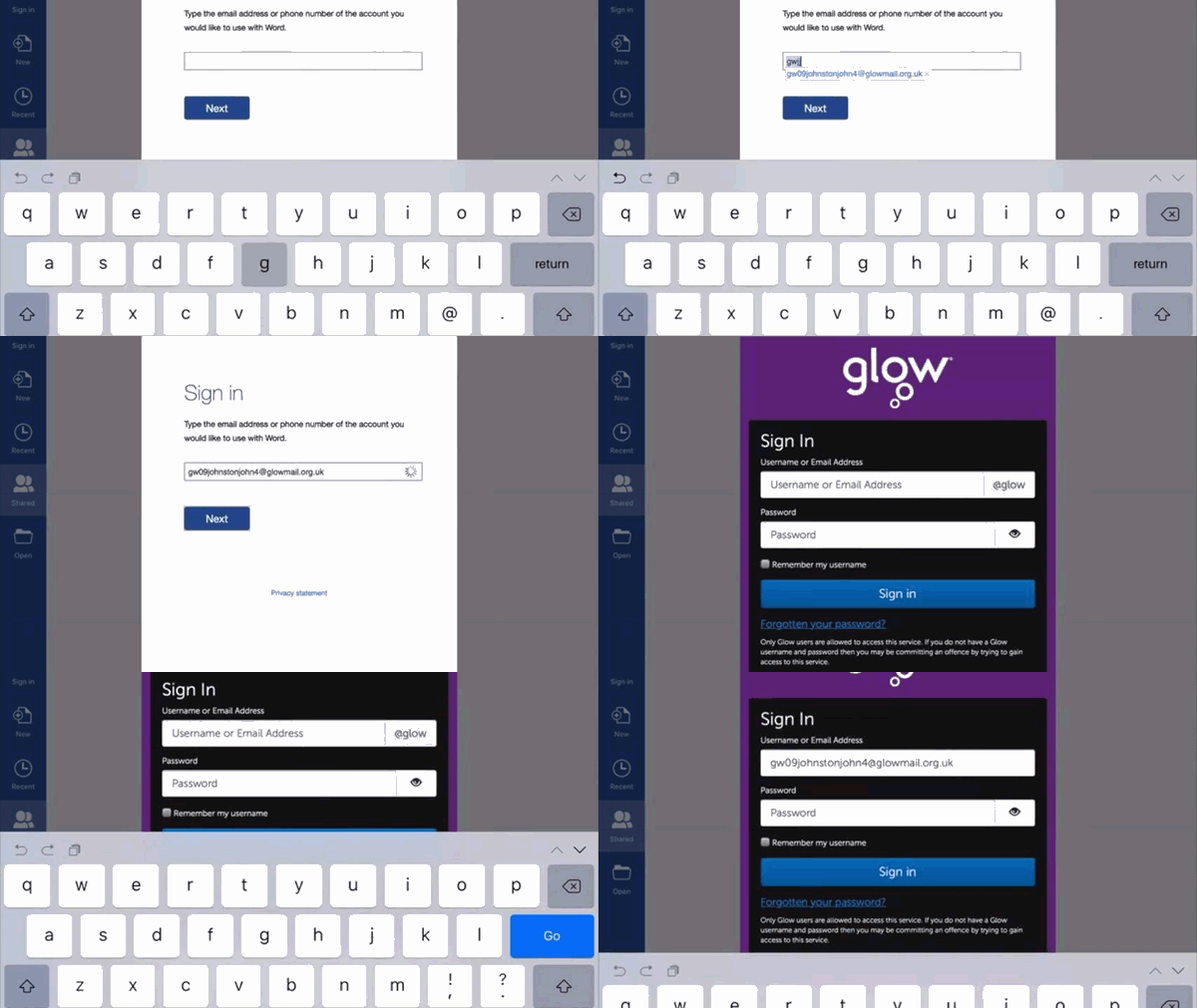
    iOS has a text replacement function. You can type a shortcut and the predictive text will offer the expansion to insert.

    You set these up in the Setting App, General-> Keyboard- Text Replacement, the phrase would be your glow email, the shortcut something memorable, not part of a real word. We used gw and initials, so mine is gwjj.

    Here is a gif showing how much easier it it to log on with a shortcut.

    shortcut-gwjj

    As a bonus, some of the pupils in my class added other shortcuts, for example d: for define: which hlps find the meaning of words in google.

    mp3 (and other files) upload on iOS Finally⤴

    from @ John's World Wide Wall Display

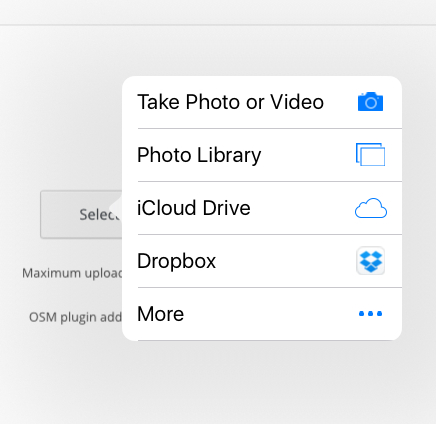
    Finally ios allows upload of files from more than the photo library. This is just the first mp3 I found in my Dropbox. It is a recording n Buchanian st. In Glasgow.

    The more includes OneDrive for glow folk.

    image

    This opens up lost of possibilities for blogging and podcasting on the move.

    iTunes U – what do schools need to know?⤴

    from

    iTunes U 3.0 was released as an update to the existing app – and it is packed with features that iPad teachers have been crying out for. Those of you using iTunes U will be familiar with the interface and features available in the last version – so this post will focus on what you need to know about the new features and how they effect your use.

    Briefly the new features include:

      • Students can hand in homework to specific assignments

      • Students and instructors can mark up PDFs within iTunes U

      • Instructors can grade and track student progress in an integrated grade book

      • Instructors can have private, one-on-one discussions with students

      • Instructors can include multiple attachments per assignment

    Dan Edwards has put together a great post which you can find here. I was lucky to be able to chat with him and some fellow ADEs at the launch and they have put together some useful thoughts around this. (shout out to  Mat Pullen, Gav Smart and Tom Riley as well). If you are not already doing so, I suggest you give them a follow on social media as well as Fraser Speirs; whose thoughts on the update can be found here.

    This update to iTunesU seems to mark a shift away from a content delivery platform to a feature packed teaching and learning platform. This puts it on a par with apps like Showbie; the goto paperless classroom for many iPad educators and the newcomer Google Classroom; which is available for any teacher or pupil with a Google Apps for Education account. Showbie has had PDF and document annotation for a while now and both apps offer cross platform support if you have a variety of devices in use in your school or have implemented a BYOD policy. The downside with this you have to select products and services which are supported across each platform/device.

    Submit assignments

    One of the main disadvantages of the previous version of iTunes U was the inability to deal with the submission side of workflow. While it was a great teacher-to-student content delivery tool it lacked that ability for pupils (and teachers if they were simply enrolled in a course) to submit work. This made it very one sided and required the use of a third party option. Now, pupils can choose to submit work via the app or by using ‘open in’ option found across iOS. One of the additional options here is the ability to select a file from a cloud storage solution such as Google Drive or Dropbox. This is great for schools using Google Apps for Education. Unfortunately for staff/pupils in Scotland using Glow, OneDrive for business is not supported.

    Files can be submitted as attachments and students have the opportunity to enter a comment to their teacher and start a 1to1 conversation. This is not unique to iTunes U as Showbie and Google Classroom have these features for some time – but the integration into iTunesU makes it an even more compelling option to use in schools.

    One-to-one conversations

    One of the advantages of services such as Showbie, is the ability to have a conversation with a pupil in the same way you would have if you were in class. This is a big factor in making education an anytime anywhere experience. This does however, start the conversation over whether teachers should be required to answer questions at evenings and weekends. Teachers are some of the most overworked individuals out there and adding to this could be met with a level of negativity. That being said, with it being increasingly difficult to increase motivation and engagement in pupils; if they are actively taking part in a task, should teachers not continue to encourage that? I leave it up to you.

    Annotate PDFs

    This is a great stand out feature. Annotate over PDFs that students have submitted and give instant feedback. The power of this feature is not one to be overlooked. There are a number of downsides – no option to add audio feedback and the images are ‘flattened’ after you have finished annotating them. This means that the pupil has to edit and resubmit their original file. Always retaining a copy of the original file is a good practice to instil in pupils.

    Gradebook

    Teachers can track and monitor the progress of individual pupils within a course/assignment. This information can be exported as a .csv file and upload to an MIS system. SEEMiS is the choice for all authorities across Scotland and can be used where appropriate. At the moment only numerical grades are supported so teachers can make decisions as to when/where this information is used. National and Higher assessments may not be appropriate here, but it may lend itself well to BGE courses.


    Final thoughtsScreen Shot 2015-06-30 at 14.32.18

    Those are some of the standout features for me in terms of the new update. It is certainly encouraging to see the shift to a learning and teaching platform and for schools that have embraced the 1:1 iPad route, the use of iTunes U is def a no brainer. For schools that have a shared deployment or mixed with other devices, using a service that works across a range of devices and platforms may be a better choice at the moment.


    iTunes U – what do schools need to know?⤴

    from

    iTunes U 3.0 was released as an update to the existing app – and it is packed with features that iPad teachers have been crying out for. Those of you using iTunes U will be familiar with the interface and features available in the last version – so this post will focus on what you need to know about the new features and how they effect your use.

    Briefly the new features include:

      • Students can hand in homework to specific assignments

      • Students and instructors can mark up PDFs within iTunes U

      • Instructors can grade and track student progress in an integrated grade book

      • Instructors can have private, one-on-one discussions with students

      • Instructors can include multiple attachments per assignment

    Dan Edwards has put together a great post which you can find here. I was lucky to be able to chat with him and some fellow ADEs at the launch and they have put together some useful thoughts around this. (shout out to  Mat Pullen, Gav Smart and Tom Riley as well). If you are not already doing so, I suggest you give them a follow on social media as well as Fraser Speirs; whose thoughts on the update can be found here.

    This update to iTunesU seems to mark a shift away from a content delivery platform to a feature packed teaching and learning platform. This puts it on a par with apps like Showbie; the goto paperless classroom for many iPad educators and the newcomer Google Classroom; which is available for any teacher or pupil with a Google Apps for Education account. Showbie has had PDF and document annotation for a while now and both apps offer cross platform support if you have a variety of devices in use in your school or have implemented a BYOD policy. The downside with this you have to select products and services which are supported across each platform/device.

    Submit assignments

    One of the main disadvantages of the previous version of iTunes U was the inability to deal with the submission side of workflow. While it was a great teacher-to-student content delivery tool it lacked that ability for pupils (and teachers if they were simply enrolled in a course) to submit work. This made it very one sided and required the use of a third party option. Now, pupils can choose to submit work via the app or by using ‘open in’ option found across iOS. One of the additional options here is the ability to select a file from a cloud storage solution such as Google Drive or Dropbox. This is great for schools using Google Apps for Education. Unfortunately for staff/pupils in Scotland using Glow, OneDrive for business is not supported.

    Files can be submitted as attachments and students have the opportunity to enter a comment to their teacher and start a 1to1 conversation. This is not unique to iTunes U as Showbie and Google Classroom have these features for some time – but the integration into iTunesU makes it an even more compelling option to use in schools.

    One-to-one conversations

    One of the advantages of services such as Showbie, is the ability to have a conversation with a pupil in the same way you would have if you were in class. This is a big factor in making education an anytime anywhere experience. This does however, start the conversation over whether teachers should be required to answer questions at evenings and weekends. Teachers are some of the most overworked individuals out there and adding to this could be met with a level of negativity. That being said, with it being increasingly difficult to increase motivation and engagement in pupils; if they are actively taking part in a task, should teachers not continue to encourage that? I leave it up to you.

    Annotate PDFs

    This is a great stand out feature. Annotate over PDFs that students have submitted and give instant feedback. The power of this feature is not one to be overlooked. There are a number of downsides – no option to add audio feedback and the images are ‘flattened’ after you have finished annotating them. This means that the pupil has to edit and resubmit their original file. Always retaining a copy of the original file is a good practice to instil in pupils.

    Gradebook

    Teachers can track and monitor the progress of individual pupils within a course/assignment. This information can be exported as a .csv file and upload to an MIS system. SEEMiS is the choice for all authorities across Scotland and can be used where appropriate. At the moment only numerical grades are supported so teachers can make decisions as to when/where this information is used. National and Higher assessments may not be appropriate here, but it may lend itself well to BGE courses.


    Final thoughtsScreen Shot 2015-06-30 at 14.32.18

    Those are some of the standout features for me in terms of the new update. It is certainly encouraging to see the shift to a learning and teaching platform and for schools that have embraced the 1:1 iPad route, the use of iTunes U is def a no brainer. For schools that have a shared deployment or mixed with other devices, using a service that works across a range of devices and platforms may be a better choice at the moment.


    iTunes U – what do schools need to know?⤴

    from

    iTunes U 3.0 was released as an update to the existing app – and it is packed with features that iPad teachers have been crying out for. Those of you using iTunes U will be familiar with the interface and features available in the last version – so this post will focus on what you need to know about the new features and how they effect your use.

    Briefly the new features include:

      • Students can hand in homework to specific assignments

      • Students and instructors can mark up PDFs within iTunes U

      • Instructors can grade and track student progress in an integrated grade book

      • Instructors can have private, one-on-one discussions with students

      • Instructors can include multiple attachments per assignment

    Dan Edwards has put together a great post which you can find here. I was lucky to be able to chat with him and some fellow ADEs at the launch and they have put together some useful thoughts around this. (shout out to  Mat Pullen, Gav Smart and Tom Riley as well). If you are not already doing so, I suggest you give them a follow on social media as well as Fraser Speirs; whose thoughts on the update can be found here.

    This update to iTunesU seems to mark a shift away from a content delivery platform to a feature packed teaching and learning platform. This puts it on a par with apps like Showbie; the goto paperless classroom for many iPad educators and the newcomer Google Classroom; which is available for any teacher or pupil with a Google Apps for Education account. Showbie has had PDF and document annotation for a while now and both apps offer cross platform support if you have a variety of devices in use in your school or have implemented a BYOD policy. The downside with this you have to select products and services which are supported across each platform/device.

    Submit assignments

    One of the main disadvantages of the previous version of iTunes U was the inability to deal with the submission side of workflow. While it was a great teacher-to-student content delivery tool it lacked that ability for pupils (and teachers if they were simply enrolled in a course) to submit work. This made it very one sided and required the use of a third party option. Now, pupils can choose to submit work via the app or by using ‘open in’ option found across iOS. One of the additional options here is the ability to select a file from a cloud storage solution such as Google Drive or Dropbox. This is great for schools using Google Apps for Education. Unfortunately for staff/pupils in Scotland using Glow, OneDrive for business is not supported.

    Files can be submitted as attachments and students have the opportunity to enter a comment to their teacher and start a 1to1 conversation. This is not unique to iTunes U as Showbie and Google Classroom have these features for some time – but the integration into iTunesU makes it an even more compelling option to use in schools.

    One-to-one conversations

    One of the advantages of services such as Showbie, is the ability to have a conversation with a pupil in the same way you would have if you were in class. This is a big factor in making education an anytime anywhere experience. This does however, start the conversation over whether teachers should be required to answer questions at evenings and weekends. Teachers are some of the most overworked individuals out there and adding to this could be met with a level of negativity. That being said, with it being increasingly difficult to increase motivation and engagement in pupils; if they are actively taking part in a task, should teachers not continue to encourage that? I leave it up to you.

    Annotate PDFs

    This is a great stand out feature. Annotate over PDFs that students have submitted and give instant feedback. The power of this feature is not one to be overlooked. There are a number of downsides – no option to add audio feedback and the images are ‘flattened’ after you have finished annotating them. This means that the pupil has to edit and resubmit their original file. Always retaining a copy of the original file is a good practice to instil in pupils.

    Gradebook

    Teachers can track and monitor the progress of individual pupils within a course/assignment. This information can be exported as a .csv file and upload to an MIS system. SEEMiS is the choice for all authorities across Scotland and can be used where appropriate. At the moment only numerical grades are supported so teachers can make decisions as to when/where this information is used. National and Higher assessments may not be appropriate here, but it may lend itself well to BGE courses.


    Final thoughtsScreen Shot 2015-06-30 at 14.32.18

    Those are some of the standout features for me in terms of the new update. It is certainly encouraging to see the shift to a learning and teaching platform and for schools that have embraced the 1:1 iPad route, the use of iTunes U is def a no brainer. For schools that have a shared deployment or mixed with other devices, using a service that works across a range of devices and platforms may be a better choice at the moment.