Tag Archives: Google

Google Image Search on iOS⤴

from @ John's World Wide Wall Display

TL:DR I’ve found a link that leads to google image search for  images labeled for noncommercial reuse. This is handy on iOS where it is hard to get to the Usage Rights Filter, here is the link: https://www.google.co.uk/search?q=&lr=&safe=active&hl=en-GB&tbs=sur:f&tbm=isch.

Coming back to the classroom after 9 years I find I am still interested in searching for images and copyright. It still seems to be as hard to get young children to understand the problem and harder to understand and carry out attribution.

On my classes blog I link to various places to search for images with some advice on attribution. I include my FlickrCC Stampr tool which can simplify the attribution.

As well as the problem with attribution there is the ever present temptation just to search google. This is made worse by the fact that the Search Tools displayed on iOS lack the Usage Rights popup.

So I was interested in the link I saw today: How to find Google images with reuse licenses on an iPad iOS – Using Technology Better.

Unfortunately this method was described as a hack and took 6 steps to get to the advanced search and the usage rights pop up.

So I though I might have a search for the url parameters1 involved in a search with the Usage rights displayed.

There are quite a lot of parameters and although searching google for a list provides some these seem to be both undocumented and changeable:

You can expect that a lot of this will change. The reason why Google themselves do not provide any guidance or documentation on these parameters is probably that they want to retain full freedom to change how they work. You can expect that some will be removed, some will be added, and others will give a different result than before.

from: Google Search URL Request Parameters | DETECTED Which give a lot of details, but not the one I wanted.

So I went through the process in the Using Technology Better post and copied the url. I then started deleting the parameters until I found the ones that would produce the right kind of search:

https://www.google.co.uk/search?q=&lr=&safe=active&hl=en-GB&tbs=sur:f&tbm=isch

The tbm=isch bit makes it an image search, the tbs=sur:f seems to set the usage rights to Labeled for noncommercial reuse.

So you can now give pupils on iOS a direct link to search for images that labeled for noncommercial reuse.

Featured Image: found searching Flickr for search with no known copyright restrictions: Image from page 211 of “Bulletin” (1961-1962) by Internet Archive Book Images No known copyright restrictions

1. The paramaters are the bits in the url after ? for example ?q=bus&safe=active, makes a search for a bus safe. ↩

Reverse Digital Literacy⤴

from @ John's World Wide Wall Display

A few years ago I posed about an interesting use of Google reverse image search:

http://johnjohnston.info/blog/google-image-search/

And over the years I’ve read a good few posts about the tool on Alan’s blog (e.g. The Hidden Complexity of Attribution, Reverse Image Search ).

This week I’ve been reading more fascinating uses of the tool: Cleanup Time and Road Trip

I am even more strongly minded that we should be starting to teach these skills from a young age. How easy that will be I don’t know.

A few weeks ago, during the scary clown storm I was hearing about clown stories every day. One pupil was most insistent that there was a clown plague. The pupil presented me with ‘evidence’ from his iPad. This was a photo of a dead clown stretched out shot on a New York street. I took a look with the idea of demonstrating a wee bit of fact checking. On scrolling down below the picture I found the headline explaining that this was a fake photo! No detective work needed.

I am not quite sure where to start with this teaching. Perhaps using the reverse image search to identify things or creatures combined with some work on The Pacific Northwest Tree Octopus.

The problem is that the fake stuff is catchy, fun and enables us to grab a quick stance.

Featured image Reversed | Pekka Nikrus | Flickr BY-NC-SA

    Cardboard Camera⤴

    from @ John's World Wide Wall Display

    (This post has been sitting in a text file over the whole of the Christmas break)

    A while back a blogged about my classes brief experience of Google Expeditions one of the things I didn’t mention was the thought that it might be interesting for children to be creators of content.

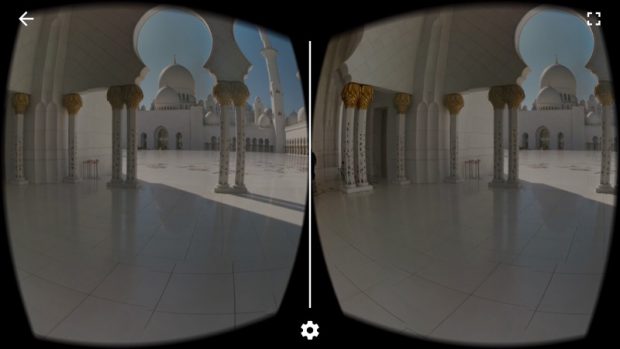
    The other day I was reminded of Google Expeditions by Malcolm Wilson’s post <a href=”https://blogs.glowscotland.org.uk/fa/ICTFalkirkPrimaries/are-we-really-there-virtual-reality-in-the-classroom/”>Are we really there? Virtual Reality in the classroom</a> which gives a great overview of VR & Google Expeditions. He also posted some links. I’ve not followed them all but one leads on to Cardboard Camera on the App Store. This is a google iOS app (there is an android one too) that can:

    Capture and share moments with virtual reality (VR) photos. VR photos let you experience scenery and sound in every direction and in 3D, making things near you look close and faraway things look far away.

    I’ve only had time to give it a couple of quick tests on my phone. The one I made in the class certainly seemed to impress the pupils when viewed in Google Cardboard.

    The app saves at an image with a .vr.jpg extension in the camera roll as well as the app. When imported to photos on a mac this turns out to be 10994 pixels by 1706 and weights in at 4.9 MB. You can see an exported & much reduced version below.

    As you view the image you can hear the sound recorded at the time. So You can either have atmosphere or a voice over.

    According to the app store:

    Compatibility: Requires iOS 9.0 or later. Compatible with iPhone, iPad, and iPod touch

    I wonder if it is worth having an iPod Touch in class. I have always been slightly surprised that iPod Touches disappeared from the education scene when the iPad came along. The fact that they should work in google cardboard or other VR viewers might bring them back?

    Featured image screenshot of the Cardboard Camera in action.

      Evil Auto Complete?⤴

      from @ John's World Wide Wall Display

      arewomenfw1-600

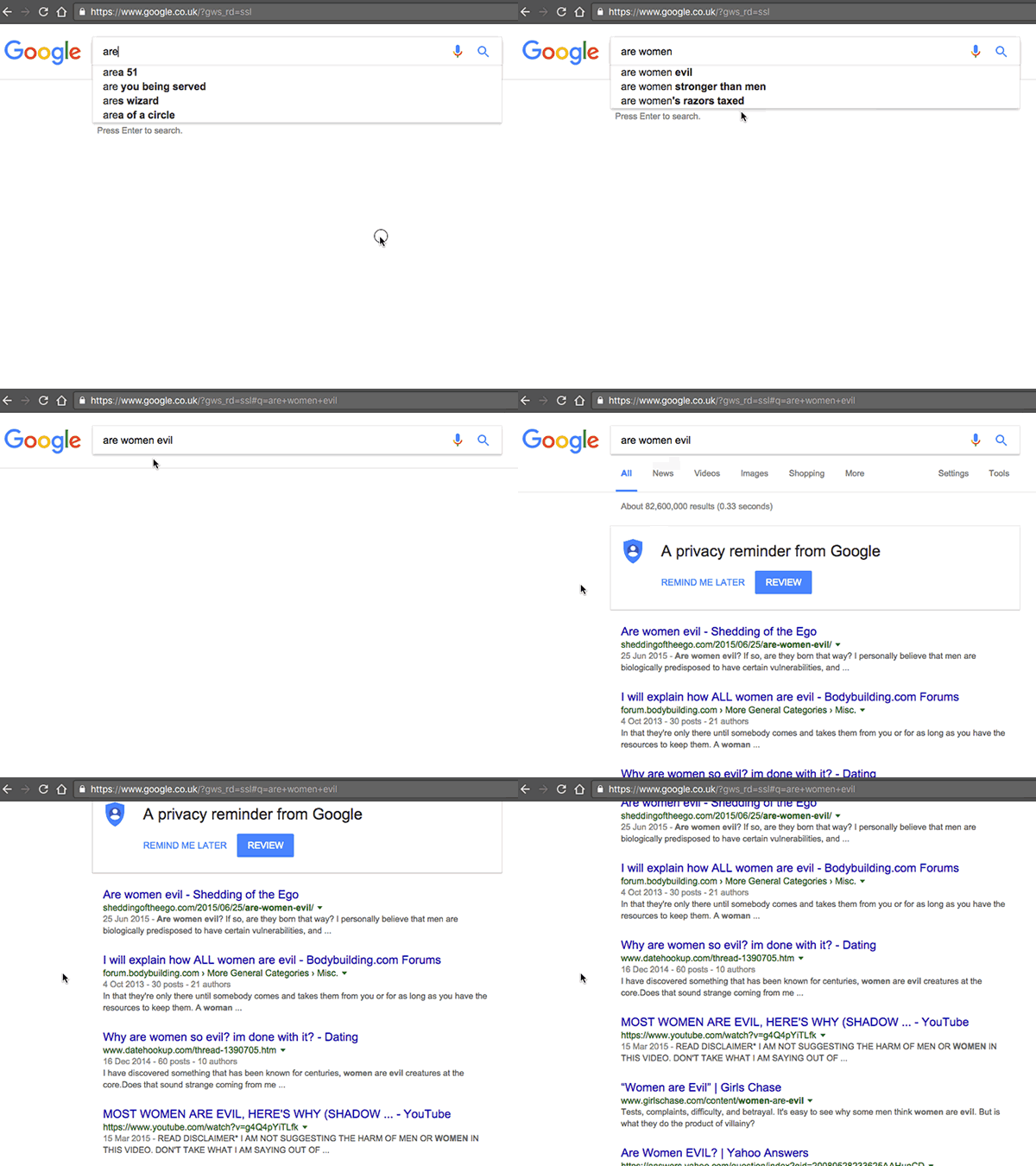
      There are also evil women. I didn’t go looking for them either. This is what I type: “a-r-e w-o-m-e-n”. And Google offers me just two choices, the first of which is: “Are women evil?” I press return. Yes, they are. Every one of the 10 results “confirms” that they are, including the top one, from a site called sheddingoftheego.com, which is boxed out and highlighted: “Every woman has some degree of prostitute in her. Every woman has a little evil in her… Women don’t love men, they love what they can do for them. It is within reason to say women feel attraction but they cannot love men.”

      from: Google, democracy and the truth about internet search | Technology | The Guardian

      I’ve long been fascinated by google auto completes but never though of deeper implications.

      I read this in the Observer this morning. Thanks to @LillyLyle for digging out the link I couldn’t find (via @IanStuart66)).

      I use google all of the time and do pay attention to the auto completes as they often seem to help in refining a search. Sometimes this is just to avoid suggestions, sometime better. I’d not thought about the darker side.

      On reading the article I first didn’t think that I paid much attention to auto suggestions (like adverts). I cast my mind back to yesterday when I was searching for a way to draw ‘irregular rectangles’ with JavaScript. I didn’t really find what I wanted, but burrowed down several rabbit holes steered by the suggestions.

      I am used to the top google results having some sort of authority. Google a film get IMDB or Wikipedia. This gives pause.

      Featured image captured with LICEcap.

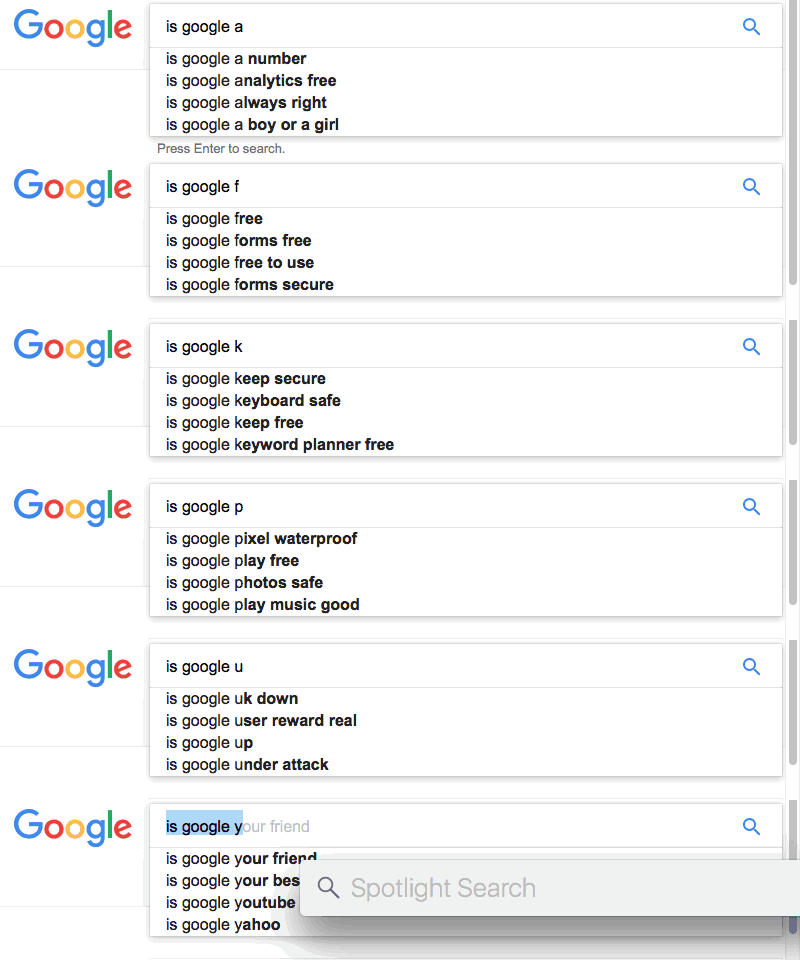
      Running my auto complete script leads to a few possible questions…

      is_google

      • is google your friend?
      • is google evil?
      • is google racist?
      • is google listening to me?
      • is google making us stupid?

        Google Expeditions⤴

        from @ John's World Wide Wall Display

        IMG_7357.jpeg

        In early October my school had a visit from Google Expeditions. I’d been contacted to see if I would be interested and jumped at the chance.

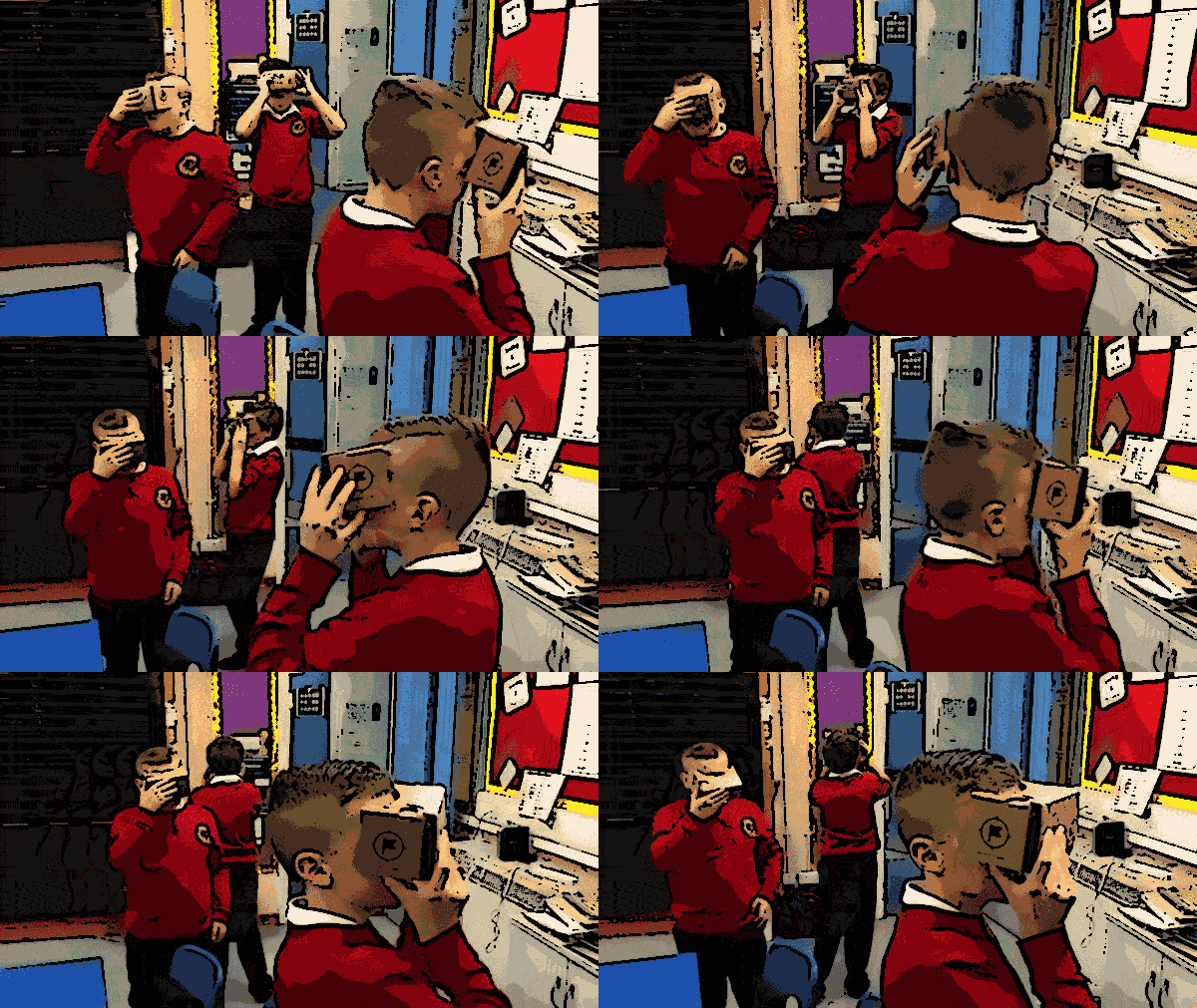
        Google Expeditions are a 3D VR ‘experience’ using google cardboard. I’d tried a few mobile apps using cardboard before but not in a classroom setting.

        The plan was we would choose Expeditions that would fit into our learning.

        On the day Kostas from Google turned up in Banton having traveled on public transport with the whole kit in a backpack. This consisted of one tablet, one router, a set of android phones with a google cardboard for each phone.

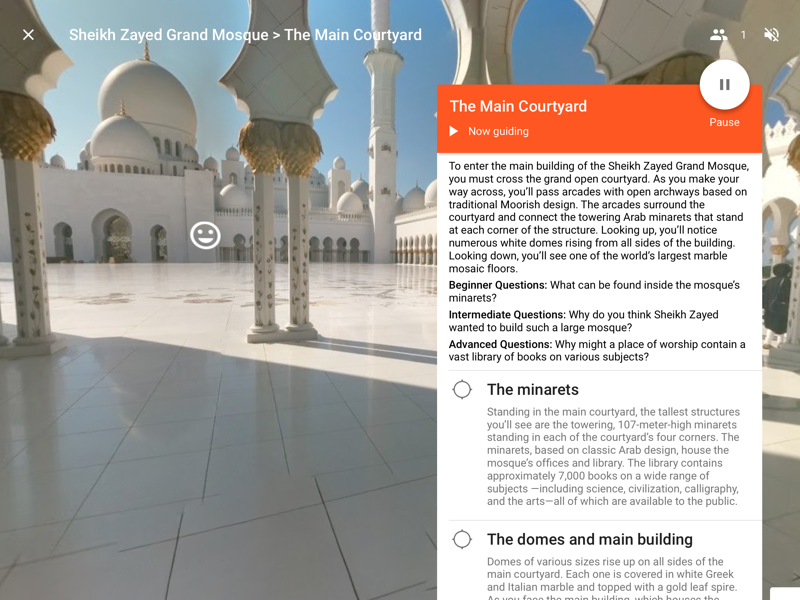
        Expeditions are a set of several 3D VR ‘images’ that can be looked around. The images are broadcast from the tablet ( or a phone) to other devices on the local network. The Tablet is handled by the ‘leader’ the phones by the ‘explorers’. The leader controls which image/space the explorers see. The leader’s non-3D view includes some notes and discussion points.

        table leader view

        The devices need to be connected to the same network but they do not need to be online. The scenes are ‘served’ from the tablet. The tablet does need to be online at some point to download the scenes in preparation.

        When in a space the explorers can look around by turning their heads or bodies. Moving forward and backwards has no effect.

        The leader cannot control where the explores look in a scene but double tapping will show the explorers an arrow pointing to the object tapped (we saw that explorers would always follow these arrows).

        We had chosen a couple of Expeditions that would fit with out learning, but did have the chance to explore quite a few.

        in the box

        The pupils were very engaged immediately, the images are surprisingly ‘hyper real’ and the experience of turning round or just moving your head was delightful.

        We collated some pupil responses on the class blog: Around the World in a Cardboard Box.

        I’d chosen the spaces we looked at at fairly short notice, one did not really fit with my expectations the other was linked to a topic we had not then started. So for the point of view of linking into the learning and teaching I hadn’t planed well enough. From the point of view of exploring potential new technology and giving the pupils a glimpse of the near future.

        I’d also feel that the resources might be a bit more valuable after the initial excitement had died down and the pupils used the system more than once.

        So how would we use this past an exciting but brief test. Although the kit is relative inexpensive a class set would still be an major resource for even a large school.

        I suppose it could be a share resource for a group of schools or local authority.

        I wonder too if it could be used on a smaller scale, with less devices. At the end of last month I was talking to Will Tuft on Radio #EDutalk about ‘The immersive classroom’, this involves setting up classroom experiences, for example the aftermath of a hurricane, with props and tasks. I wonder could the cardboard be part of some such class. For example a group of ‘divers’ could take it in turns to put on the googles and explore the sea.

        It could also just be used by a few children as a time.

        I wonder if as well as the obvious exploration angle if it would be a rich resource for writing.

        All in all an interesting experience, it will be interesting to see how this type of technology develops.

          Turning off some Google juice, back to thing 4⤴

          from @ John's World Wide Wall Display

          IMG_0163.jpeg

          Although I’ve not been blogging about all of the 23 things, I’ve though a little about most of them. This item from my feed reader:

          Google Has Quietly Dropped Ban on Personally Identifiable Web Tracking – ProPublica got me thinking more about thing 4 digital security

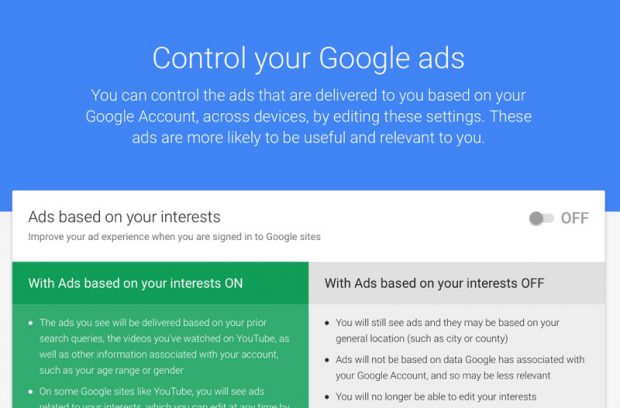
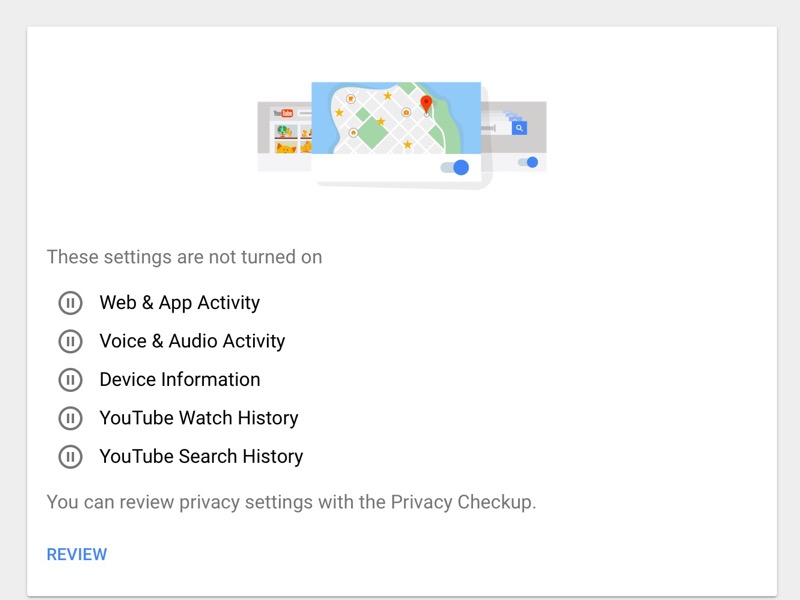
          To opt-out of Google’s identified tracking, visit the Activity controls on Google’s My Account page, and uncheck the box next to “Include Chrome browsing history and activity from websites and apps that use Google services.” You can also delete past activity from your account.

          After that I headed over to the Google My Account page and turned off as much as I could.

          Turning off some Google juice, back to thing 4⤴

          from @ John's World Wide Wall Display

          IMG_0163.jpeg

          Although I’ve not been blogging about all of the 23 things, I’ve though a little about most of them. This item from my feed reader:

          Google Has Quietly Dropped Ban on Personally Identifiable Web Tracking – ProPublica got me thinking more about thing 4 digital security

          To opt-out of Google’s identified tracking, visit the Activity controls on Google’s My Account page, and uncheck the box next to “Include Chrome browsing history and activity from websites and apps that use Google services.” You can also delete past activity from your account.

          After that I headed over to the Google My Account page and turned off as much as I could.

          I don’t even like liver⤴

          from @ John's World Wide Wall Display

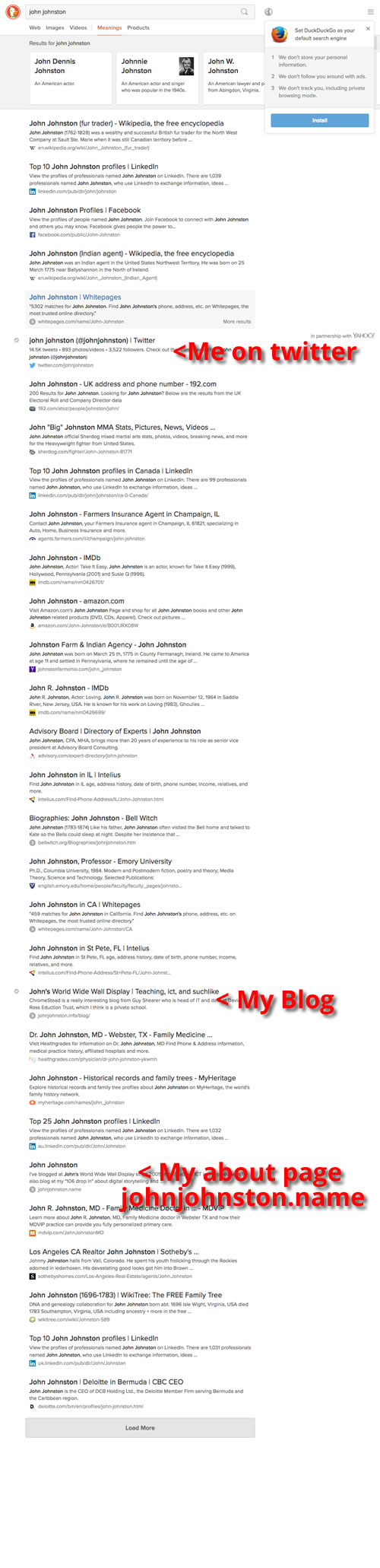
          google-image-johnjohnston

          A day to go in Week two of 23 Things so a rather rushed approach.

          Thing 3: Digital Footprint, reading includes:

          It is important for you to think about how you manage your activity online in the context of your emerging professional identity (or identities) and what you need to do to manage an effective online presence and your digital footprint.

          ‎ Student e-Professionalism
          Which sums up the problem fairly nicely.

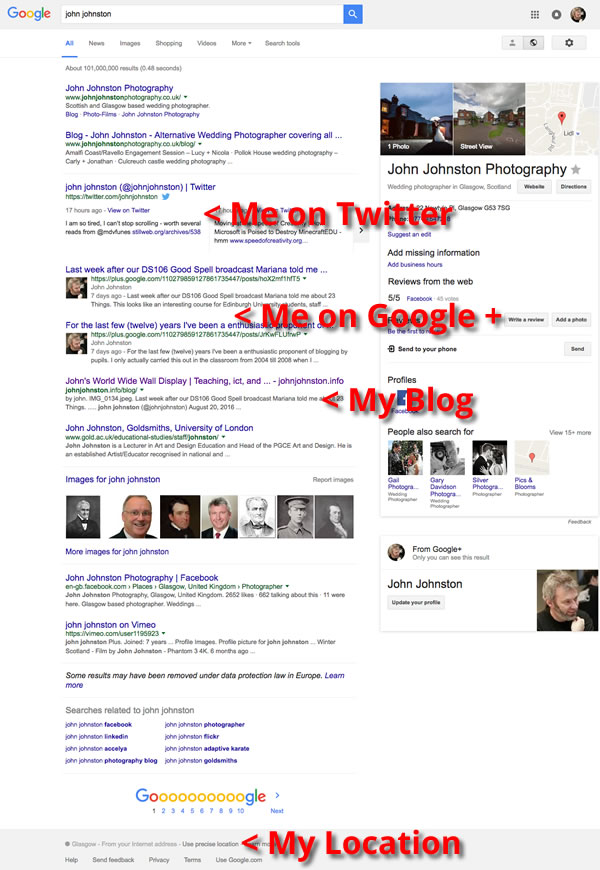
          after the reading the task was to Google yourself. Go to Google.com, type in your name, and see what results come up.

          The first thing to note is that I am redirected to google.co.uk

          google-me-text

          From as owning own my name pov this looks pretty good. The fly in the ointment is the location. The only John Johnston higher than me is a Glasgow photographer.

          It turns out it is quite hard to get results from google without using your location (I googled it). So I gave up and turned to Duck Duck go.

          me-duck-duck

          No Glasgow photographer, no G+ and I am a bit further down the listing.

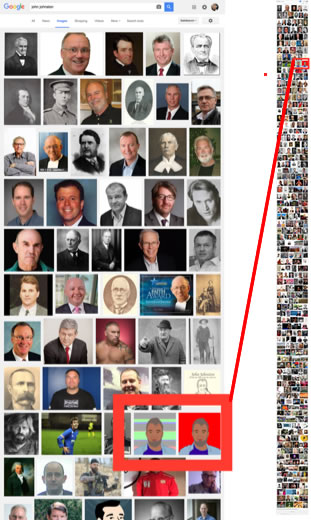
          An image search finds me quite far down the results, with only my twitter icons on the first page.

          google-me

          I had a look on Facebook, where I have an seldom used account, I was not even on the page, even filtering for Glasgow.

          Having a common name makes me harder to find, I am not sure if this is a good thing or not.

          I’ve just returned to classroom teaching after a break of 8 years. This is a different world than the one I left. It is apparent from talking to the pupils that some of them have looked me up online. One has followed me on twitter. I don’t think anyone would find anything disturbing in my social streams, but some of the content might be a bit strange. I’ll need to live with that.

          The other day in class we were talking about copyright and image use. This is hard for the age group I am dealing with (8-10 years). At one point I lead them to my FlickrCC Stampr page, which can be useful in attribution for pupils. The only trouble is that it was easiest to point them to the link on johnjohnston.info which doesn’t not look like a primary teachers site. Again I’ll need to live with that.

          There are many John Johnstons that are a lot more interesting than me, this is my current favourite:

          Liver Eating Johnson was a violent, drunk, mountain of a man who didn’t have a very high reputation but was by no doubt the most fearless fighter and he became a legend.  Johnston was built like a brick wall with a towering height over six feet tall and weighing 280 pounds none of which was fat.

          Skyler Gabel Cody 8th Grade quoted on from: John Liver Eating Johnston – Home
          his name seems to be spelt with and without a t.

          Featured Image a screenshot of google search results for johnjohnston, copyright, confused.

          Office Lens⤴

          from @ John's World Wide Wall Display

          I tried this iPhone app out before the summer on the recommendation of Ian Stuart. At that time it was not integrated with O365/Glow and its main selling point seemed to be it took great pictures of whiteboards and straightened them up nicely.

          Back then I gave it a try and it did that job, but not, IMO, as well as Scanner Pro. Scanner Pro is £2.99. (I like paying for apps, if you are not the customer…).

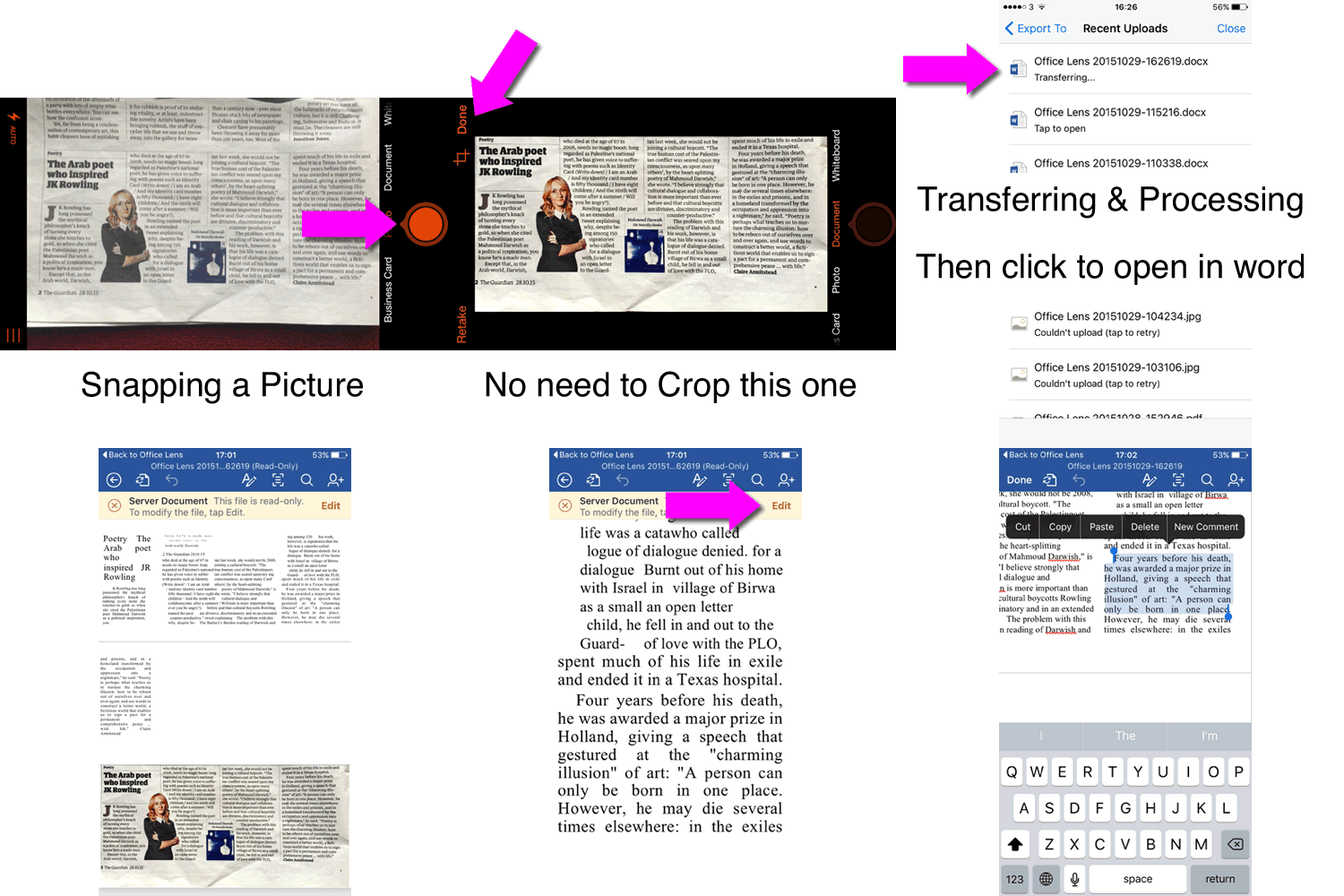
          So last week when Ian mention that it was now integrated with O365 for business/school (ie Glow), I didn’t get that excited but I did download it. Not being at a conference or near a whiteboard I just did a quick scan of a newspaper and saw that it uploaded.

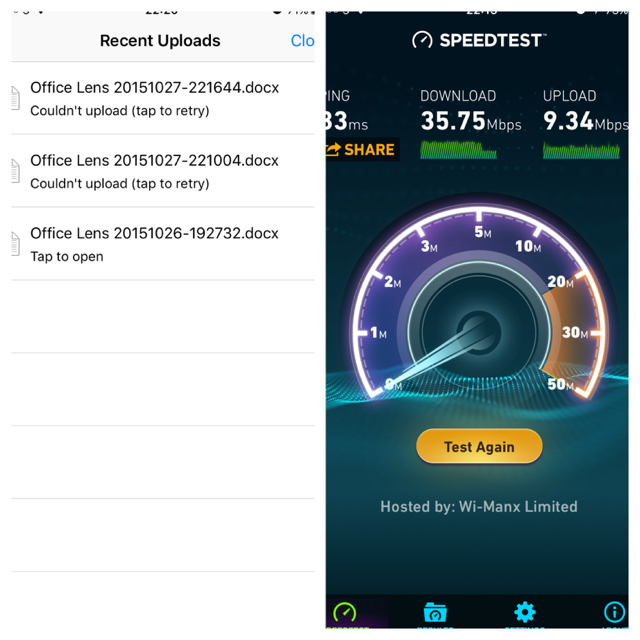
          Earlier this week I tried again and the uploads failed. They failed every time, Wifi, faster Wifi, the train Wifi, 3G, 4G. I registered my disappointment and moved on.

          IMG_3425

          I don’t think it is my connection speed

          Yesterday when looking at Delve in Glow O365 I noticed the photo I’d uploaded had been OCRed automatically. This made me try again. Updated the app, tried and tried to get and upload, finally logged out of the app and logged in again. This worked. A lot of hassle but worth it.

          Since then I’ve made a few tests and the results have been very good.

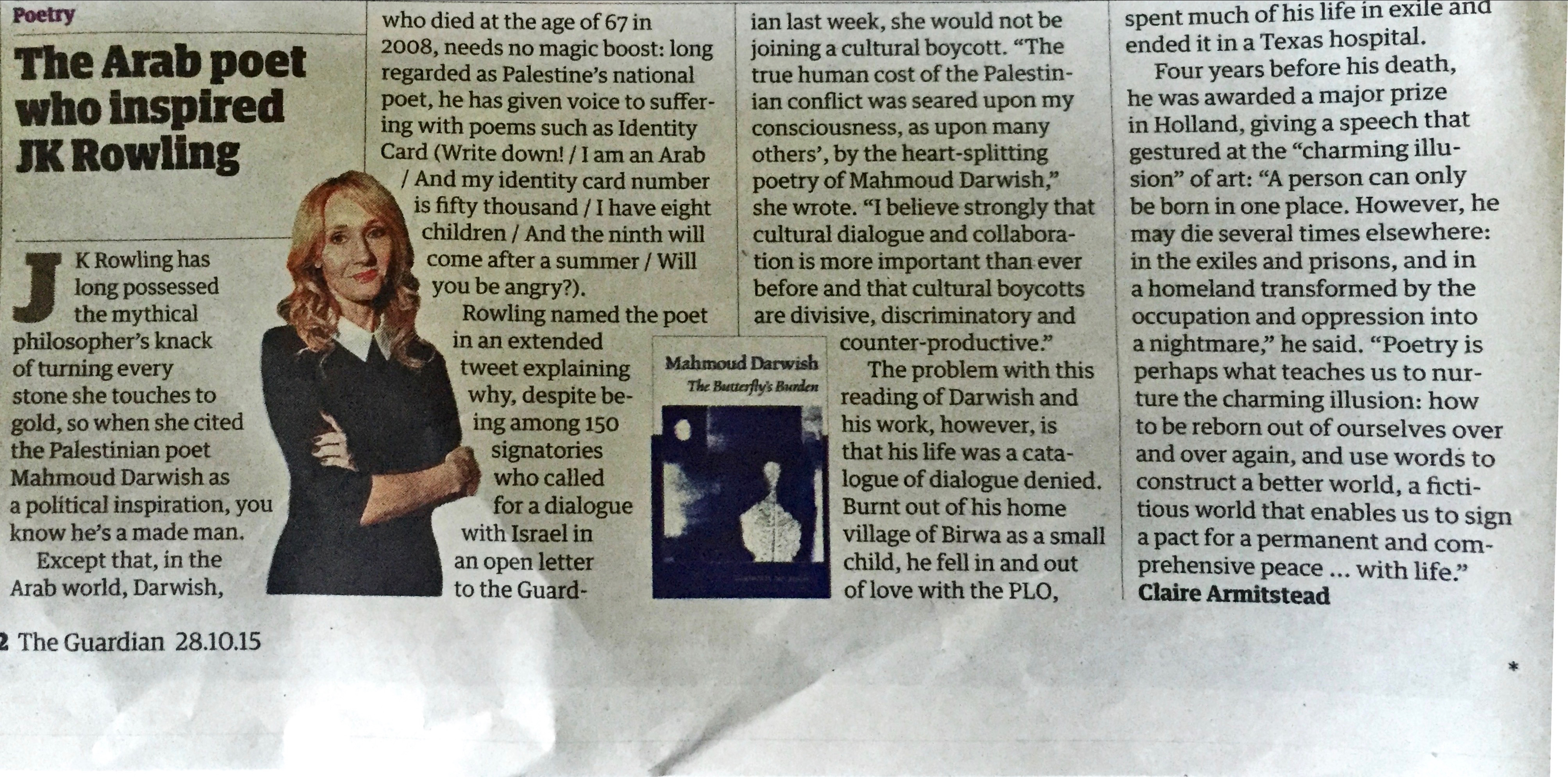
          First I took a picture from the newspaper. Very poor light, multi-column, and 2 images breaking the columns.

          Version 2

          Took the picture, did a manual crop then Export to Word. It took a minute, first transferring…, then Processing… but when it finished the results were great!

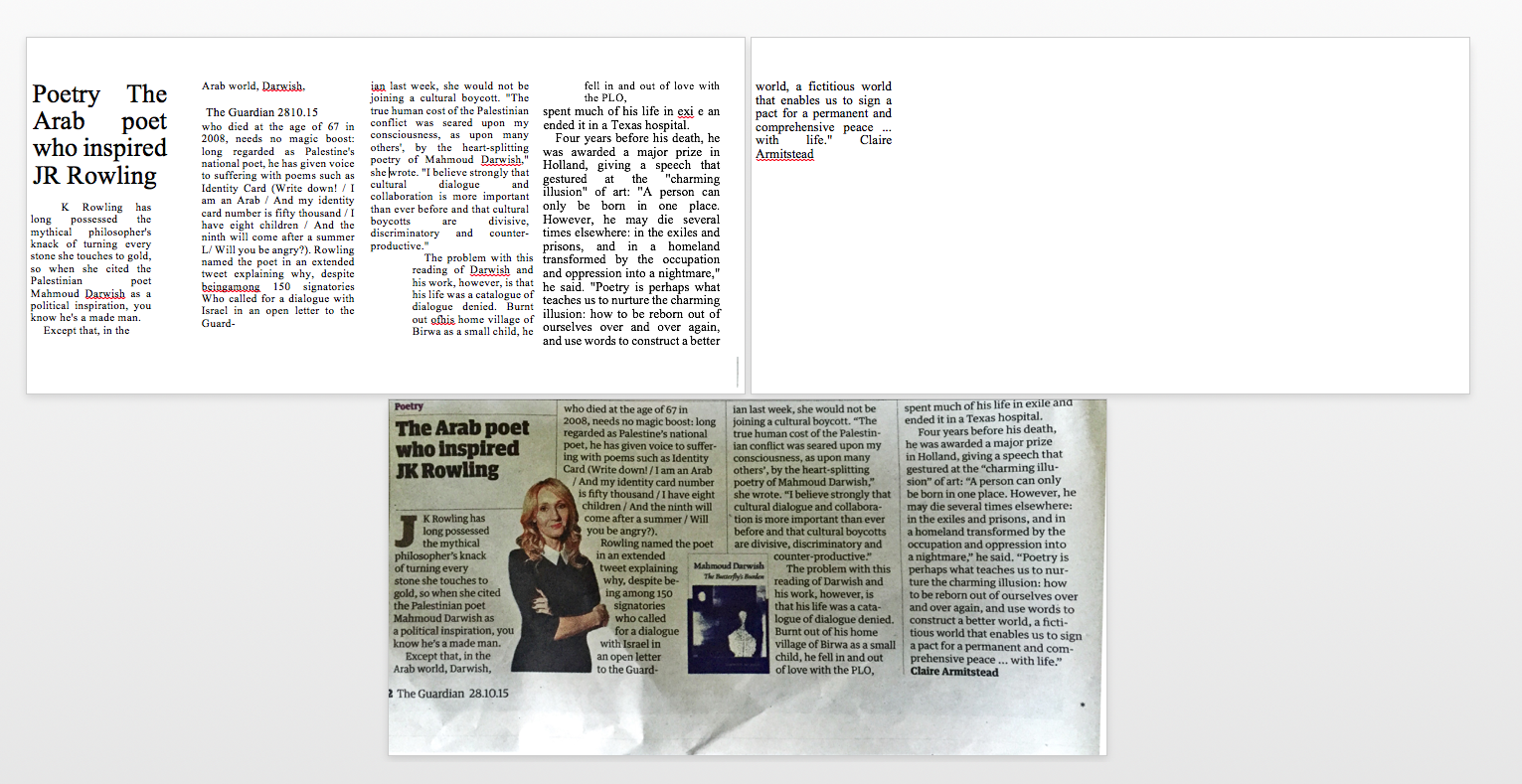
          This is a rerun in slightly better light.

          This is a rerun in slightly better light.


          Screen Shot 2015-10-29 at 17.24.32

          Screenshot of Word docx

          Here is the docx Office Lens, if you want a look.

          Comparing with Google OCR

          Before this I’ve used Google doc for OCR and though I’d do a comparison.

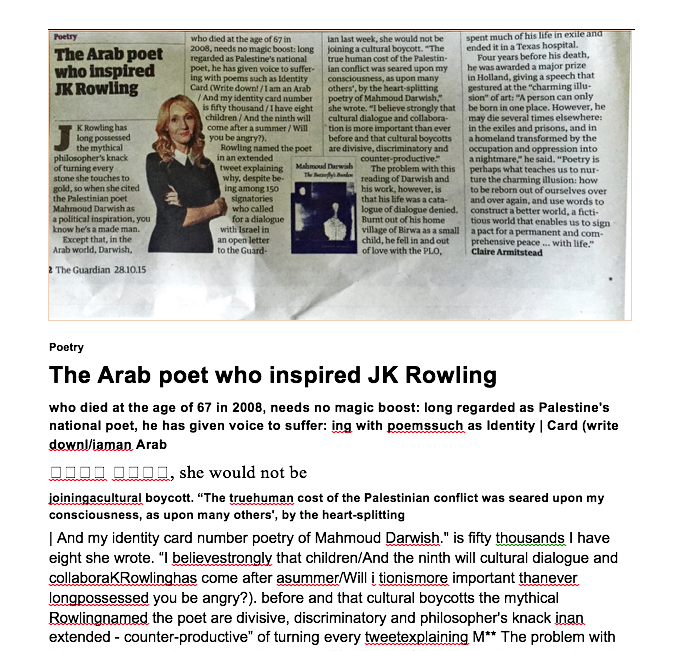
          Using the Google Drive app I uploaded a photo of the same section of newspaper. I could not see how to preform OCR from my phone with the Drive or docs app. I switched to the desktop and opened the image in docs. The results were not as good.

          Screen Shot 2015-10-29 at 17.32.39

          And here is the doc as a download: Google doc OCR as a docx

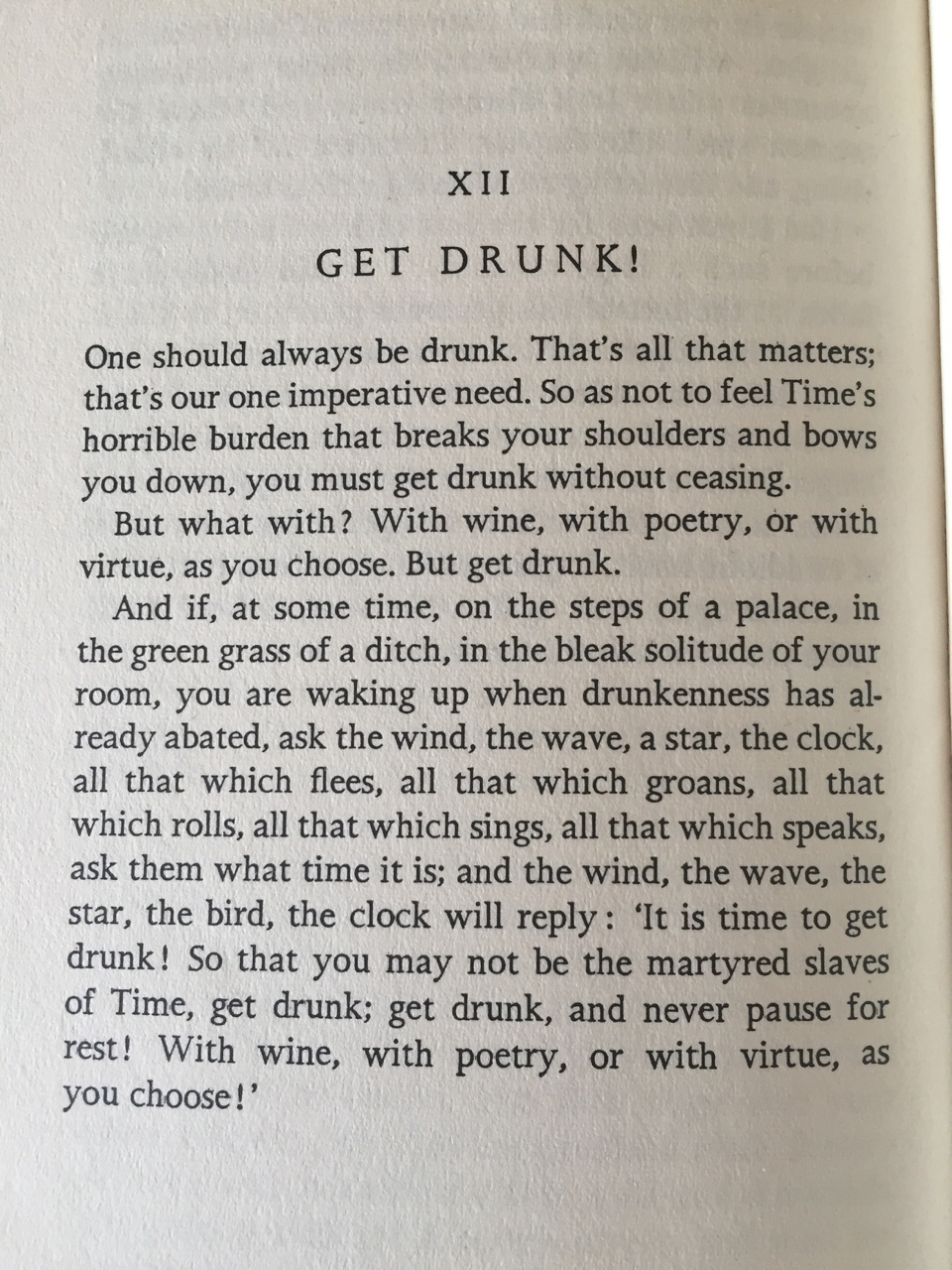
          I then decided to make it a bit simpler using a single column of text:

          IMG_3438


          both Google and O365 handled the OCR fine. I did have to make sure I shot the Google image in landscape. Using the camera from the doc was a bit of a mess. Here are the results:

          OfficeLens get drunk, Google using Camera directly, Google Camera in Landscape.

          Screenshots:

          Google with Landscape photo. Google Fail with portrait image Office Lens

          I also use Scanner Pro which allows upload directly to Google Drive which smoothed the workflow considerably.

          Problems repeating the process

          In writing this post I repeated the Office Lens experience, and ran into the failed to upload problem again. This was fixed by logging out of the app and in again! The app then crashed on upload but worked on relaunch.

          I hope that Microsoft can fix the logon problems because this is a pretty amazing application.

          DirectLinks: Better link copying⤴

          from @ John's World Wide Wall Display

          Bookmarked DirectLinks on canisbos.com
          Download DirectLinks This extension circumvents certain techniques used by Google and Facebook to track link clicks. When you click a link in Google search results, Google uses JavaScript to replace...
          Bookmarked DirectLinks on canisbos.com
          Download DirectLinks This extension circumvents certain techniques used by Google and Facebook to track link clicks. When you click a link in Google search results, Google uses JavaScript to replace...

          Saw this on DaringFireball.
          DirectLinks – Canisbos is a Safari extension. Really useful for copying links from Google Search results.

          Normally when you try and copy a link from a google search you get this sort of thing:
          https://www.google.co.uk/url?sa=t&rct=j&q=&esrc=s&source=web&cd=2&cad=rja&uact=8&ved=0CCwQFjABahUKEwjq9YnOtOPHAhXxS9sKHUQDB-k&url=https%3A%2F%2Fen.wikipedia.org%2Fwiki%2FFolktale&usg=AFQjCNHDEzwkM43l294OJ6AptxA7_Gg1pw&sig2=Lnf3ewVtFjbDOa7bl3SosA

          As google wraps the link so that they can count clicks. Installing the DirectLinks extension means if I copy the same link I get:
          https://en.wikipedia.org/wiki/Folktale

          Which is a lot more useful.  A quick google finds ways of doing this in Firefox and chrome too. I’ve not tested those.