Tag Archives: How to

Glow Blogs Start of Session FAQ 2026⤴

from @ Glow Blog Help

A few quick tips and some information that might help at the start of this new session.

Forgotten username or password

Your RM Unify Admin, who may be in your establishment or Local Authority, will be able to help.

I need to access a blog where I do not have a role. For example you have moved school.

An Admin of the blog should be able to add you. Adding Users, Setting Roles | Glow Blog Help

No one in school can access a blog (perhaps staff have moved or retired)

You need to get your Local Authority to raise a call with the RM help desk.

Make sure you include the usernames you want added to a blog and the URL of the blog.

I can log on to Glow but I can’t access a blog where I have a role.

If you have just be added to the blog, get an admin for the blog check you have been added in the right way. If you are showing as NOT LOGGED IN YET, see this tip. If that doesn’t help you need to get your Local Authority to raise a call with the RM help desk.

Make sure you include your username and the URL of the blog.

I can’t work out how to…

  1. Search this help blog
  2. Check the FAQ
  3. Use the contact form to get personal help.
  4. Leave a comment on one of the pages that your problem is related to.
  5. email gw09johnstonjohn4@glowmail.org.uk

News about Glow Blogs

News from the last year on Glow Blogs:

Recent Features you might not know about

We now recommend using The Blocks Editor  to create posts & pages on your sites. Itis a newer way to edit posts and pages. It allows a lot more flexibility as to content and layout.  We have a blog that explains more:  Using the Blocks Editor in Glow Blogs.

The site editor is a new way to edit the look and design of your site. It goes much further than changing themes. More improvements should come to Glow Blogs in the session, when we wil provide more information.

H5P is a plugin that allows you to create & display on your site a whole range of interactive content, from quizzes, multi-choice and close exercises all the way to 360 tours. H5p examples.

Accessibility they are new ways to make you sites accessibly to different visitors. Accessibility is becoming even more important in web design and should be considered for all public blogs.


Useful pages on the help blog

Glow Blogs Start of Session FAQ 2025⤴

from @ news – Glow Blog Help

A few quick tips and some information that might help at the start of this new session.

Check Your Blogs

The Glow Blogs housekeeping has started.

All staff and pupils who administrate blocks shoud check them .

It is getting near to the 28 August 2025 date when unused blogs will be deleted from the system. These have already been archived. If you have a blog that you have not used for a few years but still value please check it, if you see an archived notice you can tell your Key Contact before the 21 August 2025 if you need it restored. More information.

Forgotten username or password

Your RM Unify Admin, who may be in your establishment or Local Authority, will be able to help.

I need to access a blog where I do not have a role. For example you have moved school.

An Admin of the blog should be able to add you. Adding Users, Setting Roles | Glow Blog Help

No one in school can access a blog (perhaps staff have moved or retired)

You need to get your Local Authority to raise a call with the RM help desk.

Make sure you include the usernames you want added to a blog and the URL of the blog.

I can log on to Glow but I can’t access a blog where I have a role.

If you have just be added to the blog, get an admin for the blog check you have been added in the right way. If you are showing as NOT LOGGED IN YET, see this tip. If that doesn’t help you need to get your Local Authority to raise a call with the RM help desk.

Make sure you include your username and the URL of the blog.

I can’t work out how to…

  1. Search the help blog
  2. Check the FAQ
  3. Use the contact form to get personal help.
  4. Leave a comment on one of the pages that your problem is related to.
  5. email gw09johnstonjohn4@glowmail.org.uk

New to Glow Blogs

News from the last year on Glow Blogs:

Recent Features you might not know about

Block Editor

We now recommend using The Blocks Editor  to create posts & pages on your sites. Itis a newer way to edit posts and pages. It allows a lot more flexibility as to content and layout.  We have a blog that explains more:  Using the Blocks Editor in Glow Blogs.

Site Editor

The site editor is a new way to edit the look and design of your site. It goes much further than changing themes. More improvements should come to Glow Blogs in the session, when we wil provide more information.

H5P

H5P

H5P is a plugin that allows you to create & display on your site a whole range of interactive content, from quizzes, multi-choice and close exercises all the way to 360 tours. H5p examples.

Accessibility

Accessibility they are new ways to make you sites accessibly to different visitors. Accessibility is becoming even more important in web design and should be considered for all public blogs.
Useful pages on the help blog

#ipaded – App Smashing in the classroom⤴

from

App smashing is the process of using more than one app to create a project or product. It is highly engaging, asks students to be creative in their approach to their learning and use of technology and challenges them to take their learning to a higher level.

– Mark Anderson @ictevangelist

appsmashing
Image courtesy of @ipadwells

Appsmashing is a term first coined by Greg Kulowiec of edtechteacher.org. Greg has written a lot on the subject and can be found on Twitter @gregkulowiec

Appsmashing lends itself beautifully to the iPad in Education. Often, the questions ‘What is the best app to use in the classroom?’ or ‘Is there a good app for literacy/numeracy?’ are asked during CPD sessions. There is not one killer app or feature that makes the iPad a compelling choice of device, but rather the combination of apps and features that allow the pupils to express their understanding of a key concept or skill that makes it a go to for so many of our schools.

The purpose of technology in class is to enhance learning. Appsmashing is an activity that can be lots of fun, but can also focus too much on the technology if being particularly complicated. We do know, as teachers, that pupils are motivated and purposively engaged in the learning process when concepts and skills are underpinned with technology and sound pedagogy. This post will highlight a simple appsmashing activity that will motivate pupils and allow them to take ownership of their learning by giving them a realistic expectation and allowing them to be particularly creative.

For this task we will only need to use one app; Tellagami. This is a free app (the best kind) that allows pupils to create short animated videos. You can add your own background and record your voice to an animated character.tellagami

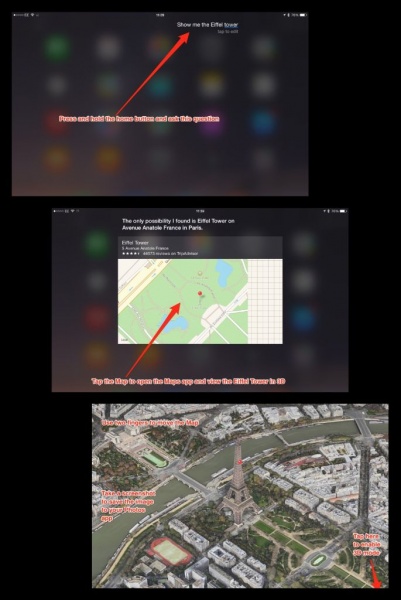
Stock iOS apps and features can sometimes be overlooked in terms of classroom benefit. Siri; while great for telling you a joke or the current weather conditions; can also be used to give you definitions of words, solving equations or showing you maps of famous landmarks. By using the command, ‘Show me the Eiffel Tower’ , pupils are able to view the famous landmark in 3D glory, screenshot the image and use it in another app. Spelling does not have to a barrier and allows pupils to focus on the clarity of their speech. This can be a huge plus for pupils who are not confident in their spelling and/or developing their language skills.

appsmash

Once we have the image in our photos app, we can launch Tellagami and start to record ourselves. The video below details the process.

#iPaded – How to give apps access to photos⤴

from

When using an app for the first time, a pop-up may appear asking you to grant access to photos, camera, or the microphone. Explain Everything and Book Creator are two examples of applications that request this. As teachers, some of us are trained to say ‘no’ right away or pupils may tap don’t allow accidentally. There is an easy fix of this.

For the purposes of this post, I will demonstrate the steps to reenable photo access for Explain Everything.

  1. Tap Settings
  2. Tap Privacy
  3. Tap Photos
  4. Slide Explain Everything to on.

That’s it. This also works for the Microphone and Camera apps as well. Now you don’t need to panic if your pupils accidentally tap ‘Don’t Allow’ the problem is easily resolved.

Enable photo access

#ipaded – Speech Selection⤴

from

Speech selection on the iPad is a great way for pupils to interact with text across a range of applications available throughout the device.

Before we look at some of the ways you can use this feature in class here is how you activate it:

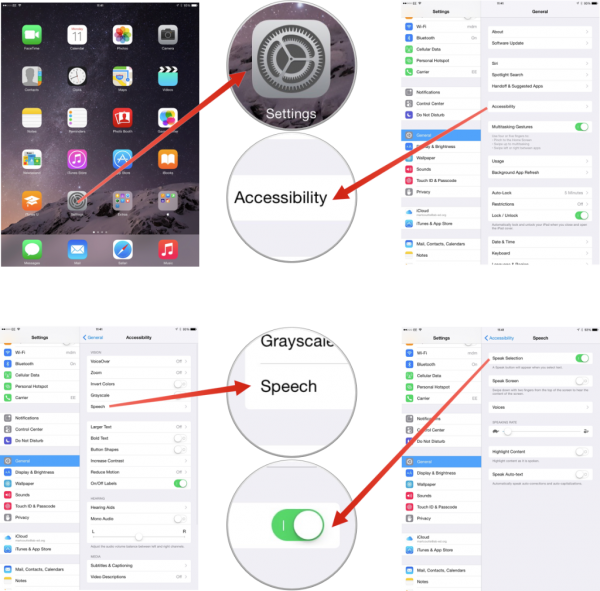
  1. Open Settings and tap General
  2. Tap Accessibility
  3. Tap Speech
  4. Slide Speech Selection to ‘On’.
  5. You can download additional voices, languages and dialects by tapping Voices.Speak Selection

Text-to-speech is an excellent tool for pupils developing their understanding of the meaning of words or can be an excellent tool for pupils who comprehend the meaning better when they hear the words spoken aloud. There is also benefit to pupils with a vision impairment who may need to access this feature at varying times depending on their level of fatigue or level of impairment.

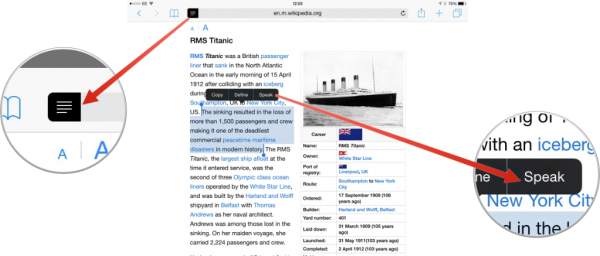
As the instructions above show, the feature itself is very easy to activate. Using the feature is also very simple as the image below demonstrates. You highlight the word or paragraph you wish to hear spoken aloud and select the Speak option from the choices that appear.

Speak text


At the moment, it depends on the particular application as to whether or not this feature will work. As it is a built in feature to iOS, it will work with Apple’s native apps, including the iWork and iLife apps that are offered for free on new accounts/devices. This means at the very least this feature can be handy when researching topics or information in Safari, reading a file/ePub in iBooks, or reviewing a written piece of work in Pages. All useful for pupils developing their RISK (research and information skills) while using the device in class.

As an added bonus, you may have noticed the Reader View Available option appear on certain websites when using Safari. This is an excellent way to reduce the distractions of websites and focus solely on the text. Distraction free learning with the text readily available to be read aloud.

Reader view

Reader view enabled


#ipaded – iPad Lock screen rules⤴

from

There have been a number of excellent posts shared online with ideas for numbered backgrounds and lock screens to use on devices shared in class. I have written articles on this myself here, where I gave you access to 40 numbered iPad wallpapers.

These can be a great way of quickly identifying which device is being used by which pupil. This is especially effective in a shared deployment where it may be difficult for a pupil to quickly identify the device they were on during the previous lesson.

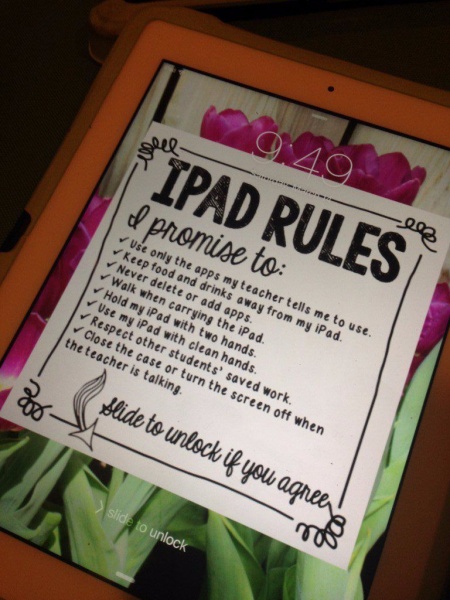
Technology Erintegration took it to the next level shared a post that highlighted 5 creative ways these can be used. One of these ideas was setting the device lock screen to display the rules and expectations of the iPads. The idea is that when every pupil swipes to unlock they are agreeing to the rules.

Her original idea is below:

iPad lockscreen demo

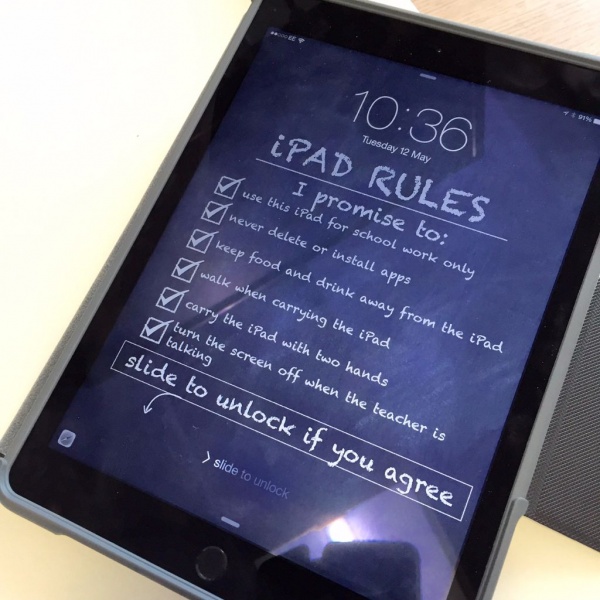
I have modified this into my own version and this is shown below:FullSizeRender.jpg

The file along with an updated set of numbered backgrounds can be found here.

App smashing in the classroom now on iBooks⤴

from

My first ever iBook has been published. You can download it from here.

In it I have tried to give users some ideas of how to get started using the iPad. This isn’t a book for veteran users, but is targeted more at teaching staff who are starting out with iPads in their lessons.

As I am a Scottish Educator, there is reference to Glow. Glow is a National digital intranet solution for schools and local authorities across the country. It is currently in it’s 2nd iteration and integrates Microsoft Office 365. As a result, teaching staff and pupils have 1Tb of OneDrive storage and in some cases access to 5 copies of Office365 apps.

Other apps mentioned include:
iTunesU
Book Creator
Explain Everything
Showbie

All of these are excellent apps on their own, but together they really are a great way to unlock the potential of the work that pupils can create using the iPad.

If you download the book I would love to hear your thoughts. Positive and Negative. If you don’t hear the negative from time to time you don’t know where to improve. I hope to do more of these as time progresses so please keep coming back to the site for regular updates.

Using OneDrive on an iOS device⤴

from

Teaching staff and pupils in Scottish schools are able to add items from an iOS device to the OneDrive for business storage available in Glow. Currently this storage is sitting at 1Tb which is equivalent to approximately 64 16Gb devices.

The previous version of the OneDrive for business app was very limited in its functionality. To add an image you were required to use a third party app and adding/deleting folders was not possible. Microsoft has since updated the OneDrive app to support a OneDrive for business account. This means you can still access your Glow storage but with more functionality and an easier to use interface.

You can download it from the app store here

To log into OneDrive app you must use your Glow credentials as an email address as follows:

Teaching staff and pupils
glowusername@glow.sch.uk  (for example gw08applejohn@glow.sch.uk)

Non-teaching staff
glowusername@glowmail.org.uk (for example gw08applejohn@glowmail.org.uk)

The app redirects to the main Glow sign in page, sign in as normal and the app will allow you to access your OneDrive storage.

The video below details how to sign in, add to, and share from the app.

#ipaded idea – create wallpapers to quickly identify iPads UPDATED⤴

from

1:1 is by far the best deployment model when introducing iPads into any classroom setting, however, 1:1 is not always viable for many reasons. Costs. Staffing etc. With over 70% of UK schools having devices deployed these will be used mostly as a shared resource. This does not take away from the value of work that can be created using the device. The ability to collate and create rich media filled content is still key to the pupil development using these devices. What can be difficult is having a quick way to identify which device is being used by which pupil. There is a convenient way to solve this minor issue, use a wallpaper numbering system.

There are plenty of versions of these out on the web and I am not the first person to come up with this option. When I did my first iPad deployment, I spent a lot of time making customised wallpapers for each department teacher using iPads in their teaching and learning practice. These were based on the dark linen theme that was present on iOS. With the launch of iOS 7 and the move to gradients and brighter colours, these quickly looked out of place. I have updated these wallpapers using the default iPad Air background image. They can be downloaded from here

These images can be handy when you have a large deployment shared between classes and teachers.